Search Results

Elan Glam Salon - Web Application Documentation

Version 1.0 | 2026

Introduction

Welcome to the Elan Glam Salon Web Application. This comprehensive management system is designed to streamline salon operations, from appointment booking and staff management to inventory control and detailed financial reporting. Our goal is to provide a seamless digital experience that enhances efficiency for staff and improves the overall service quality for our valued customers.

User Roles

Login/ Logout
Sign In

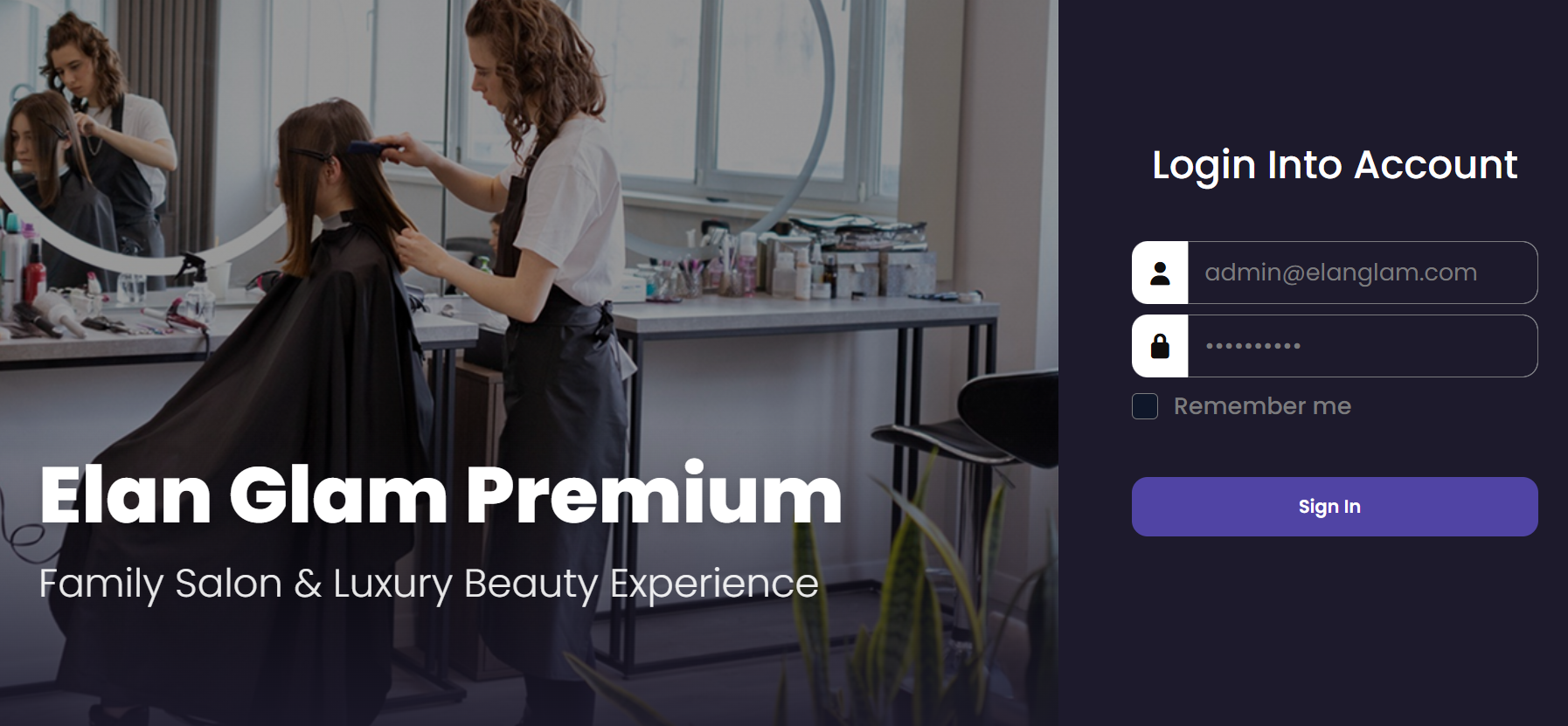
  • Enter your registered email and password, then click the Sign In button to access your dashboard.
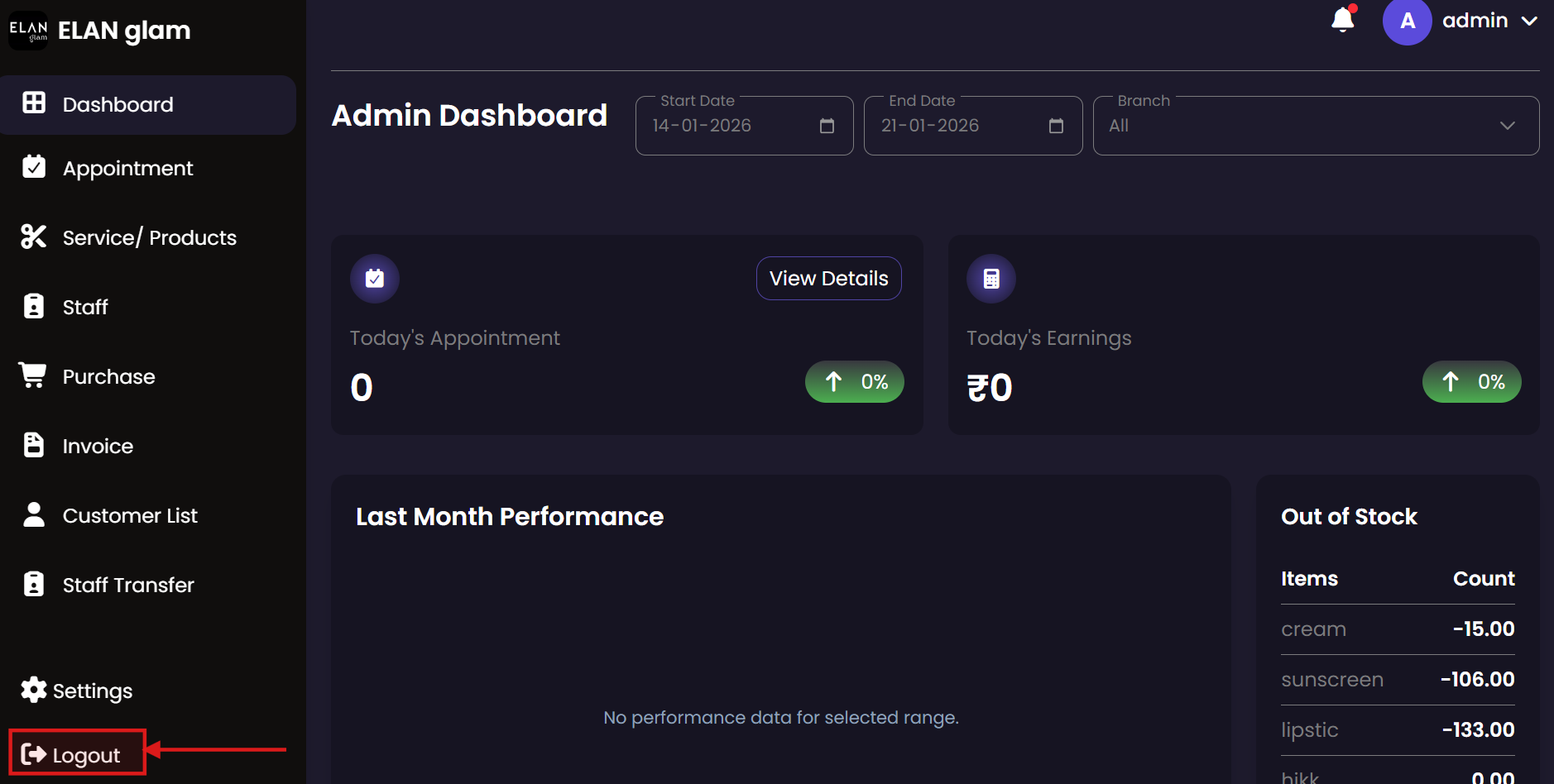
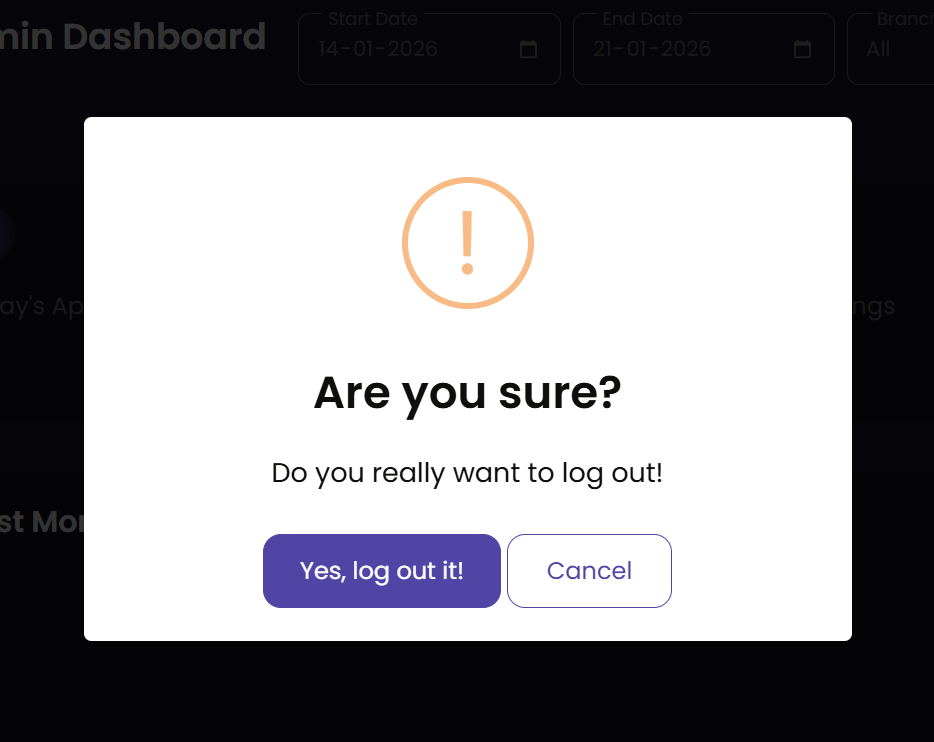
fig:logout1 fig:logout2

Sign Out

  • To securely log out of the application, click the LogOut button (fig:logout1). A confirmation popup will appear; click Yes, log out! (fig:logout2) to end your session.

Admin Module

The Admin module provides full oversight of the entire salon system. Admins can manage all branches, configure core settings (taxes, units, categories), handle personnel records, and access comprehensive financial reports across the organization.

Appointment

The Appointment system allows administrators to schedule, track, and manage customer bookings. It provides a centralized view of all service engagements, ensuring that staff and resources are effectively allocated across different branches.

Appointments List Create Appointment Update Appointment Edit Customer Info Update Booking Info Service Details
Create Appointments

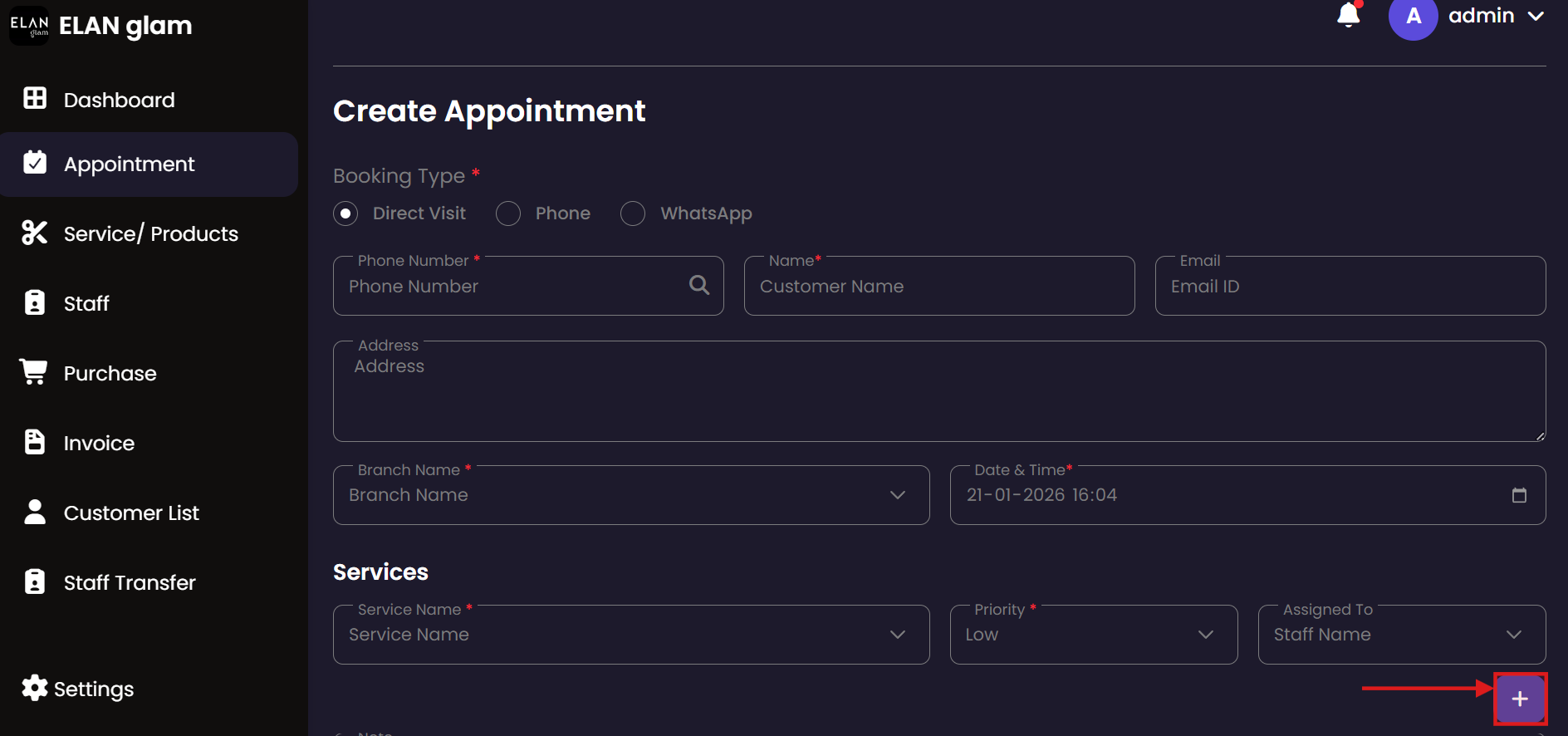
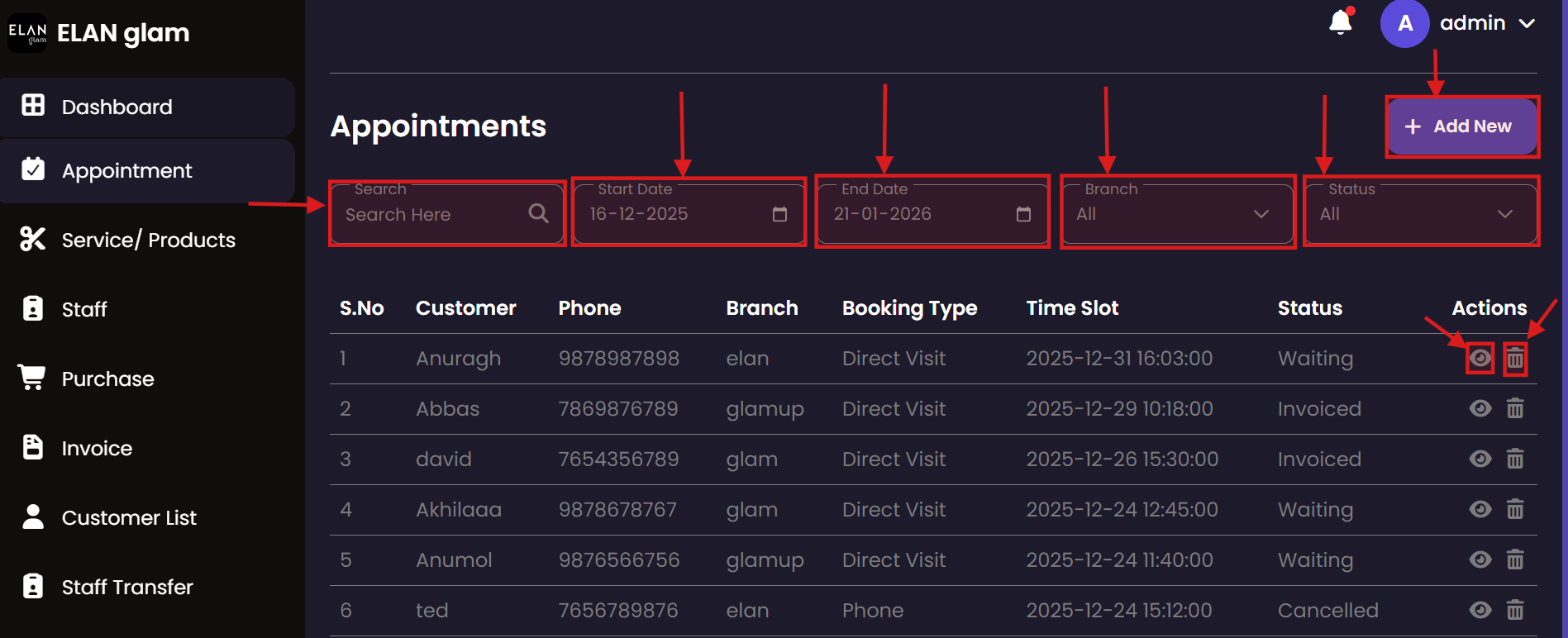
  • To create an appointment, click Appointment from the sidebar and then click the Add New button. You will be redirected to the Create Appointment page. Enter the required details and submit the form.
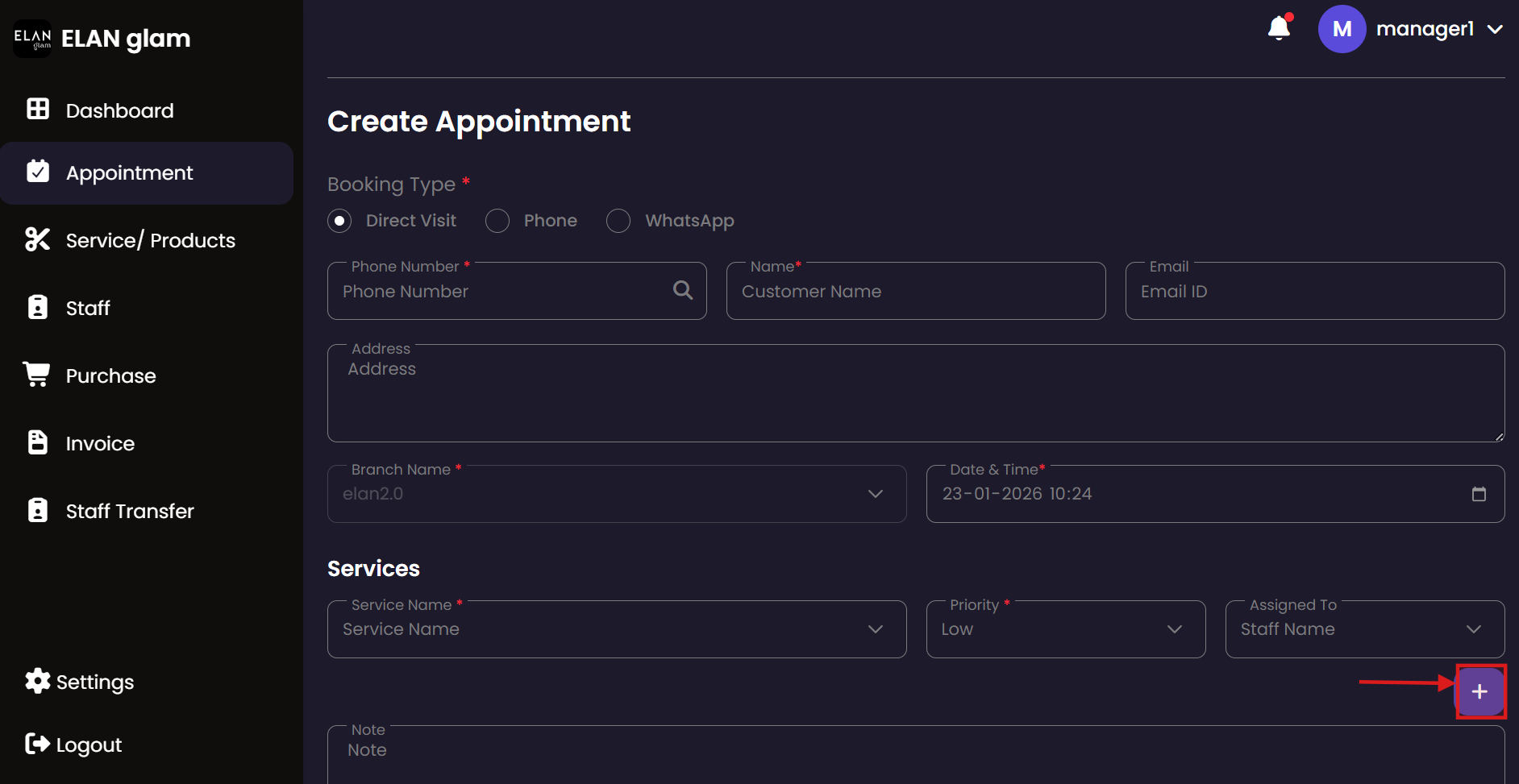
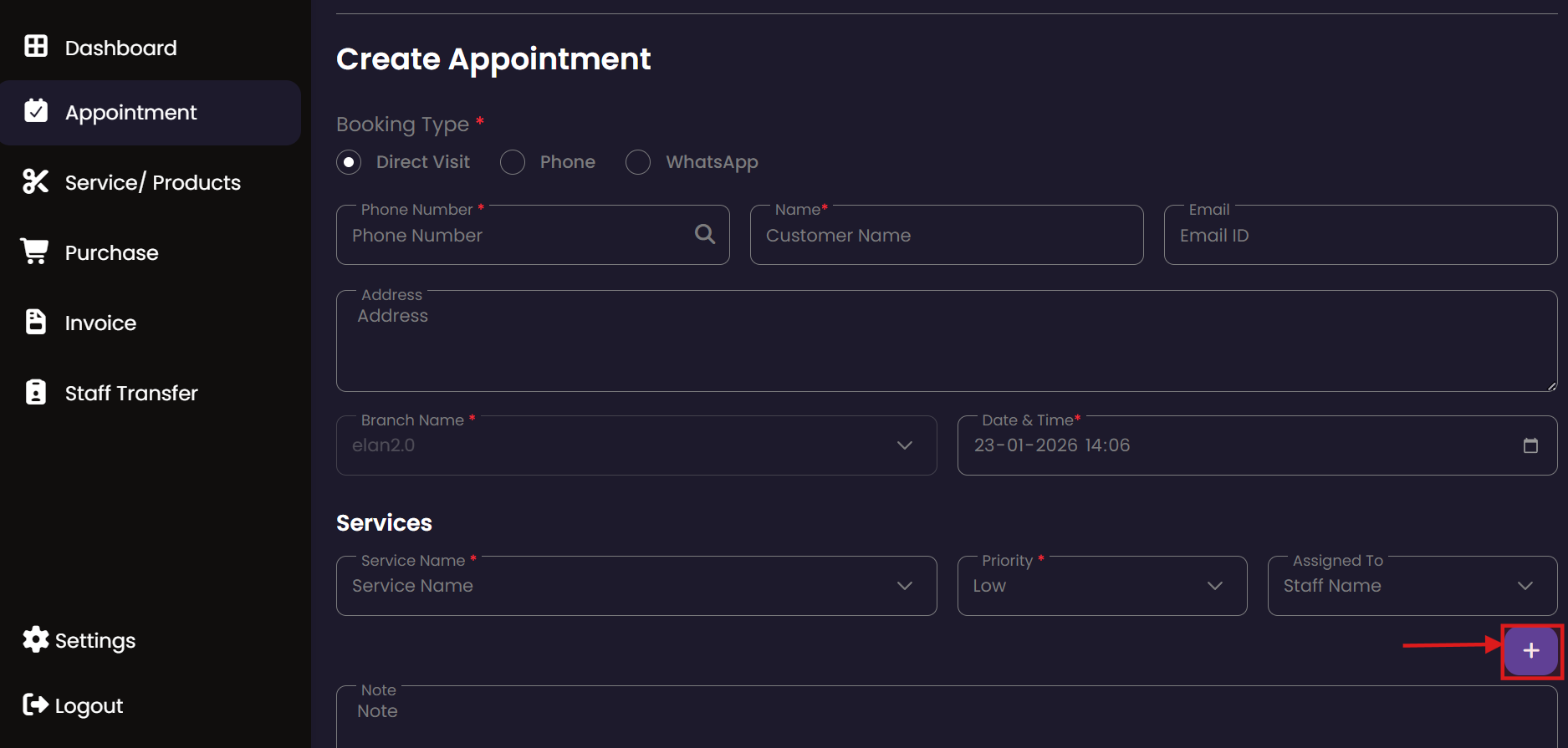
  • If the customer is availing more than one service in the same appointment, click the + button under the services section, enter the service details, and then click the Submit button.
  • Note :
    • You must create a branch first to assign a branch in an appointment.
    • Select a branch and create services under that specific branch; only those services will be listed in the Service Name drop-down.
    • Create staff members under the required branch; only then will they appear in the Staff Name drop-down.

View/Update Appointments

  • To view and update a specific appointment, click the view button (eye icon) of the corresponding appointment (fig:appointment1). You will be redirected to another page where the appointment details are displayed.
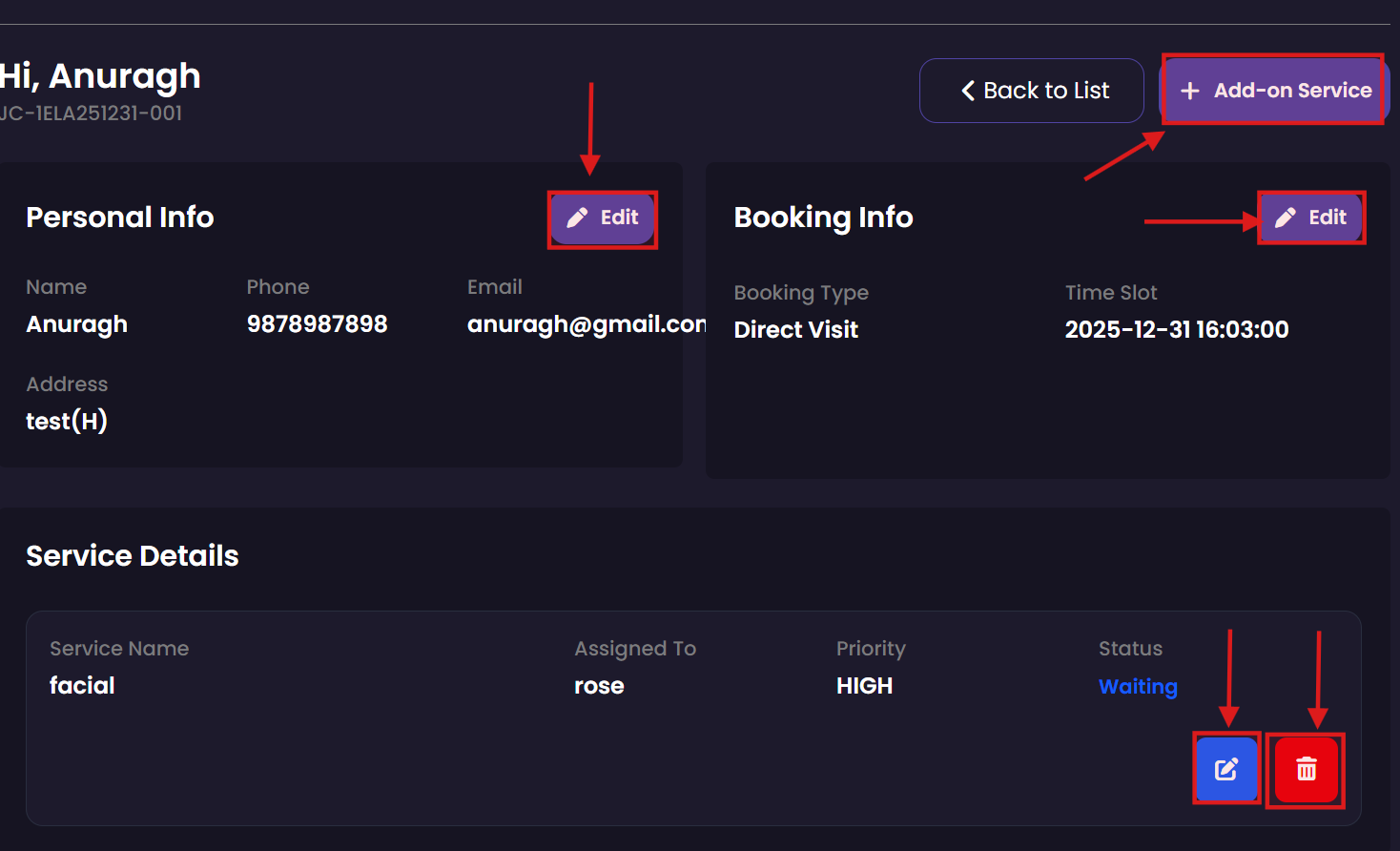
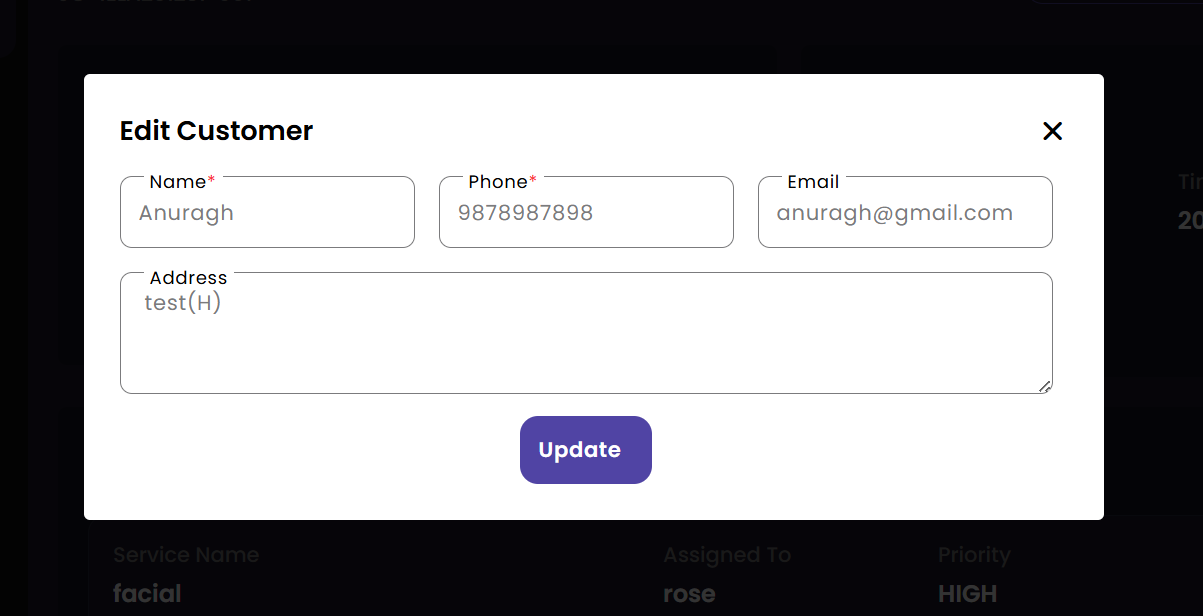
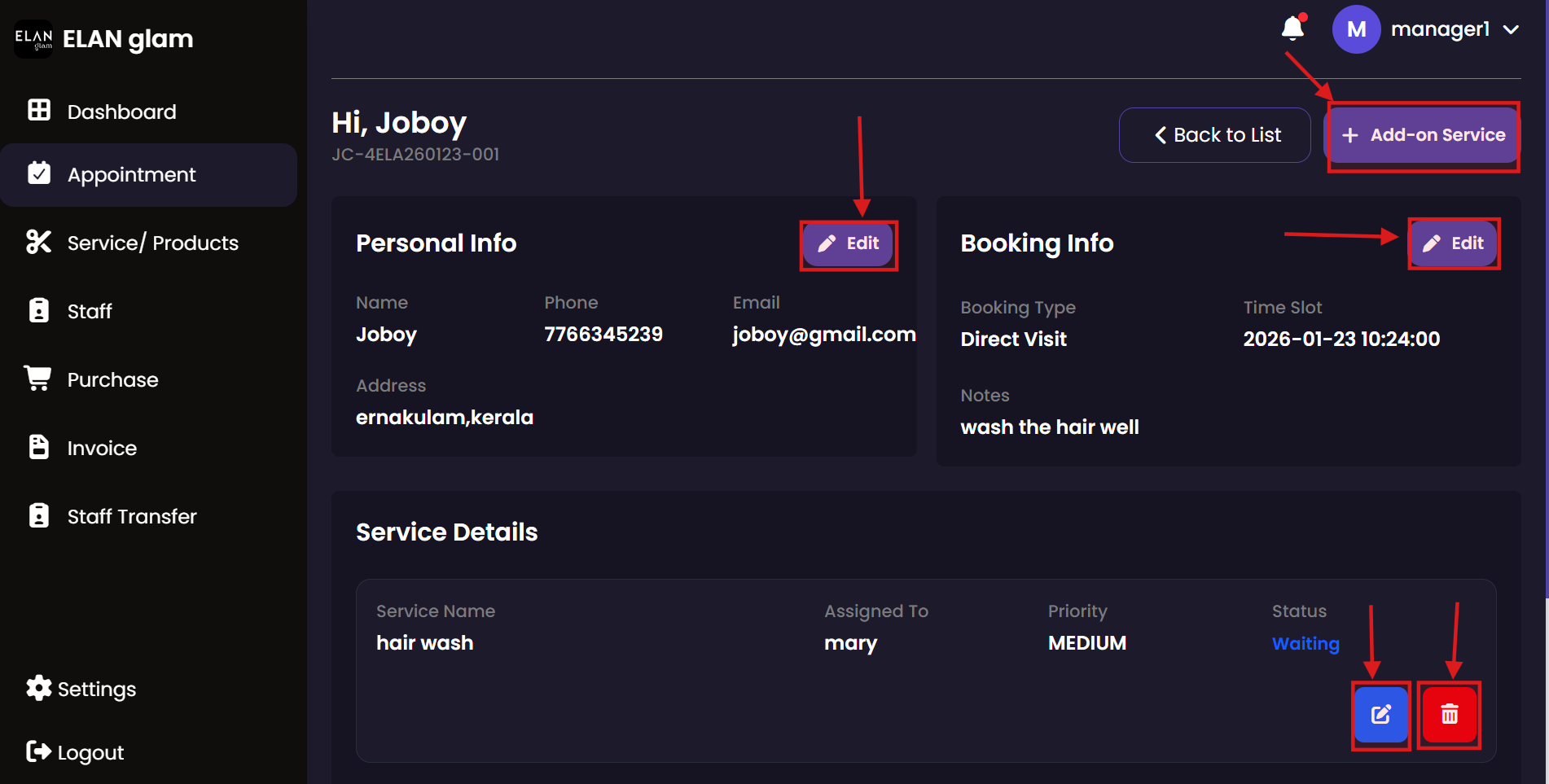
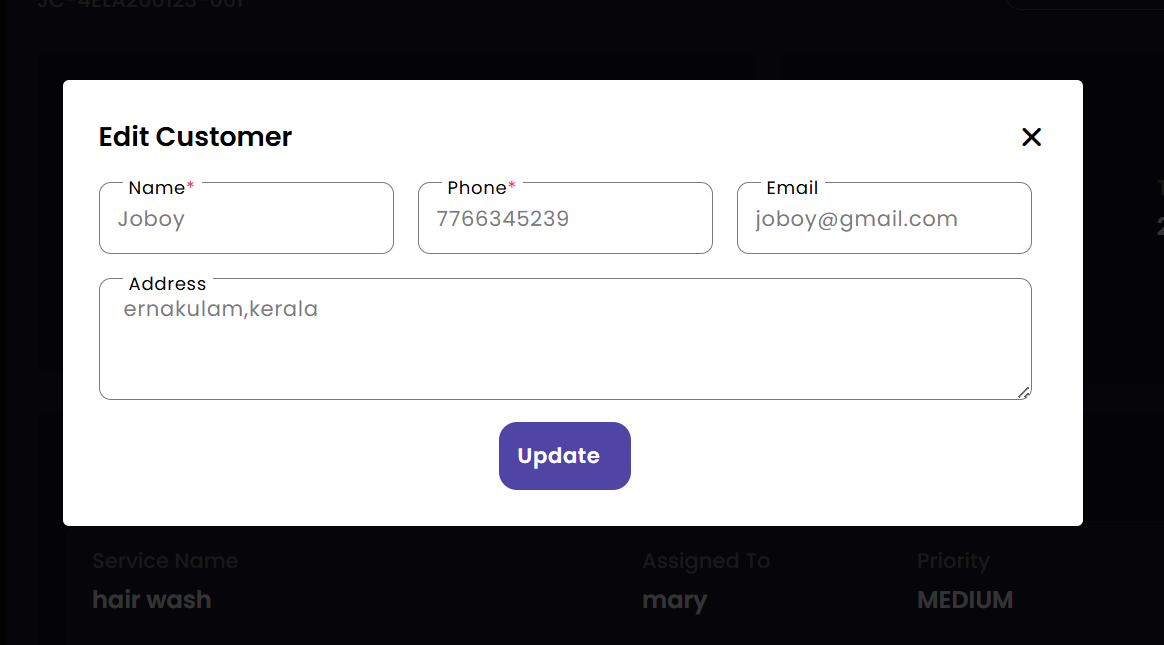
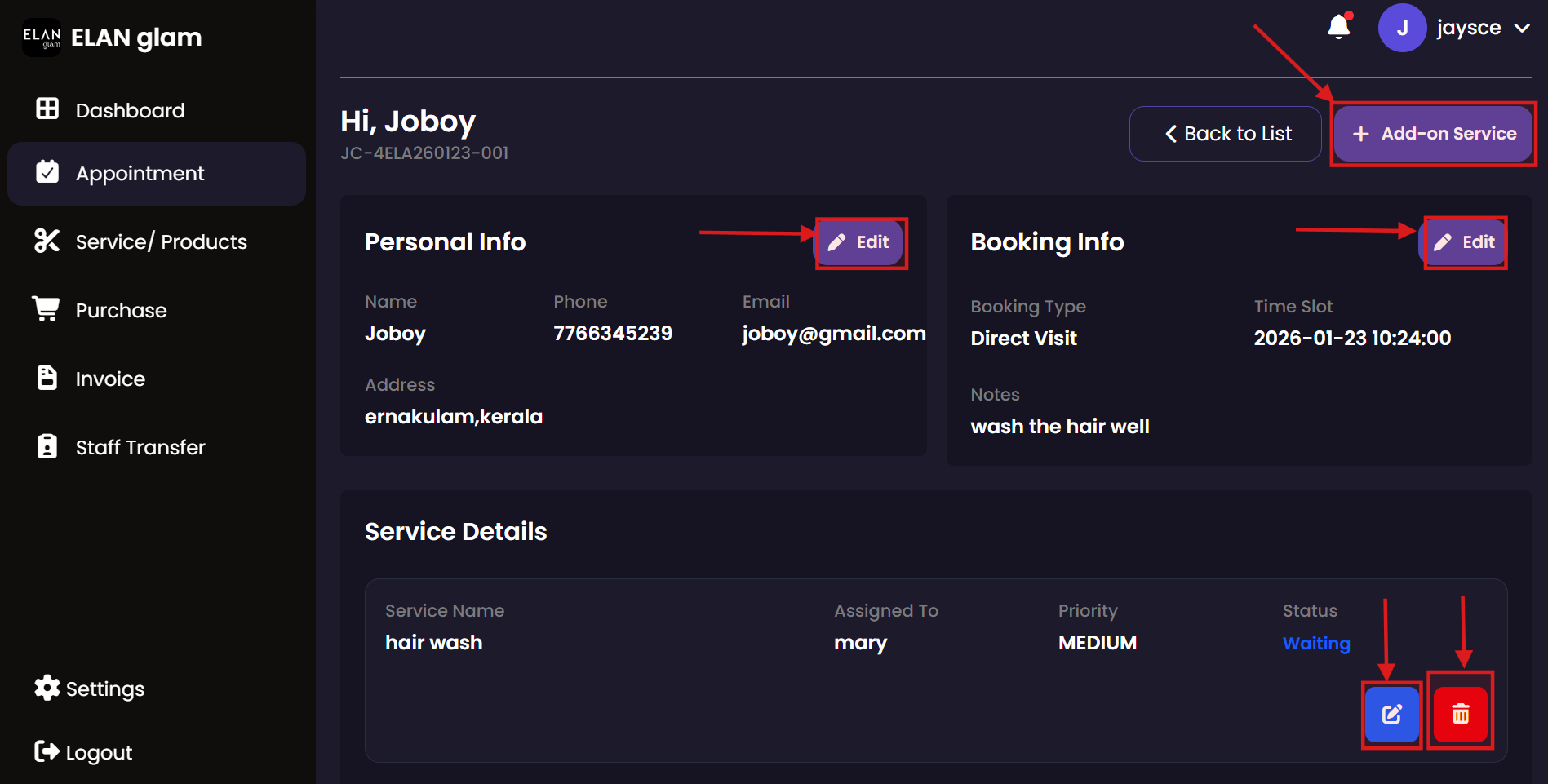
  • To update the customer’s personal information, click the Edit button under Personal Info (fig:appointment3). The Edit Customer pop-up will appear. Enter the details you want to update and click the Update button. (fig:appointment4)
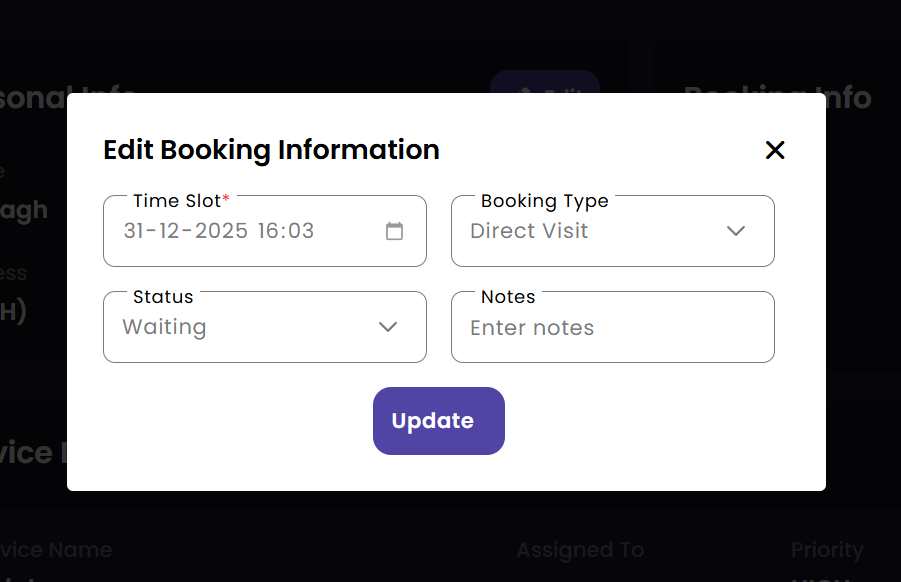
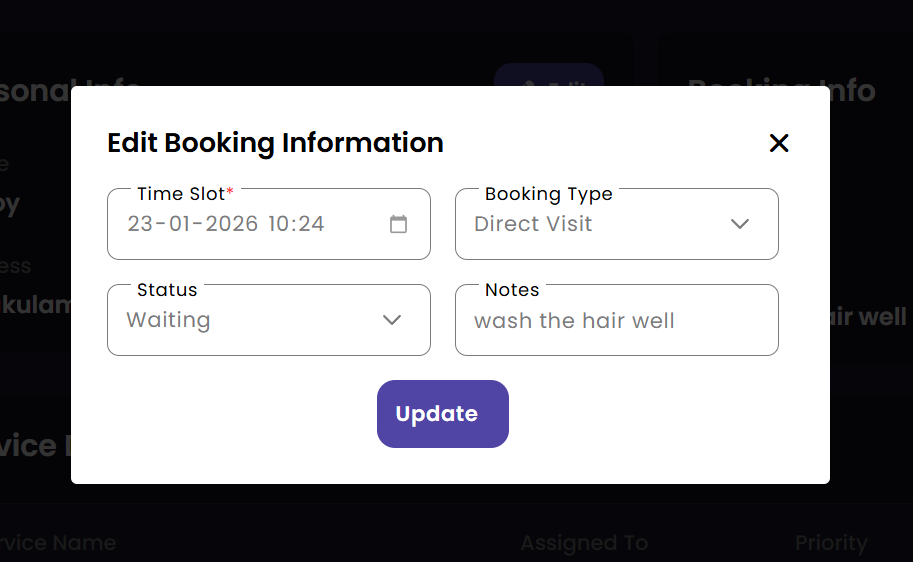
  • To update the booking information, click the Edit button under Booking Info (fig:appointment3). The Edit Booking Information pop-up will appear. Enter the details you want to update and click the Update button (fig:appointment5).
  • To update the service details in an appointment, click the blue edit button in the lower right corner. New drop-downs will appear under the service details. Update the required information and then click the Save Changes button(Save Changes button will only appear when you click blue edit button )(fig:appointment3).
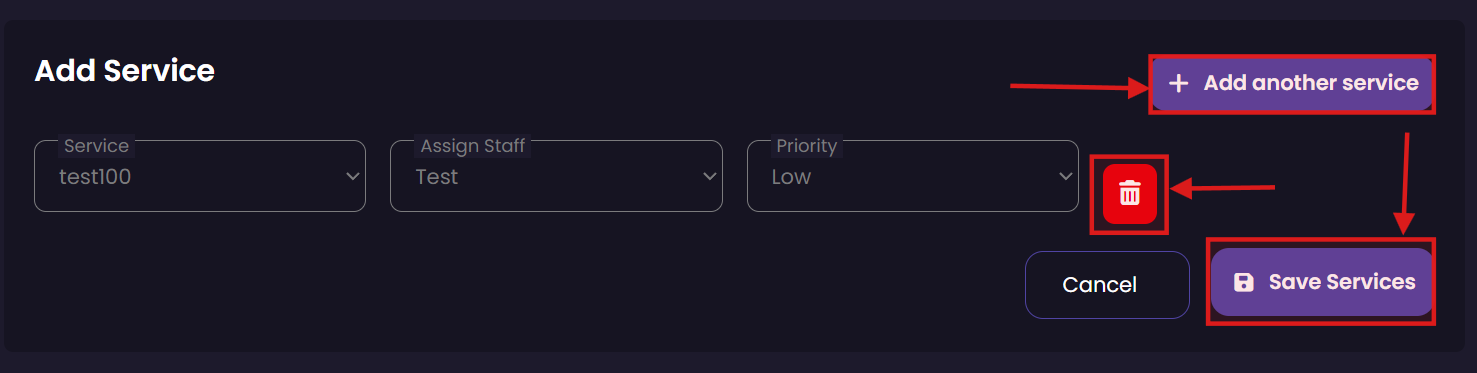
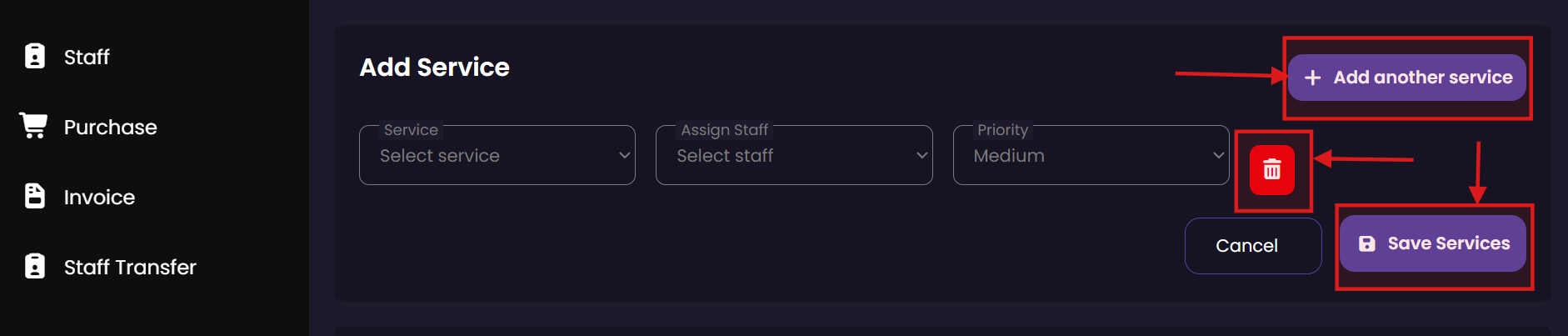
  • To add a new service to the existing appointment click the + Add-on Service button (fig:appointment3) a new section Add Service appears enter the details and click the Save Services button (fig:appointment6).If you want to delete that service you can click the red delete button.

Delete Appointment

  • If you want to delete a particular appointment click the delete button (fig:appointment1) of the corresponding appointment.

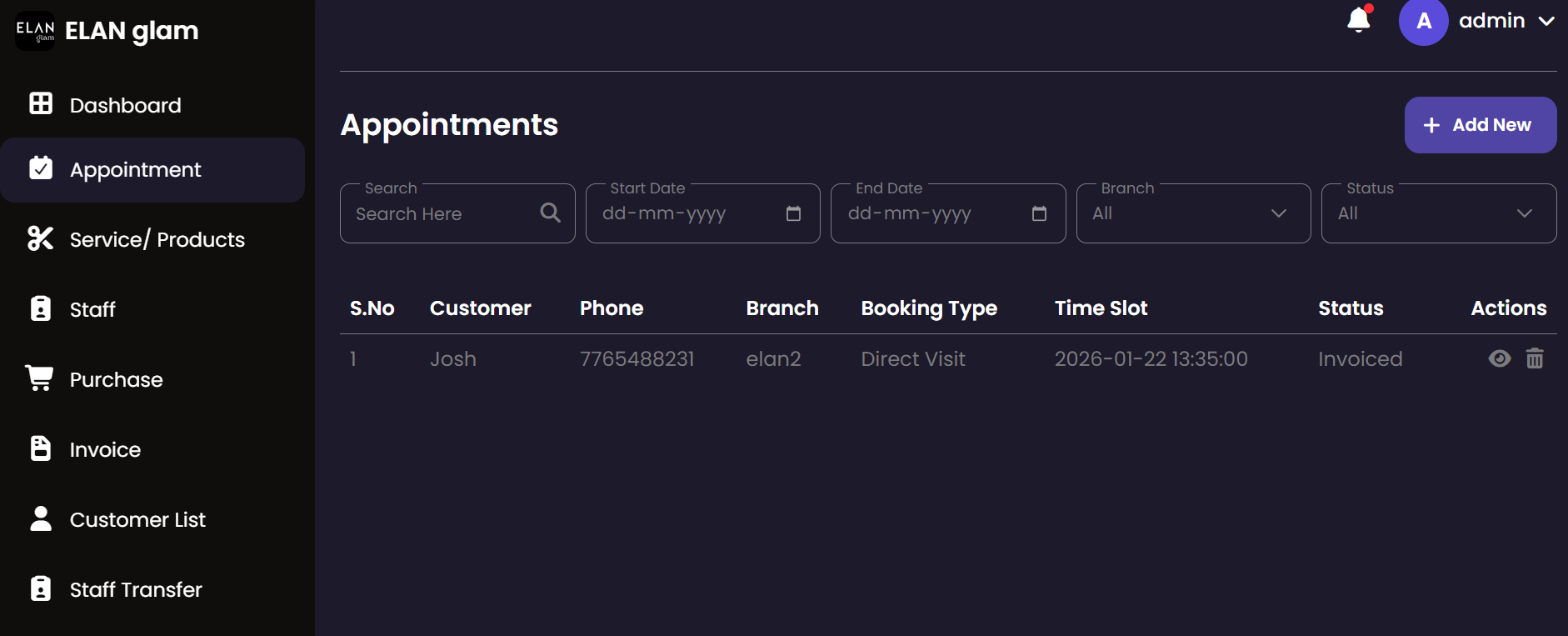
Search Appointment

  • To filter appointments by date, select the desired start and end dates.
  • To view appointments for a specific branch, choose the branch from the Branch dropdown menu.
  • To find a specific customer's appointment, type their name or phone number in the Search Here bar.

Products/Services

Manage the salon's inventory and service menu here. You can define what products are for sale and what services are offered to customers, including their pricing, tax implications, and associated units of measurement.

Products & Services List Create Entry Update Entry
Create Product/Services

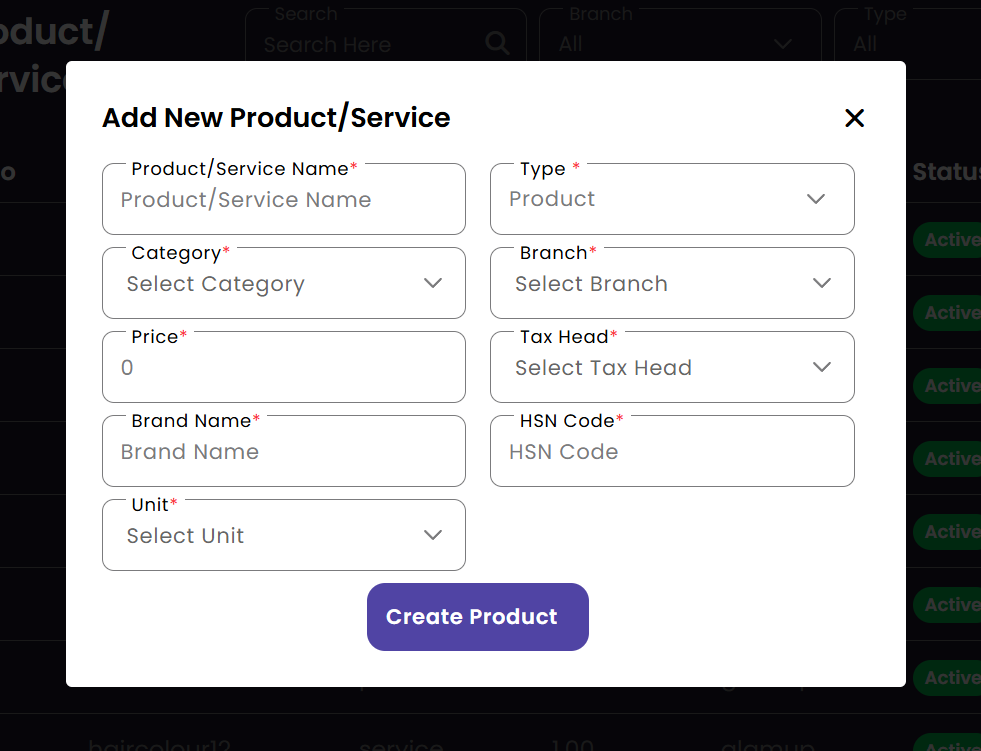
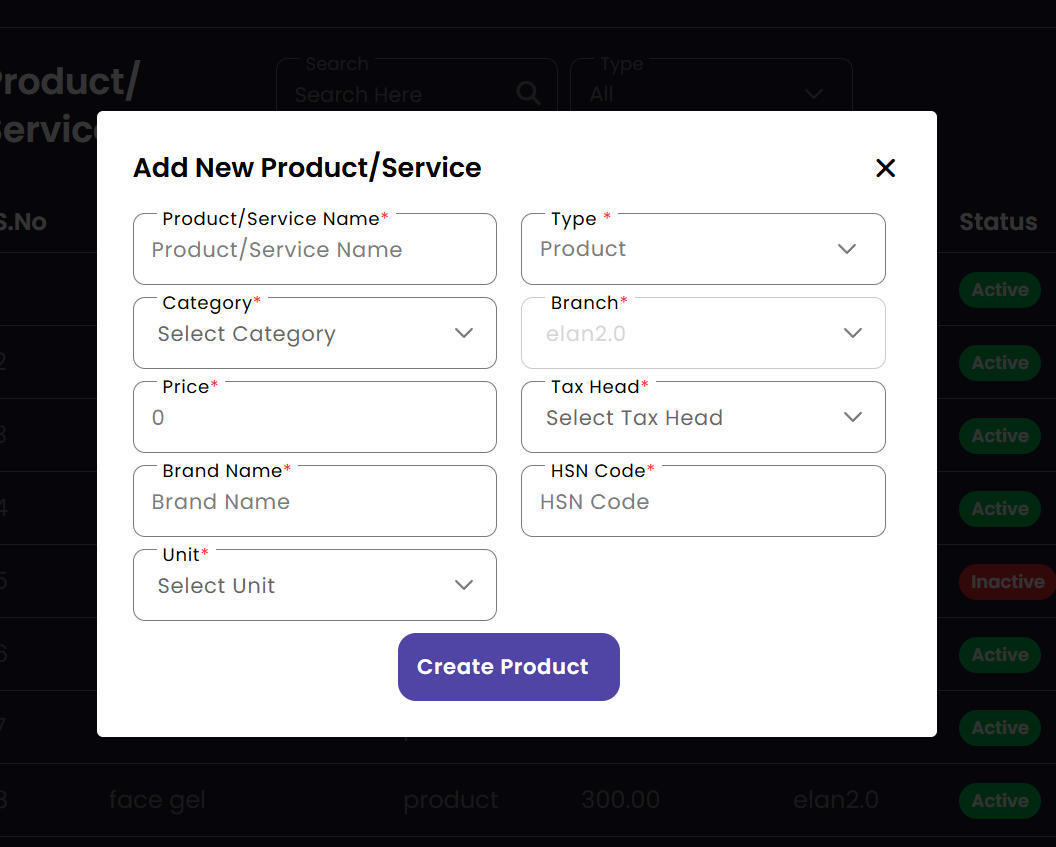
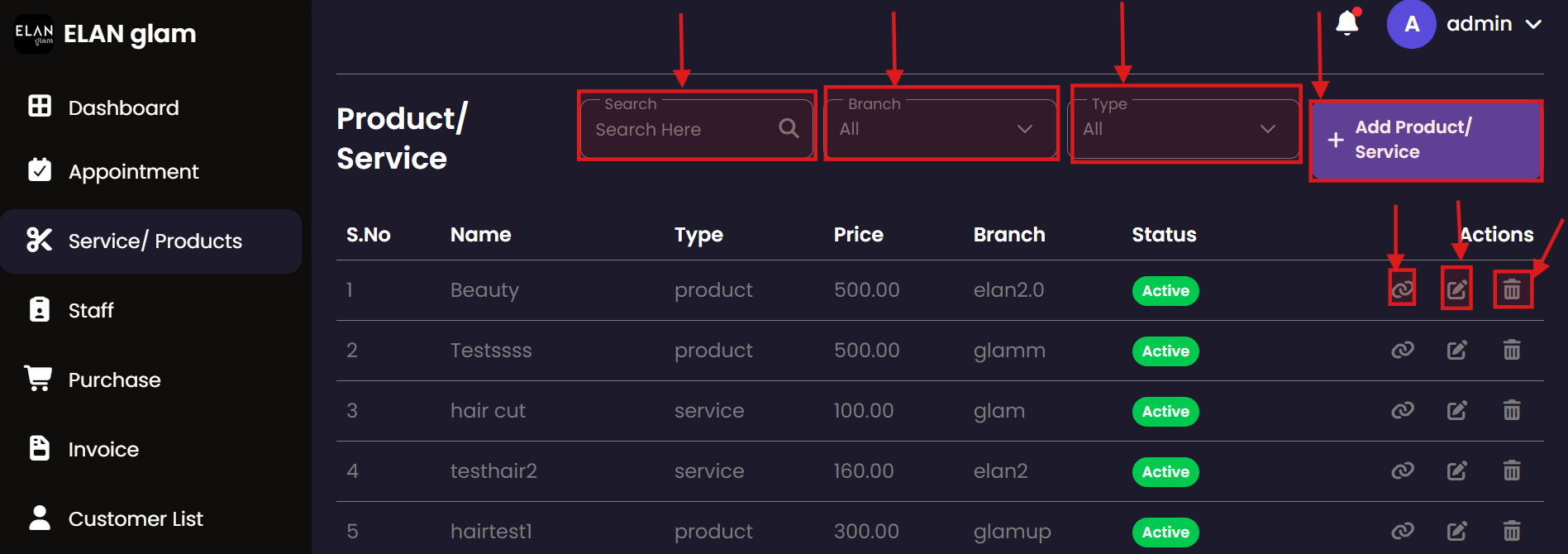
  • To create a product/service, click Service/Product from the sidebar and then click the + Add Product/ Service button (fig:pro/ser1). A popup called Add New Product/Service appears. Enter the required details and click the Create Product button.
  • To create a product, select Product from the Type drop-down. To create a service, select Service from the Type drop-down(fig:pro/ser2).
  • Note :

Update Product/Services

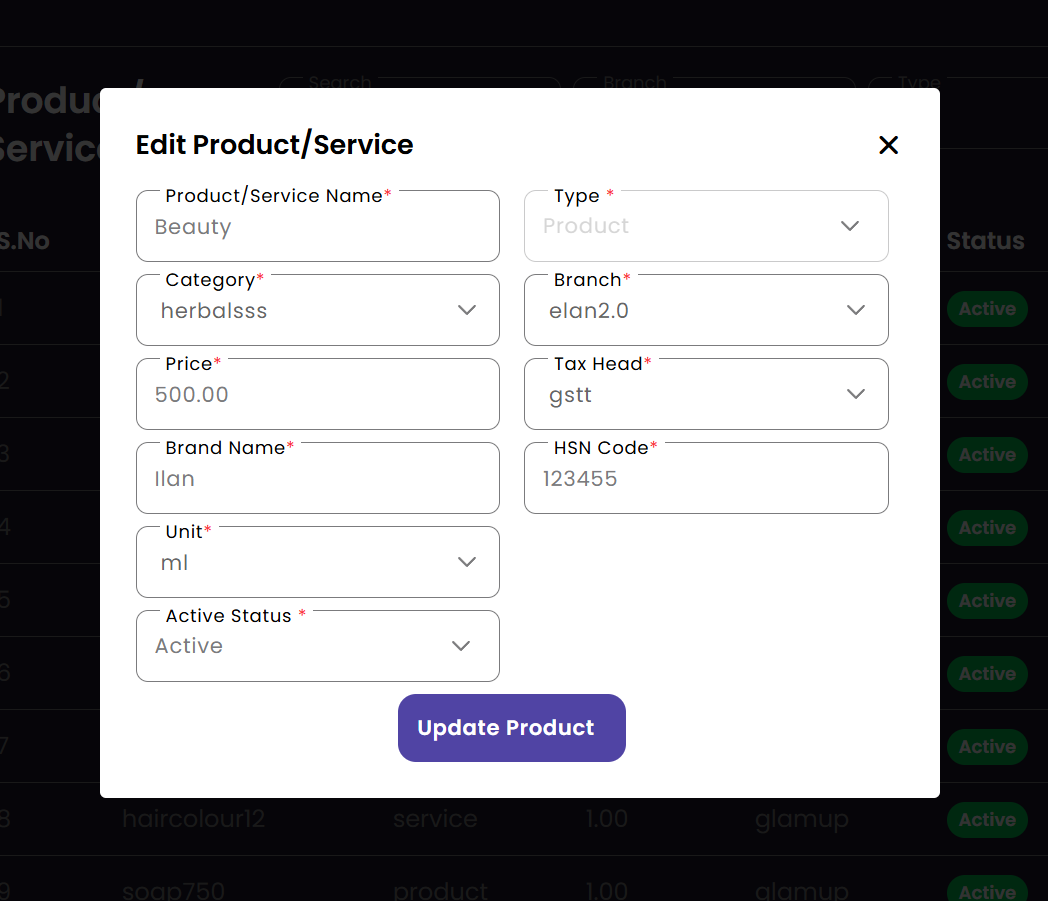
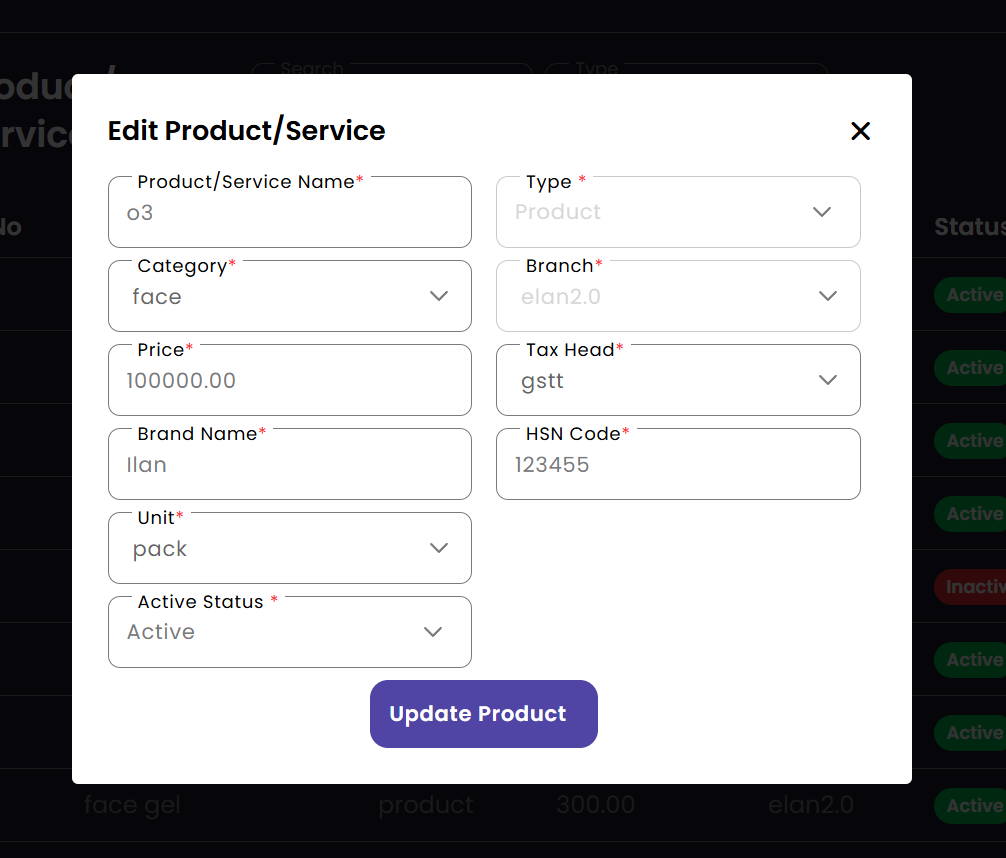
  • If you want to update a particular product, click the edit button (fig:pro/ser1) of the corresponding product/service. A popup window (Edit Product/Service) will appear; enter the updated details and click the Update Product button (fig:pro/ser3).

Delete Product/Service

  • To remove a product or service, click the delete button for the corresponding entry.

Search Product/Service

  • To filter products/services by branch, select the required branch from the Branch dropdown.
  • To toggle between viewing products or services, use the Type dropdown.
  • To search for a specific item by name, type it into the Search Here bar.

Service Item Mapping Product/Service

  • If a product or service is mapped to another item, click the Mapping button for that product or service to navigate to the service item mapping page and view its mappings. (Service Item Mapping Explanation : If a specific product is required to perform a particular service, that product must be mapped to the service)

Staff

The Staff management portal allows you to maintain records for all employees. You can assign roles, manage login credentials, and ensure staff members are correctly placed within their respective branches.

Staff List Add New Staff Edit Staff Details Reset Password
Create Staff

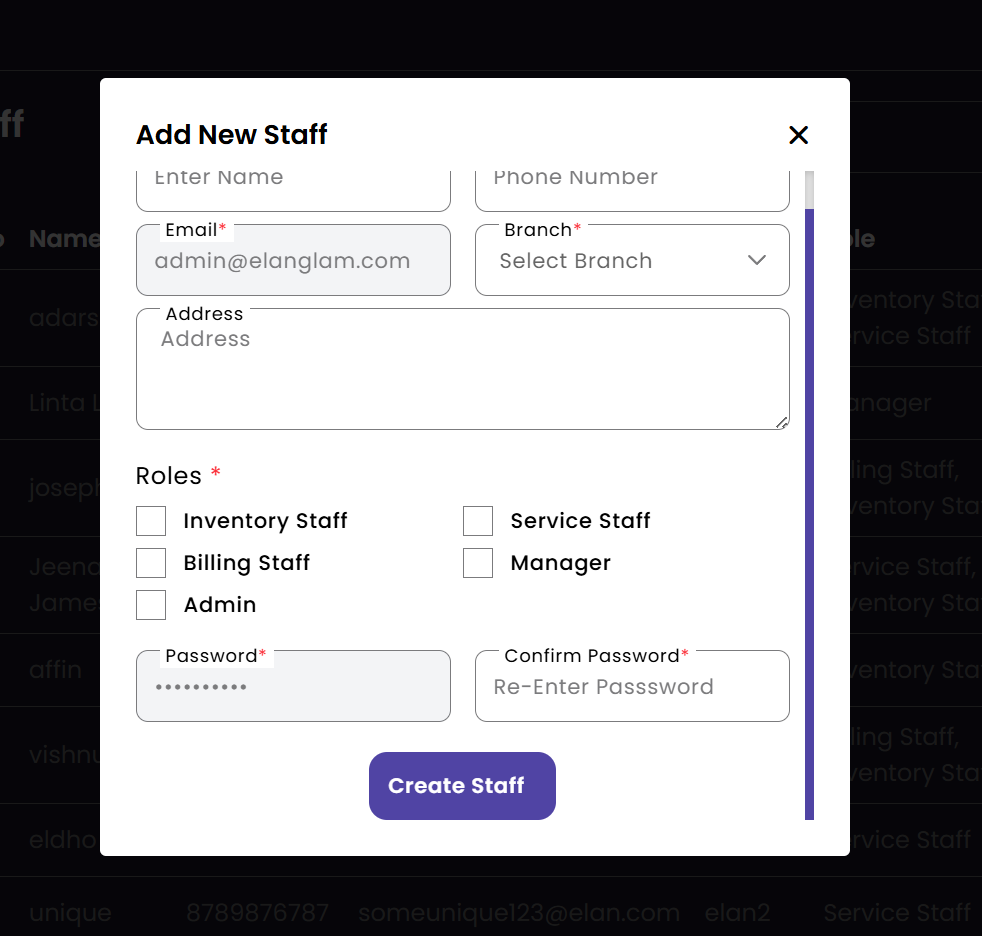
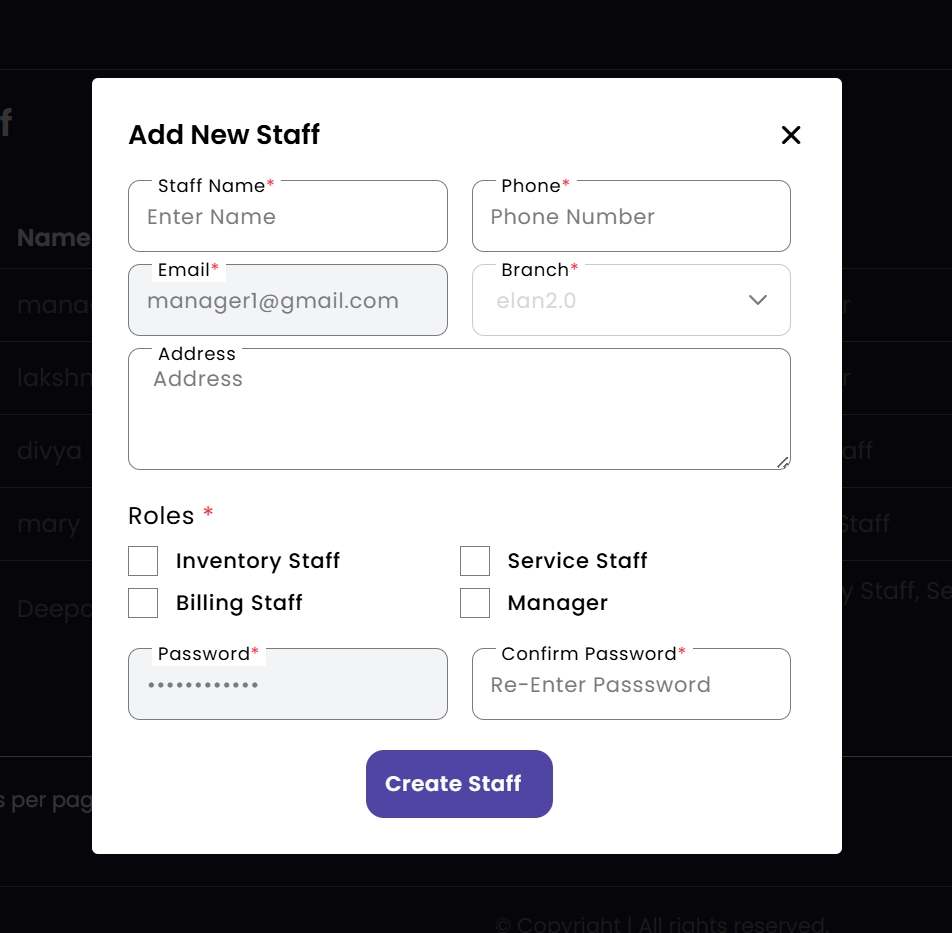
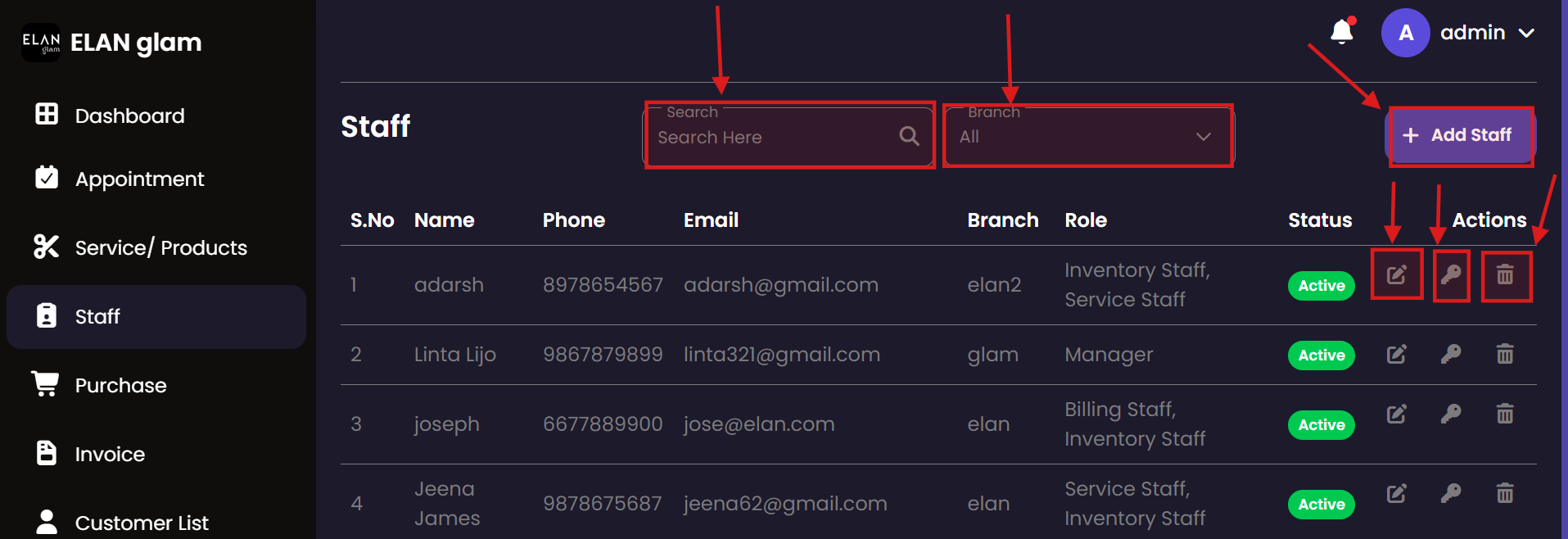
  • To add a staff, click Staff from the sidebar and then click the + Add Staff button (fig:staff1). A popup called Add New Staff appears. Enter the required details and click the Create Staff button(fig:staff2).
  • To assign a specific role to a staff , tick the checkbox corresponding to the role you want to assign (Fig: staff2).
  • Note :

Update Staff

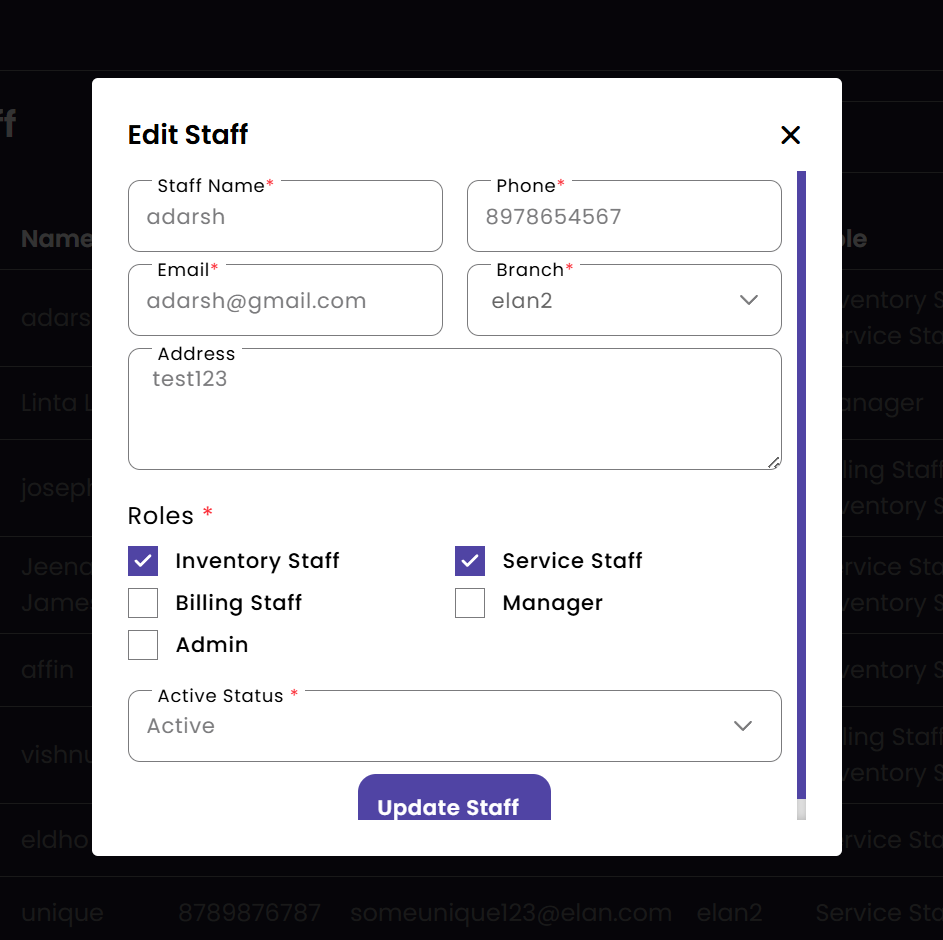
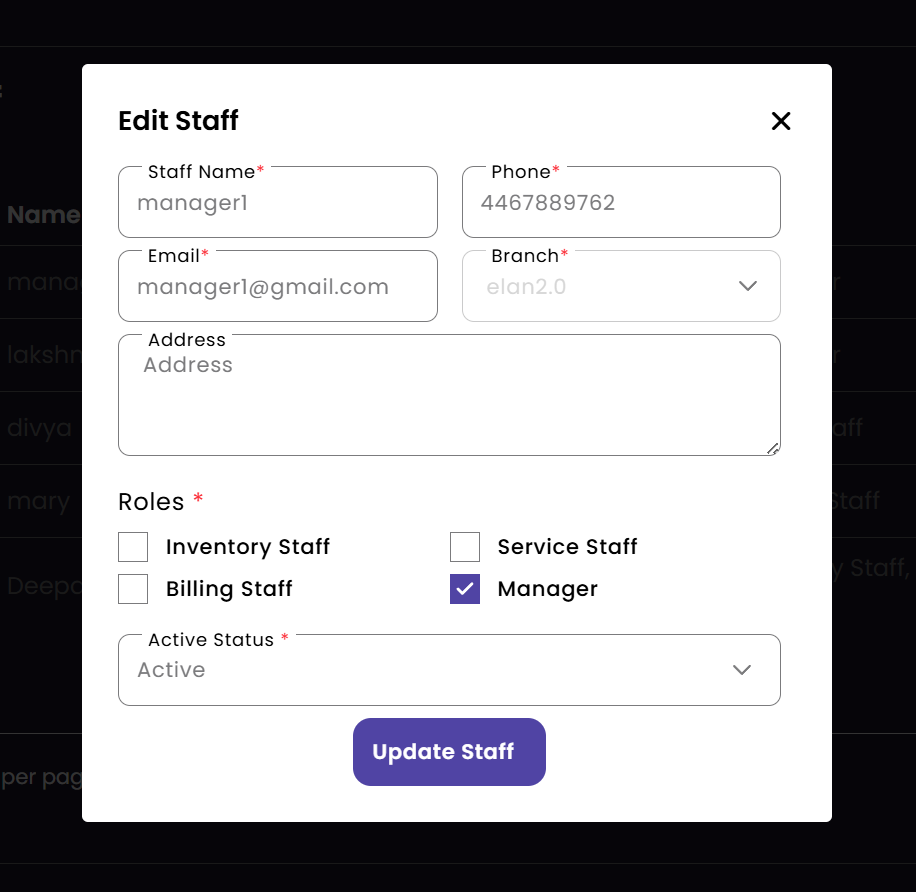
  • If you want to update the details of a particular staff click the edit button (fig:staff1) of the corresponding staff then a new popup Edit Staff appears enter the required details and click the Update Staff button (fig:staff2).

Delete Staff

  • If you want to delete a particular staff click the delete button of the corresponding staff.

Search Staff

  • If you want to get Staff members in a particular branch select the required branch from the branch drop down.
  • If you want to select the staff based on the name of the staff type the name of the staff in the Search Here search bar.

Staff Password

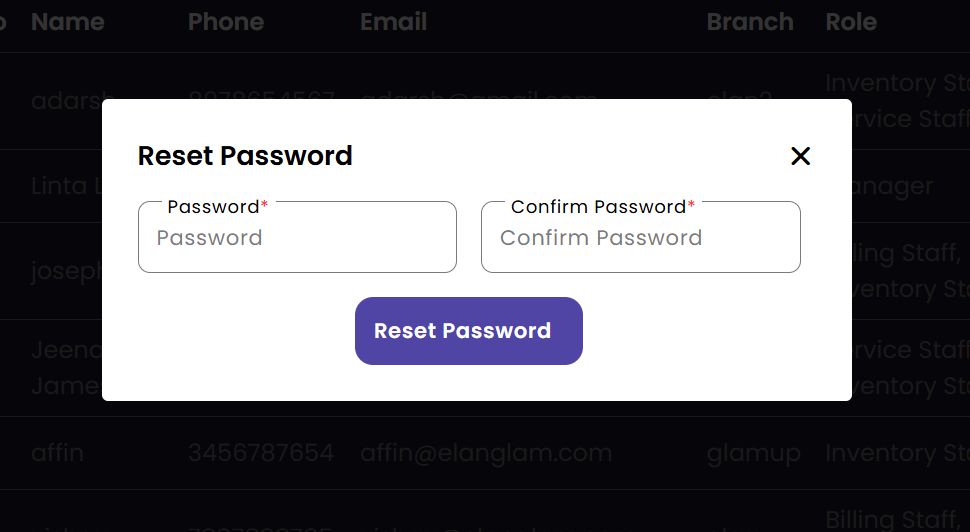
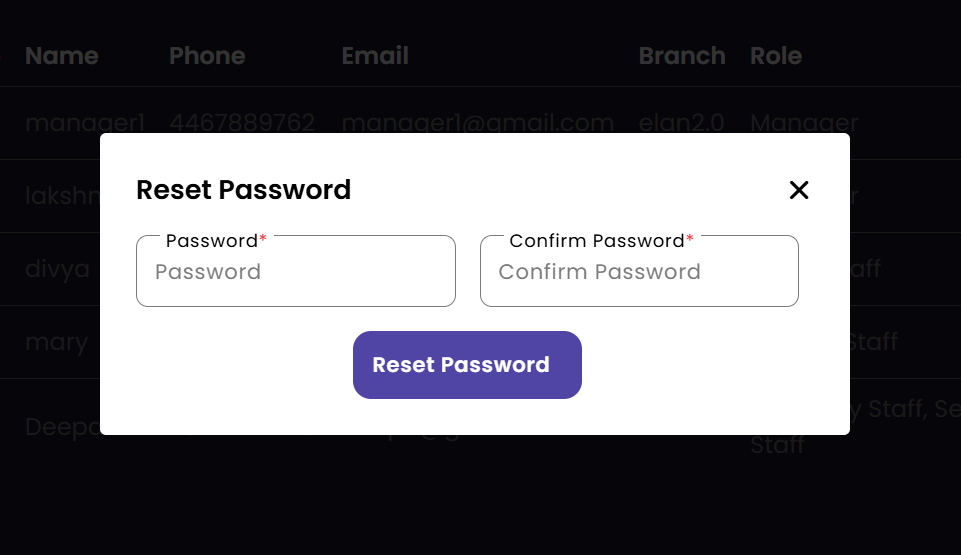
  • If you want to change the password of a staff then click the password button(key icon) (fig:staff1) then a popup Reset Password appears change the password and click the Reset Password button (fig:staff4).

Purchase

The Purchase module tracks all incoming inventory and supplies. It allows administrators to record stock acquisitions from various vendors, ensuring that the salon's inventory is always up-to-date and costs are properly logged.

Purchase Records New Purchase Entry Update Entry Purchase Details
Create Purchase

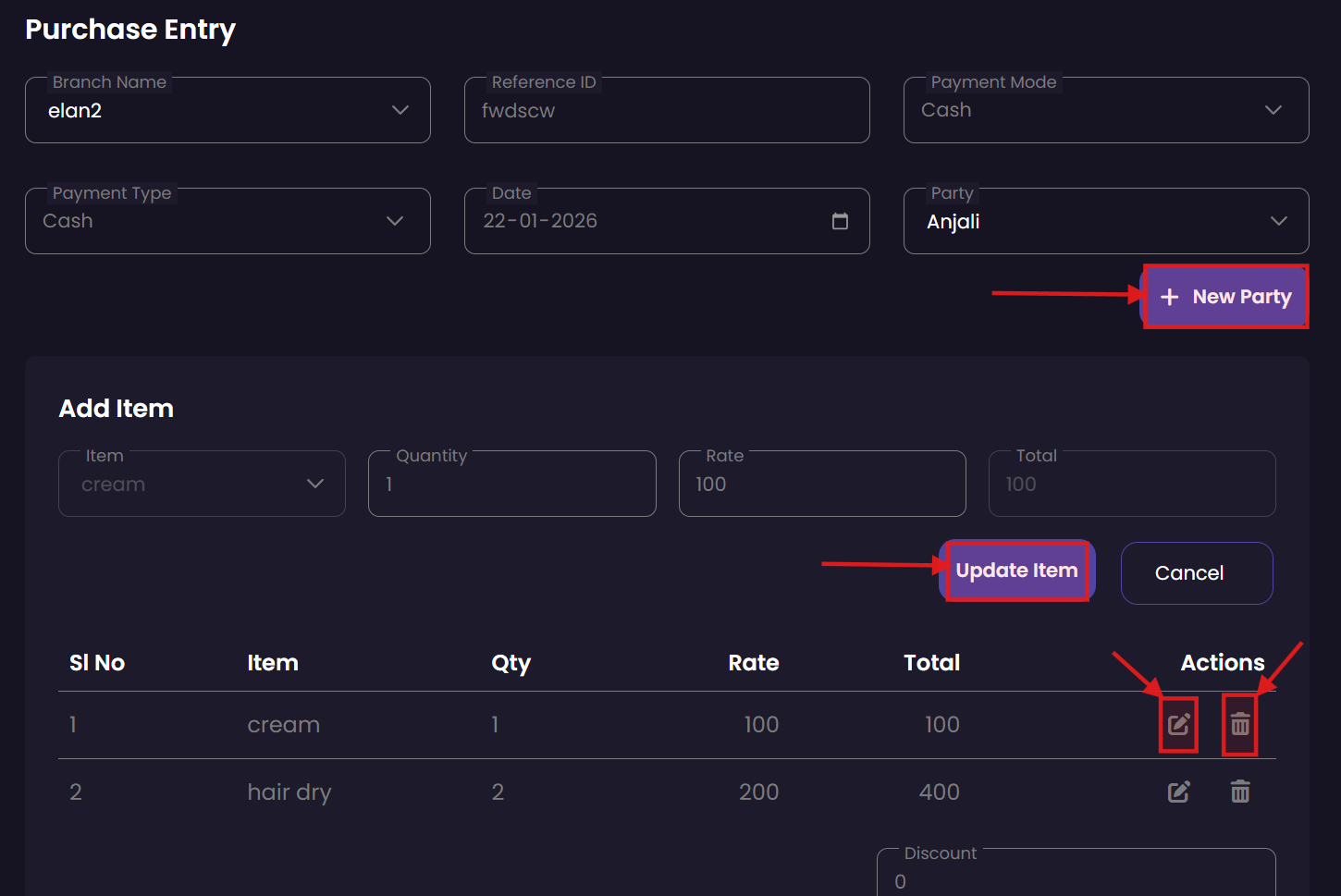
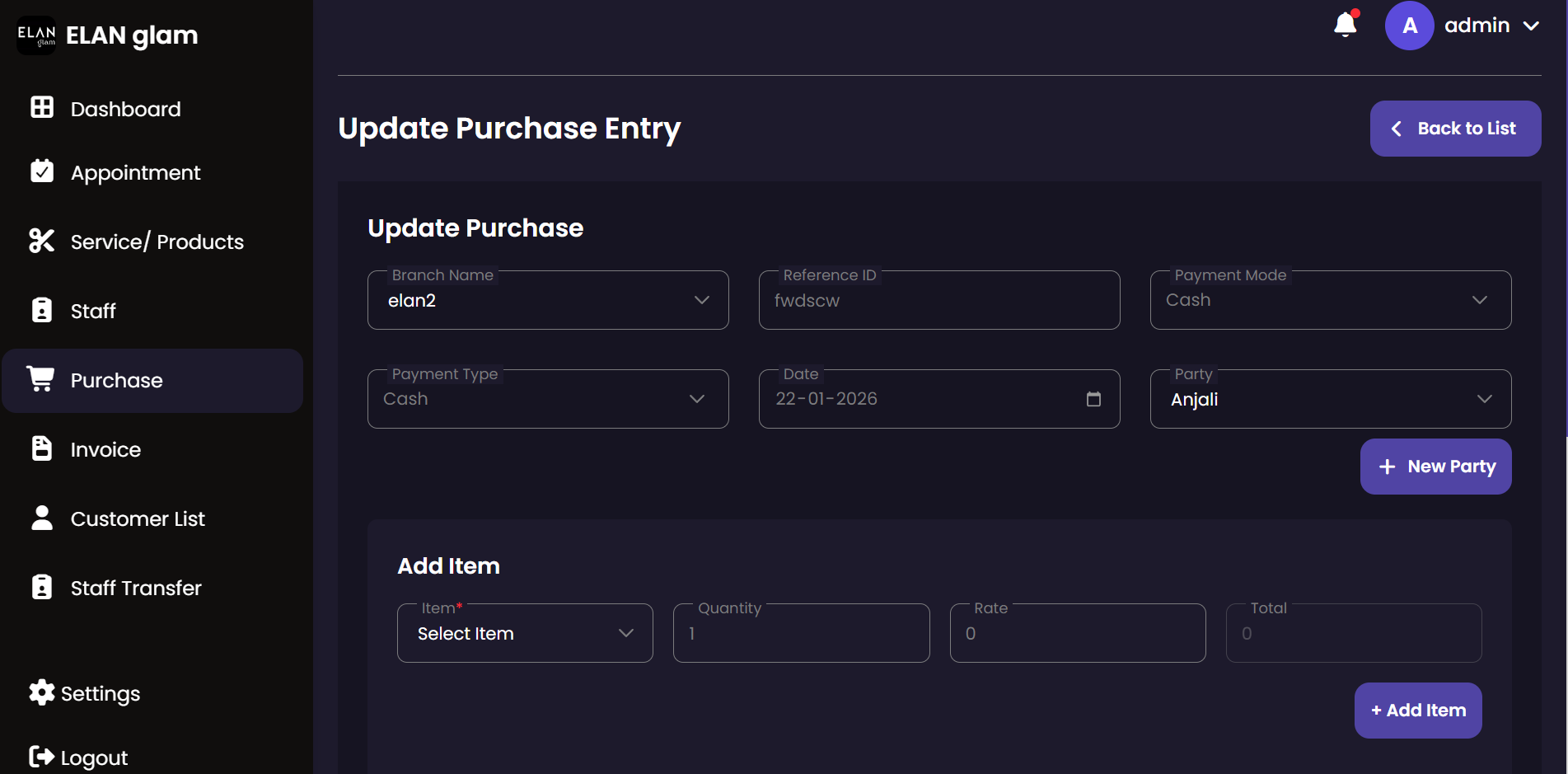
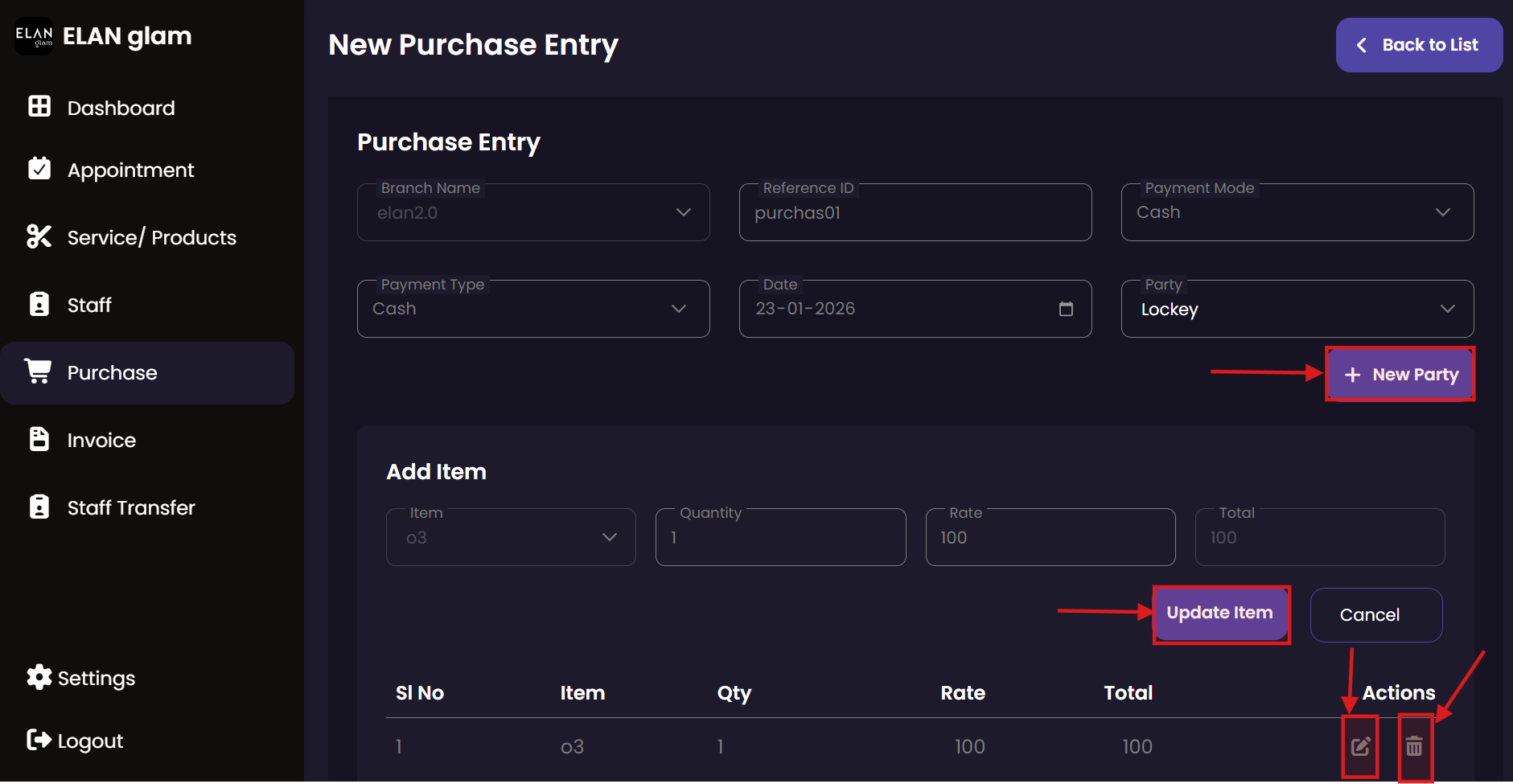
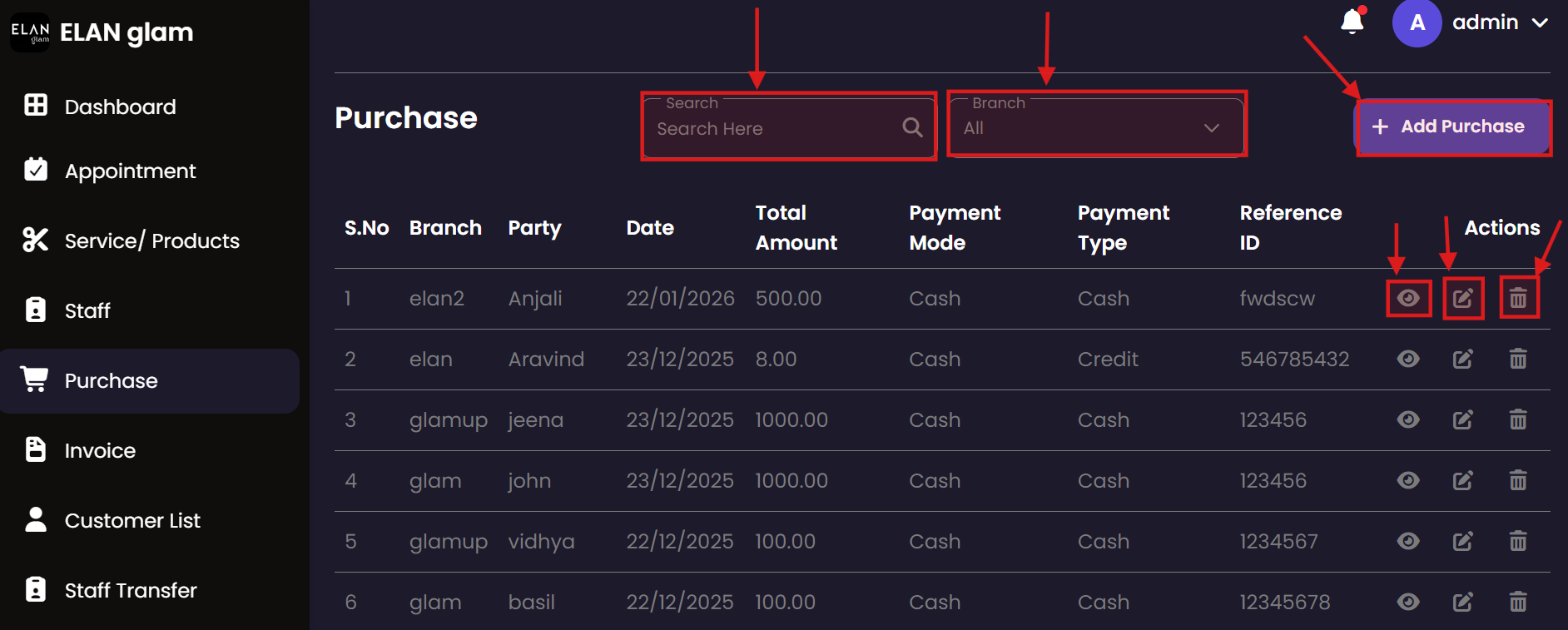
  • To make a purchase, click Purchase from the sidebar and then click the + Add Purchase button (fig:purchase1). You will be redirected to the New Purchase Entry page (fig:purchase2). Enter the required details and click the Submit button.
  • If the customer want to purchase more than one item in a single purchase , click the Add Item button under the Add Item section, enter the item details .
    • If you want to update any details of that item , click the update button of the corresponding item and click the Update Item button.
    • If you want to remove that item from the purchase then click the delete button of the corresponding item.
  • Note:
    • You must create a branch first to make purchase for a branch.
    • You have to create a product, only then the product will be listed in the Item drop down under the Add Item section.
    • If you choose a particular branch then the products under that branch will be listed in Item drop down.
  • If you are purchasing the product from a new party (vendor) then you have to click the + New Party button and enter the name of the new party.

Update Purchase

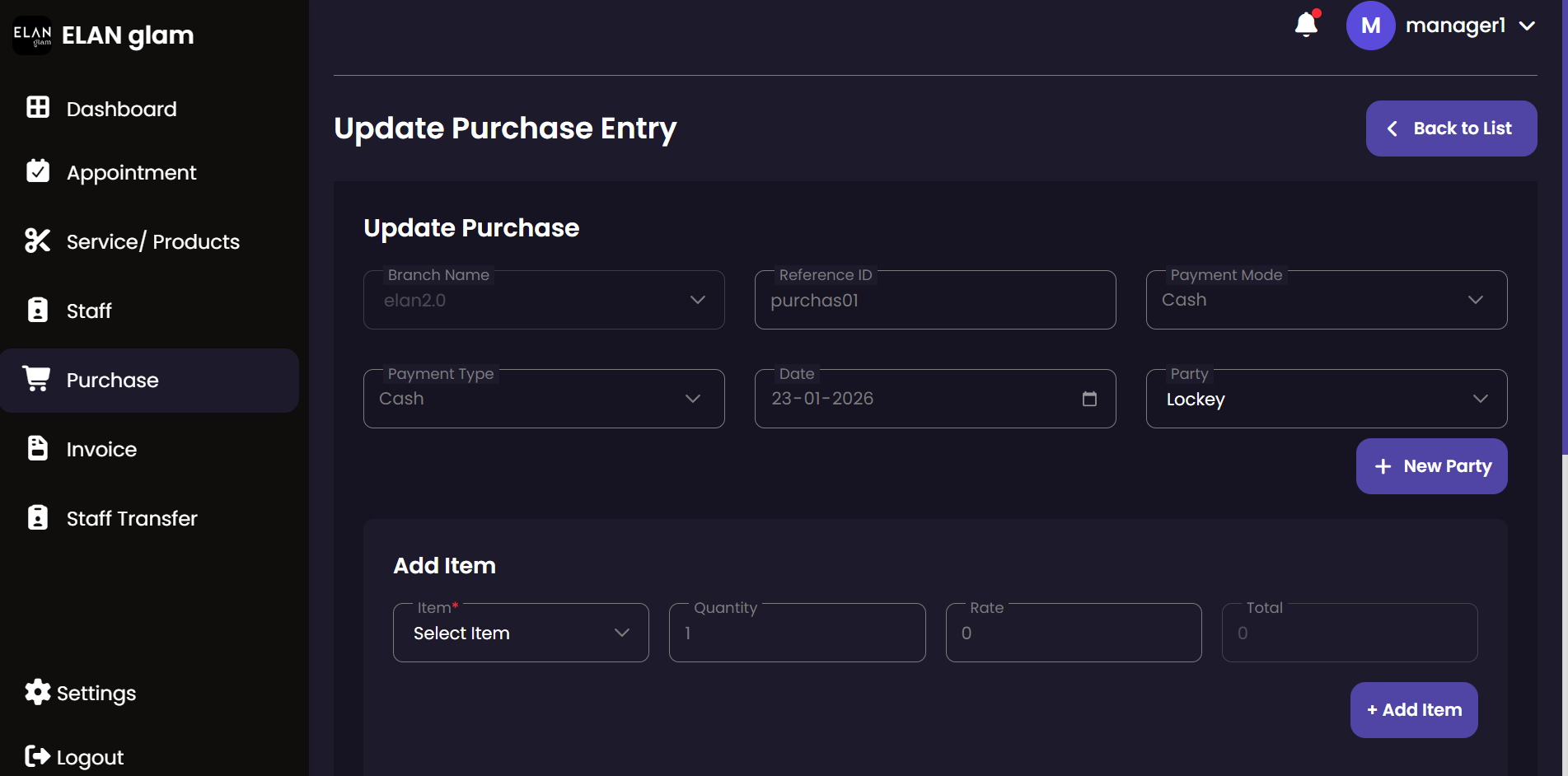
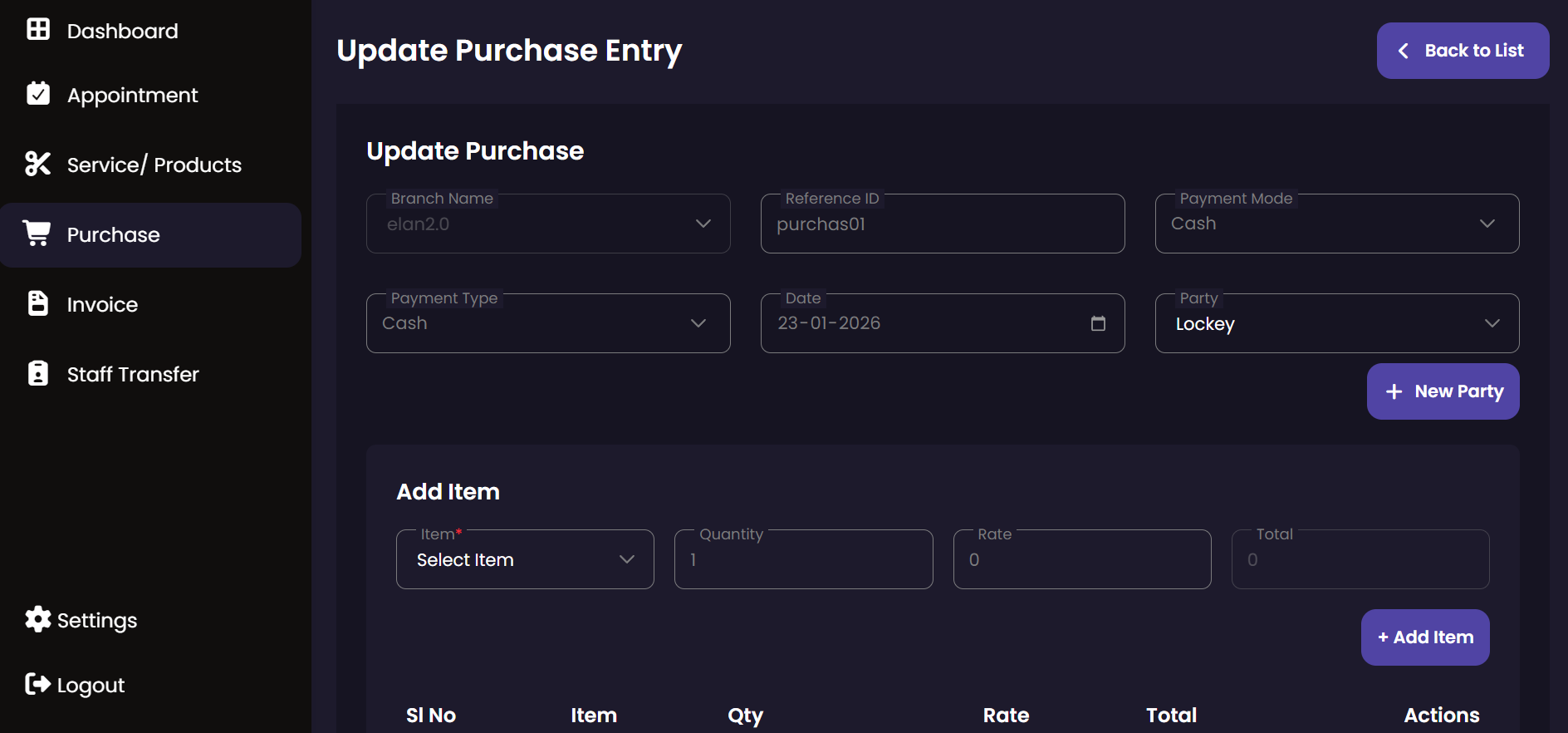
  • If you want to update a particular purchase click the update button (fig:purchase1). of the the corresponding purchase you want to update then you will be redirected to Update Purchase Entry page (fig:purchase2)

Delete Purchase

  • If you want to delete a particular purchase click the delete button (fig:purchase1). of the corresponding purchase.

View Purchase

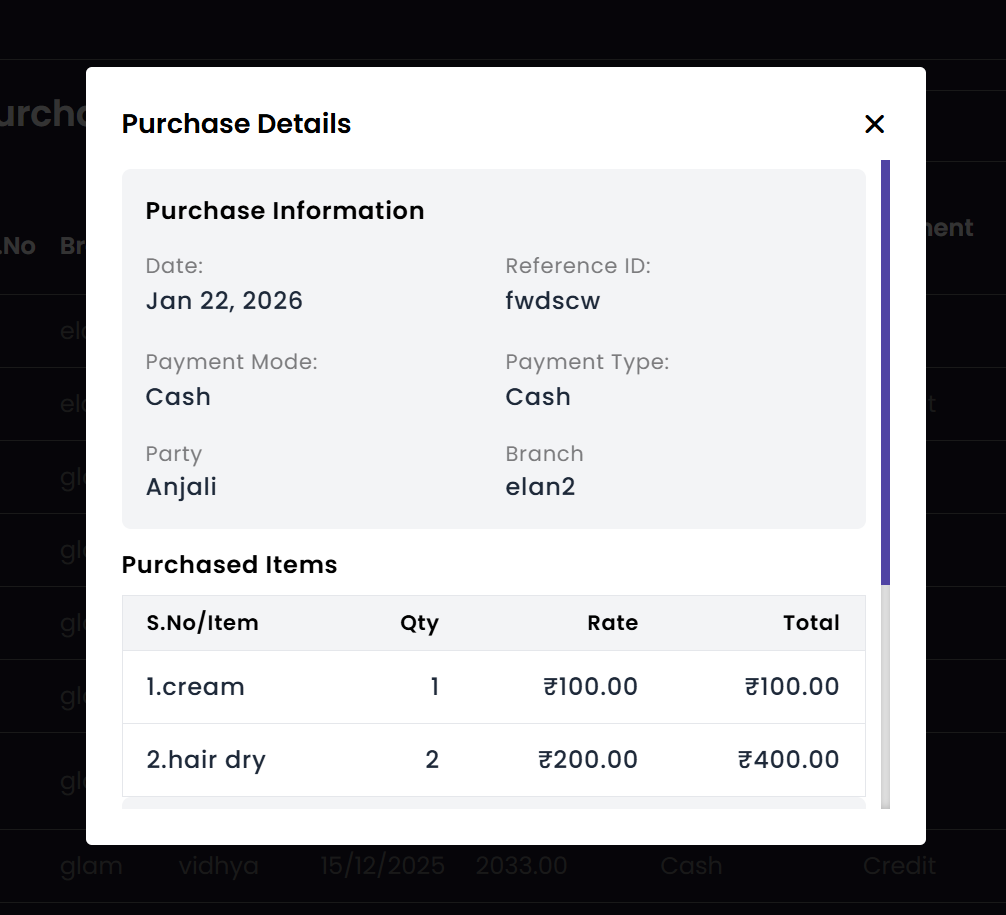
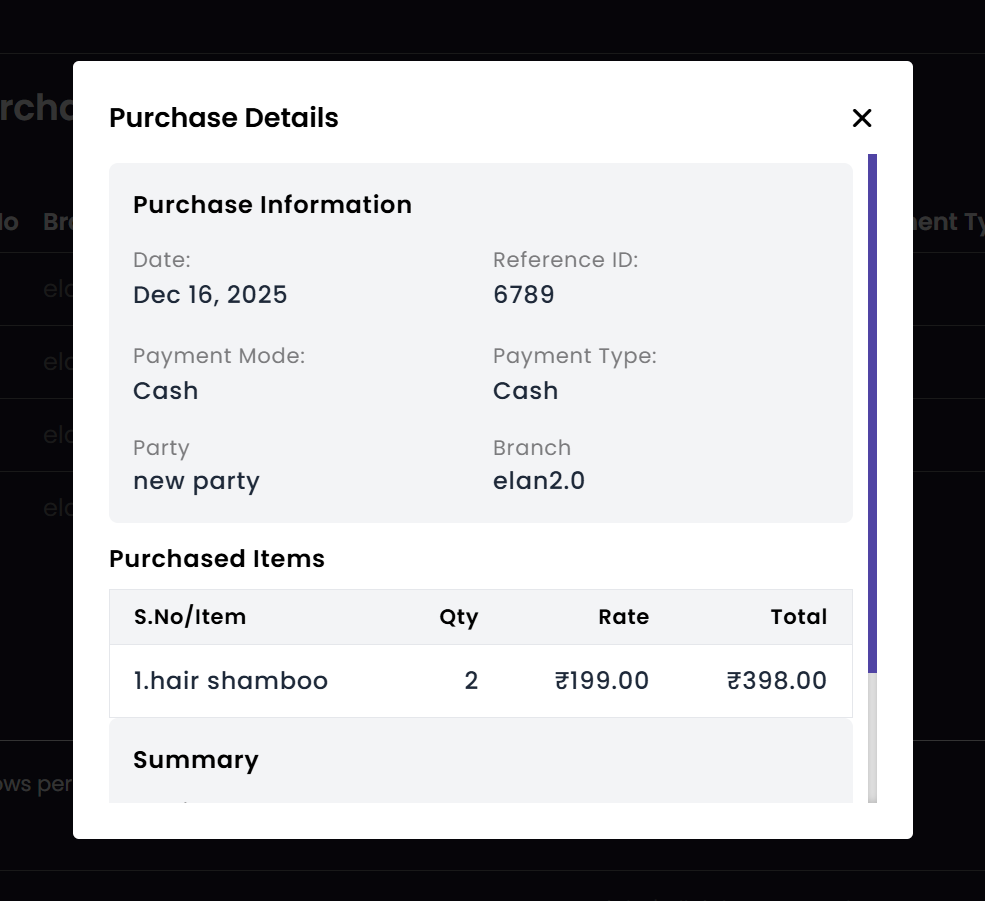
  • If you want to view the details of a particular purchase click view button(eye icon) (fig:purchase1). A popup Purchase Details appears (fig:purchase4).

Search Purchase

  • If you want to see Purchases made under a particular branch then you have to select the required branch from the Branch drop down (fig:purchase1).

Invoice

The Invoice section handles all billing activities. Administrators can generate professional invoices for completed services, manage discounts, and print physical receipts for customers. This ensures financial accuracy and transparency.

Invoice Generation Invoice Details Summary View Print Preview Invoice List
Invoice

  • Note: To create an invoice first you have to create an appointment then the service staff have to start and complete the services in the appointment , then the status of appointment will be change to Completed.

Generate invoice of the appointment

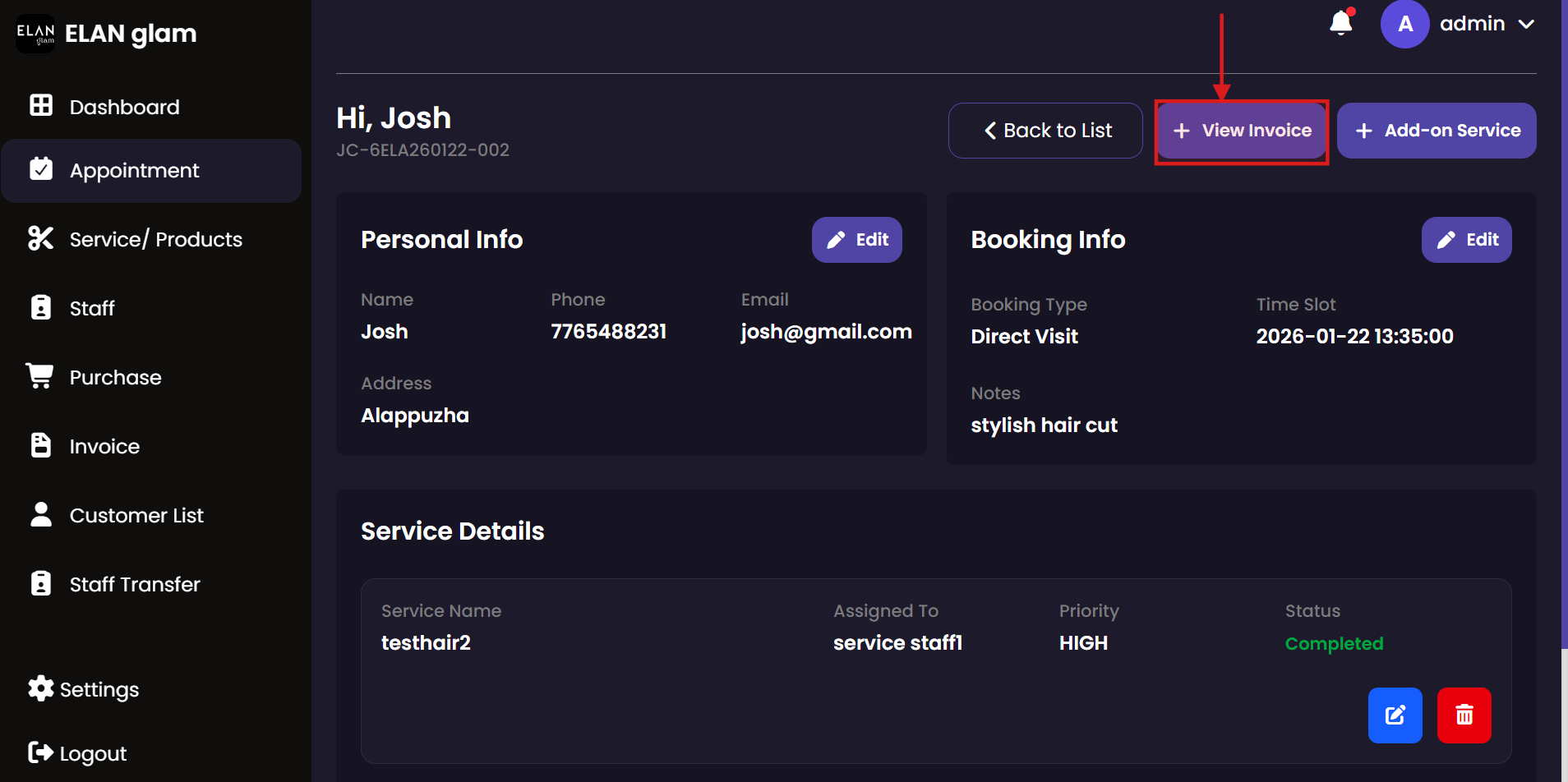
  • From the side bar select Appointment and select an appointment which is completed.
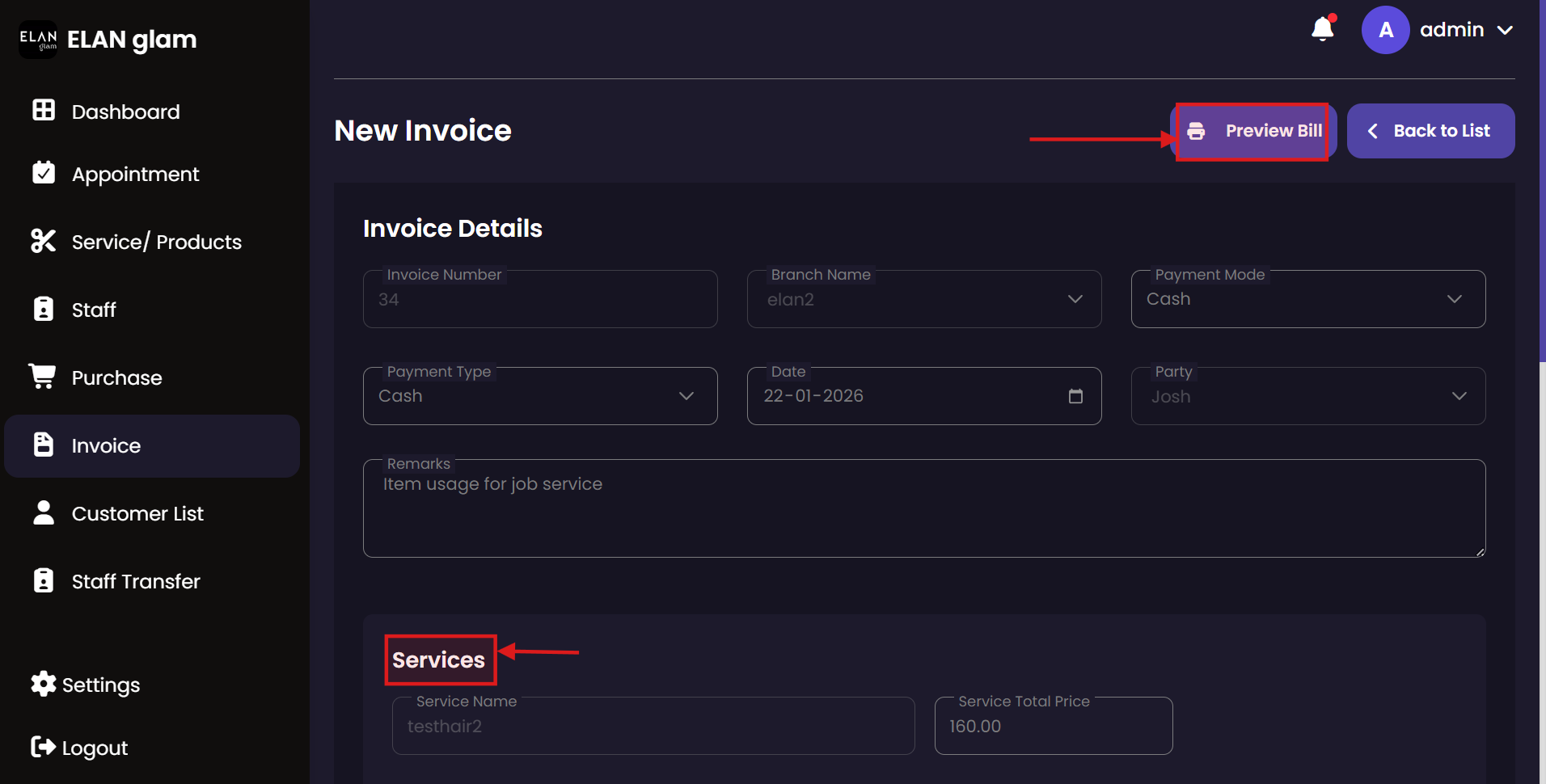
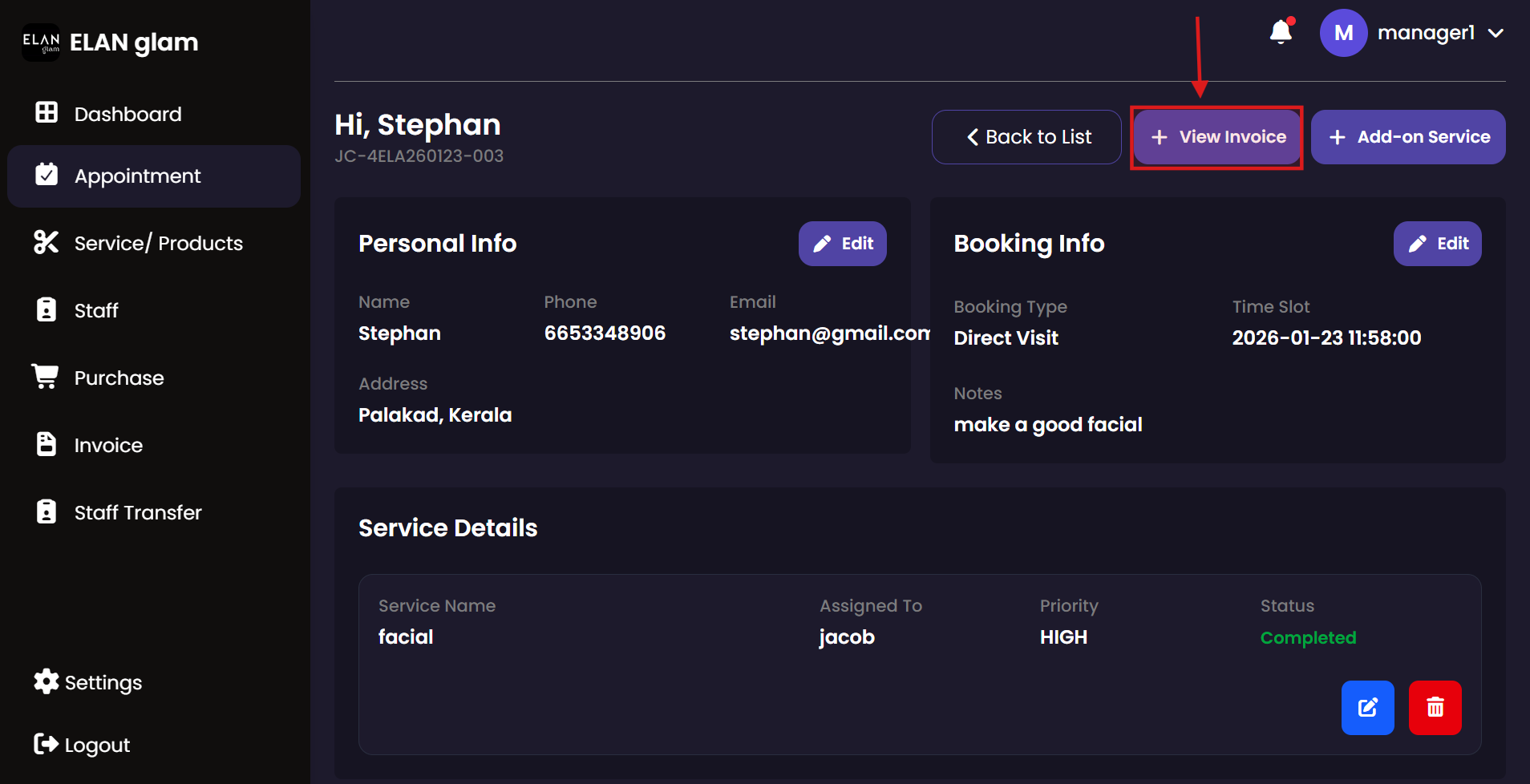
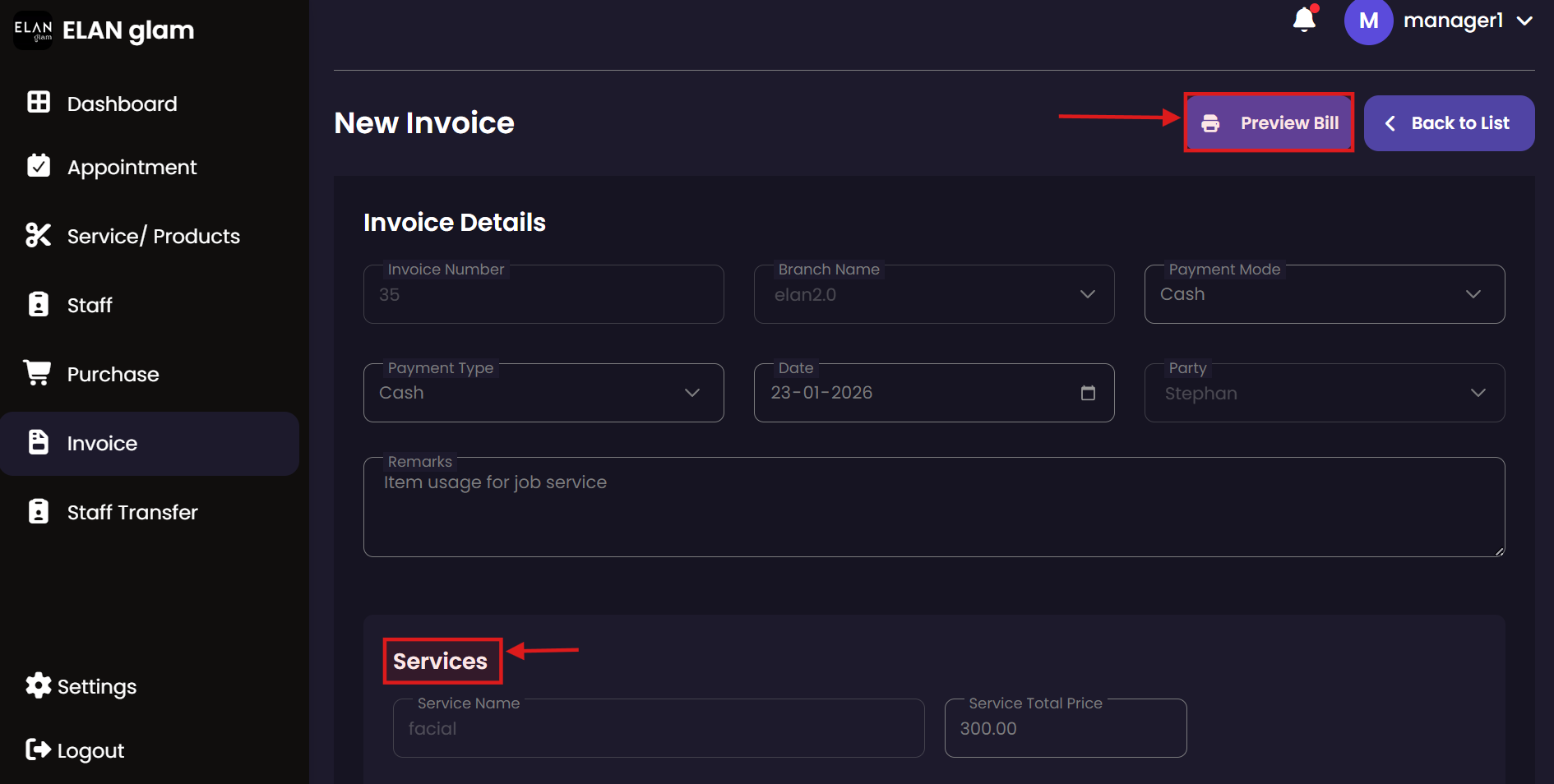
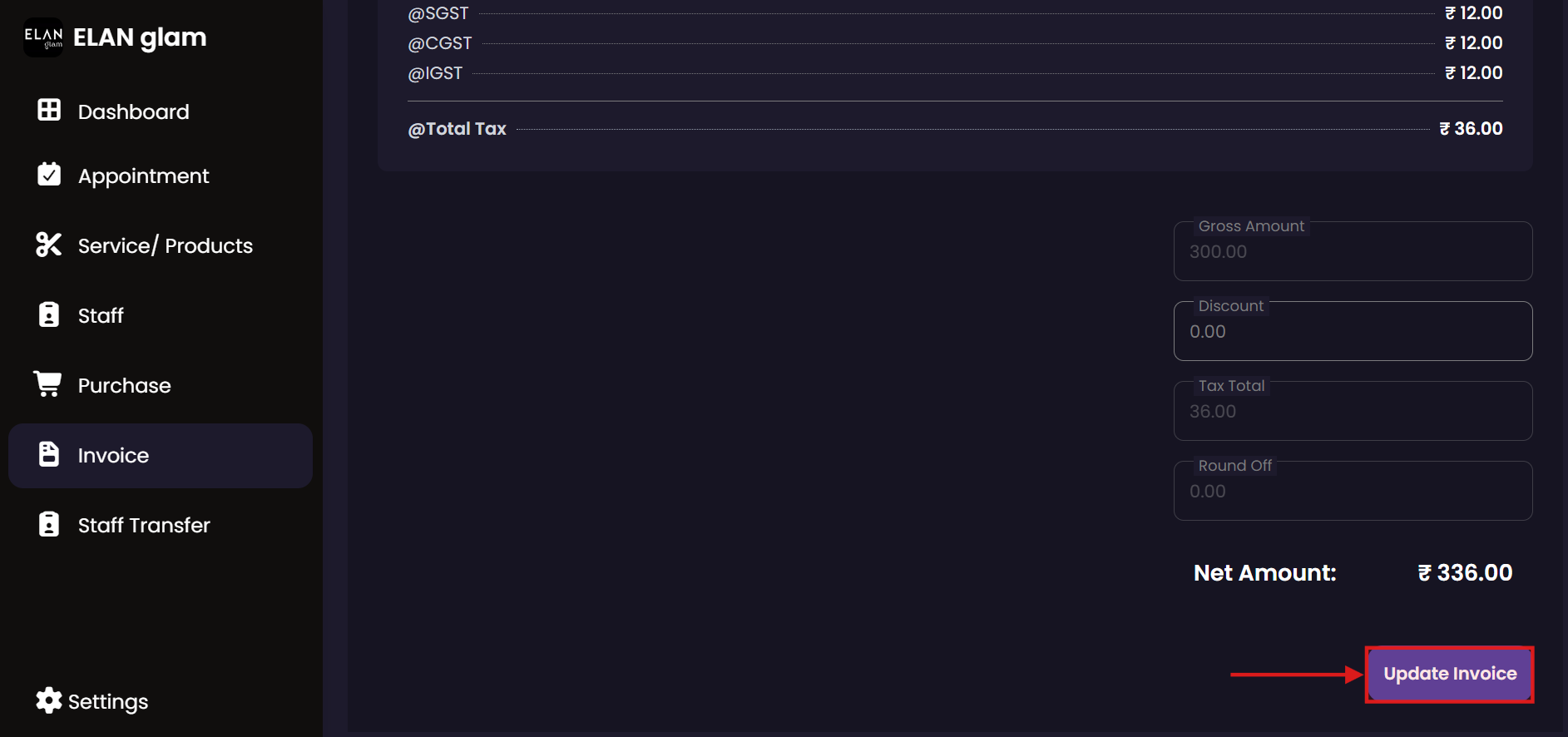
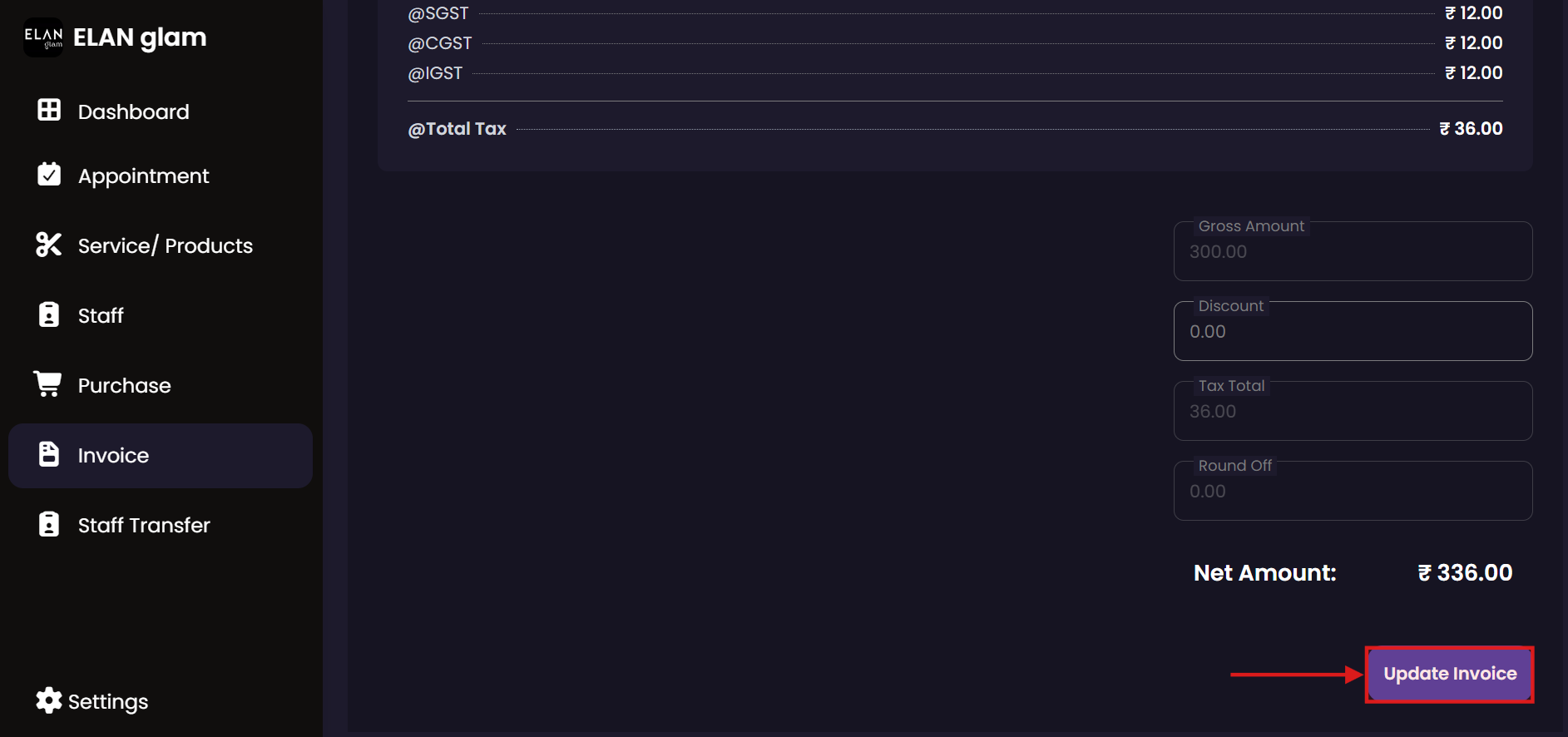
  • Click the + View Invoice button (fig:invoice1) to navigate to the New Invoice page (fig:invoice2). Enter the required details, specify the service rate under Services, apply any discount if applicable, and view the calculated net amount. Finally, click the Update Invoice button to create the invoice. Status of the appointment will change to Invoiced.

Print Invoice

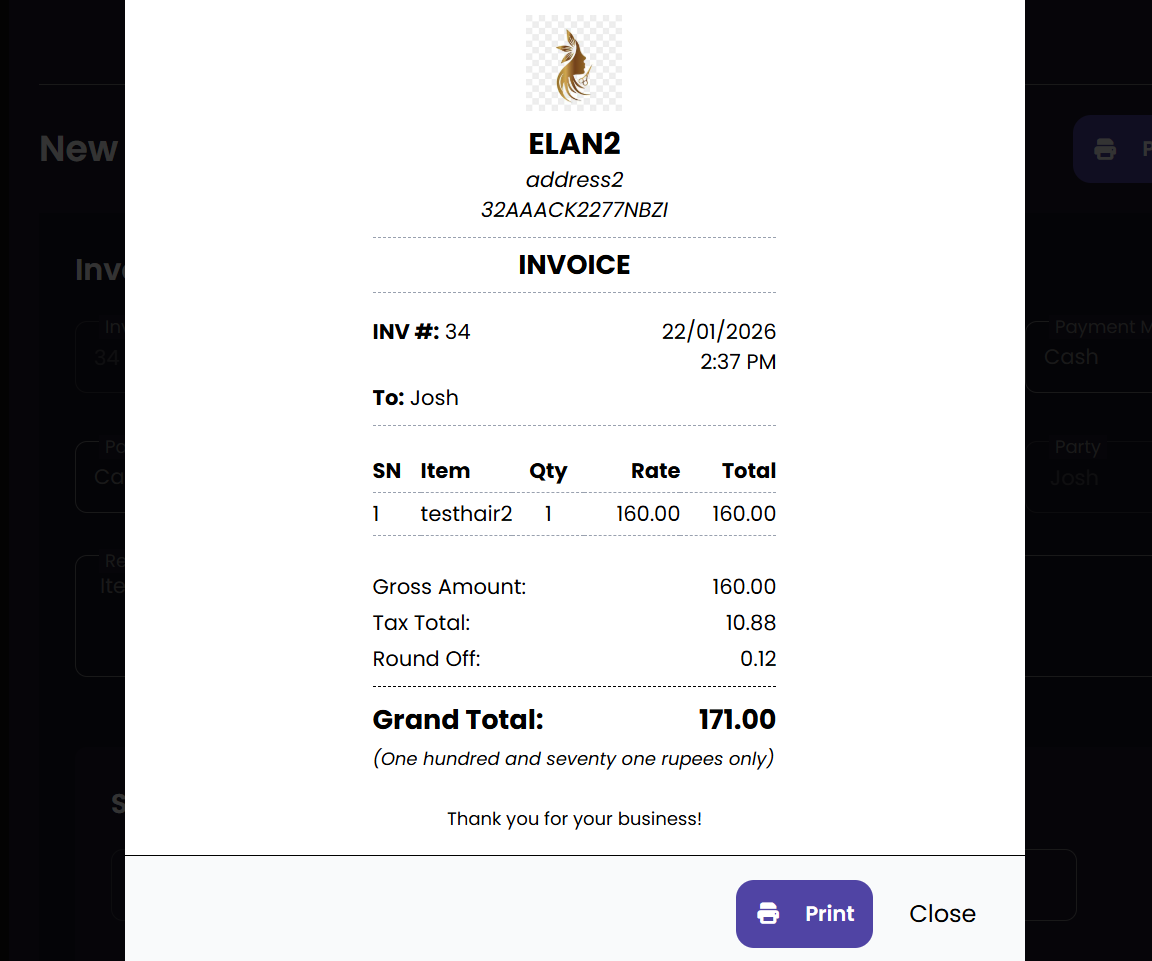
  • If you want to print the invoice click Preview Bill button then a popup of the bill appears click the Print button .(fig:invoice4)

Update Invoice

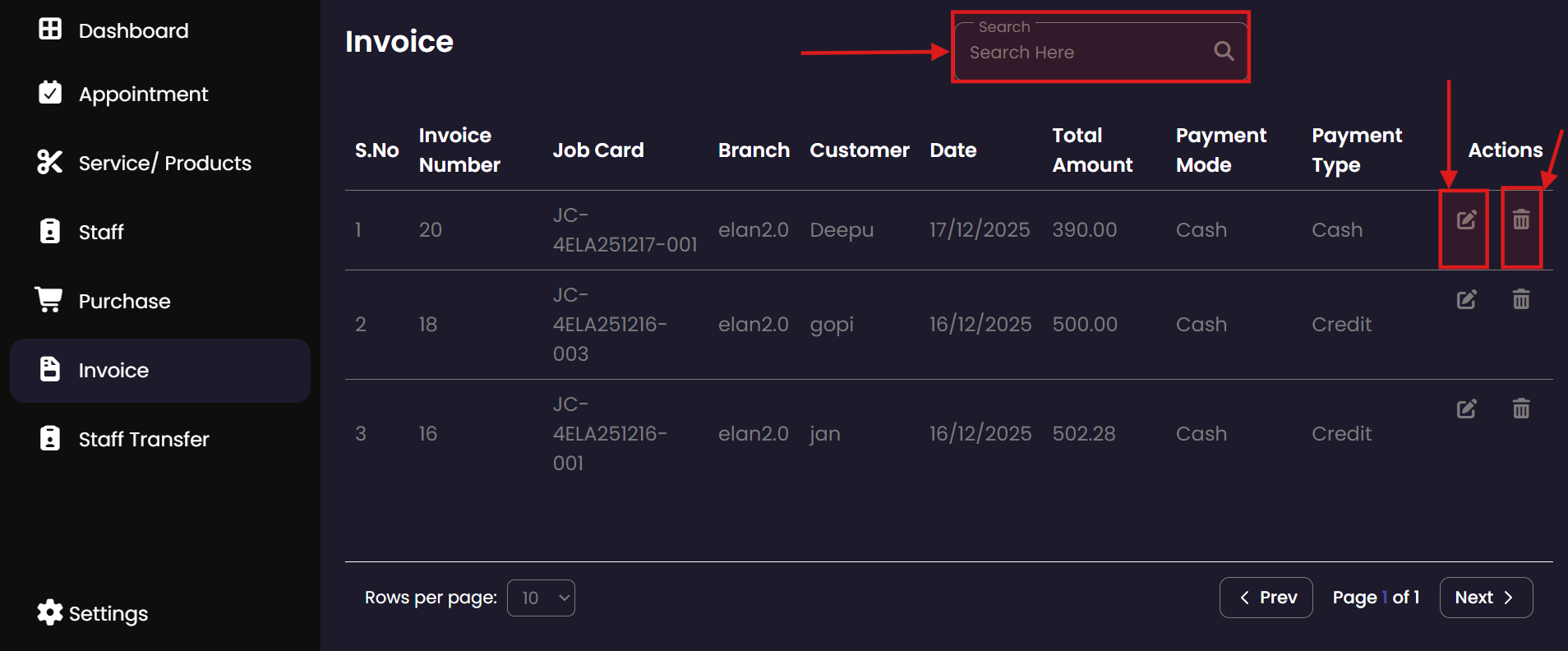
  • If you want to update a particular invoice click the update button of the invoice you want to update you will be redirected into the New Invoice page (fig:invoice2), enter the details that you want to update and click the Update Invoice button.

Delete Invoice

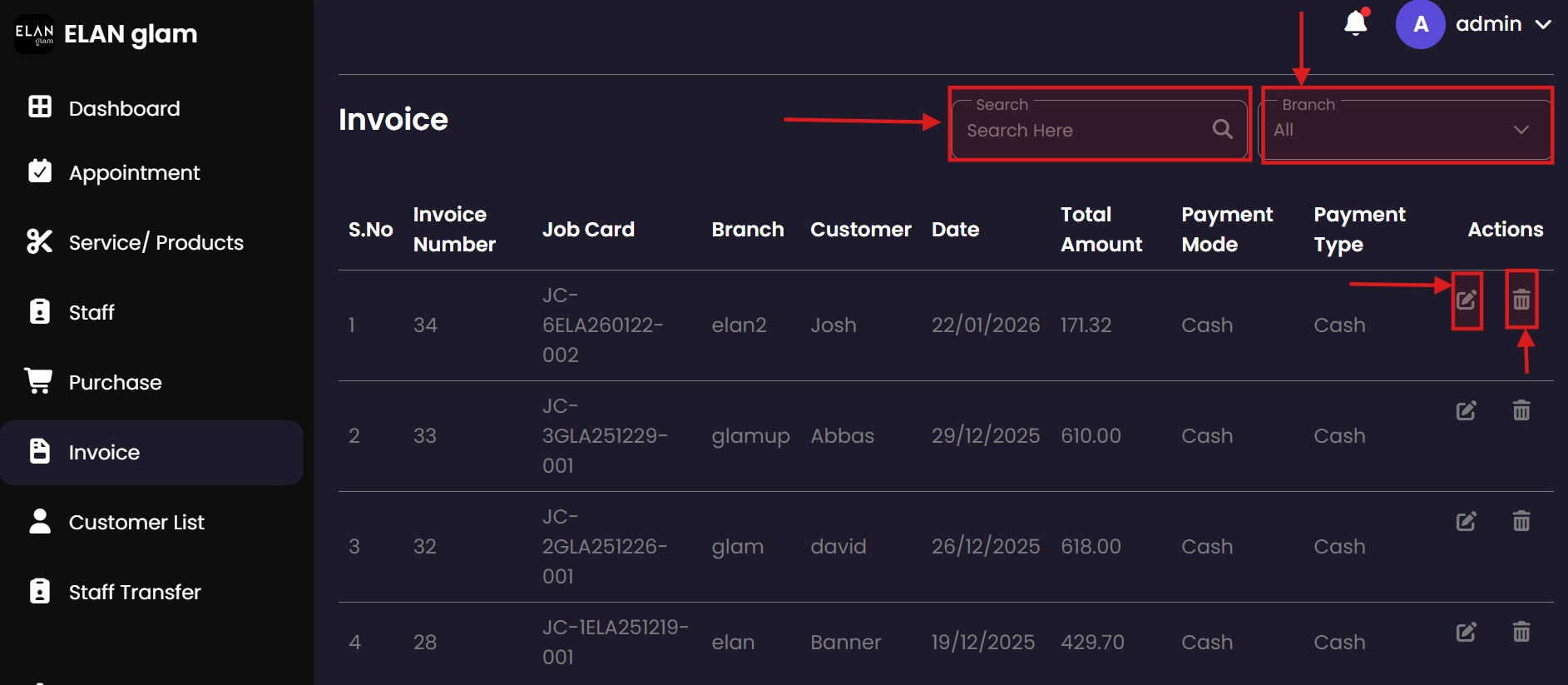
  • If you want to delete a particular invoice click the delete button (fig:invoice5) of the corresponding invoice you want to delete.

Search Invoice

  • If you want to get a particular invoice you can type the name of the customer, invoice number, Job Card and Branch in the search bar (fig:invoice1).
  • If you want to get invoices in a particular branch then select the required branch from Branch drop down (fig:invoice1).

Customer

Maintain a complete database of your clientele. The Customer module allows you to track visit history, manage contact information, and review past service engagements to provide personalized care.

Customer Directory Appointment History
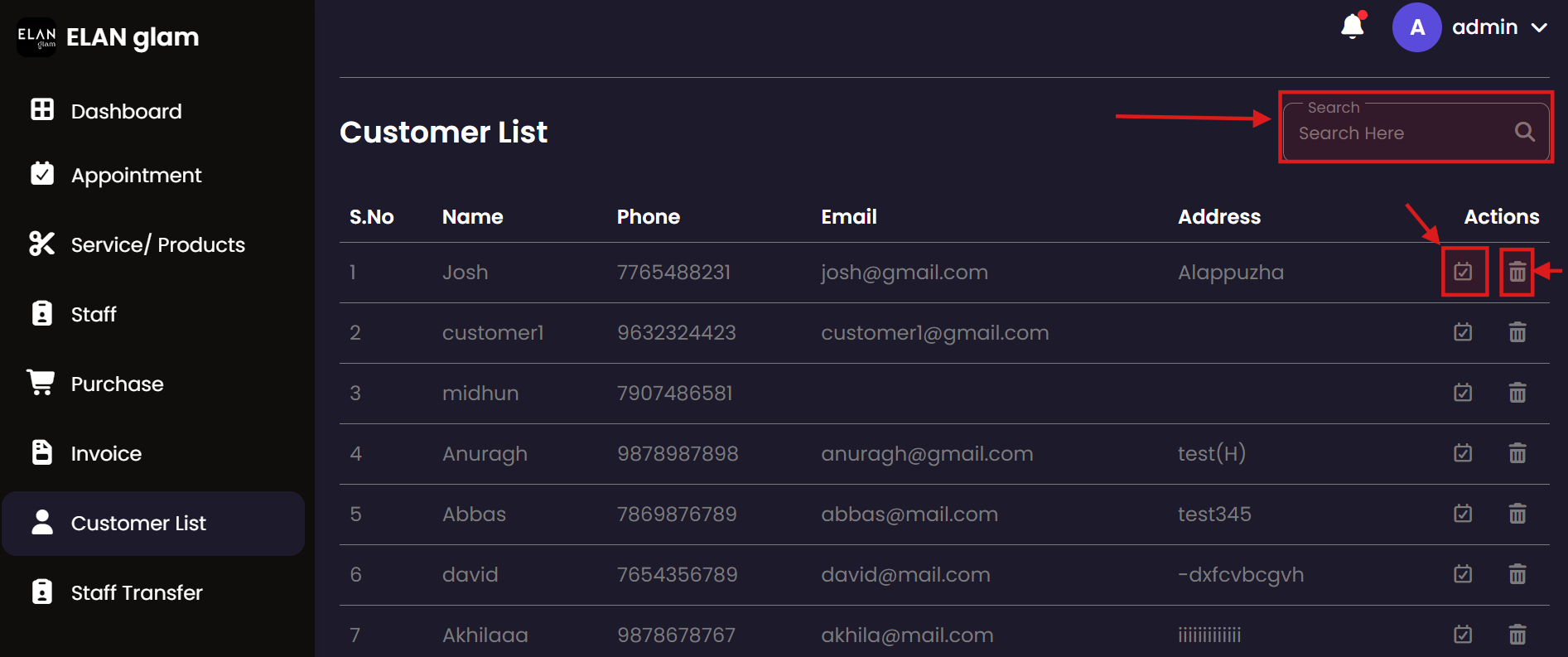
Customer

  • Note :
    • A customer is created when an appointment is created.
    • You can update the customer details in the appointment’s personal info section.

View Customer Appointment

  • Select Customer List from side bar then click the customer appointment button (fig:customer1) then you will be redirected to the Appointment’s page (fig:customer2) in that page you can view the appointment details of that particular customer.

Delete Customer

  • If you want to delete a particular customer click the delete button (fig:customer1) of the corresponding customer you want to delete.

Search Customer

  • If you want to view the customer based on the name and phone number of the customer , type the name or phone number of the staff in the Search Here search bar (fig:customer1).

Staff Transfer

Manage employee movement between different salon locations. The Staff Transfer module facilitates the temporary or permanent assignment of staff members to different branches based on operational needs.

Staff Transfer List Create Transfer
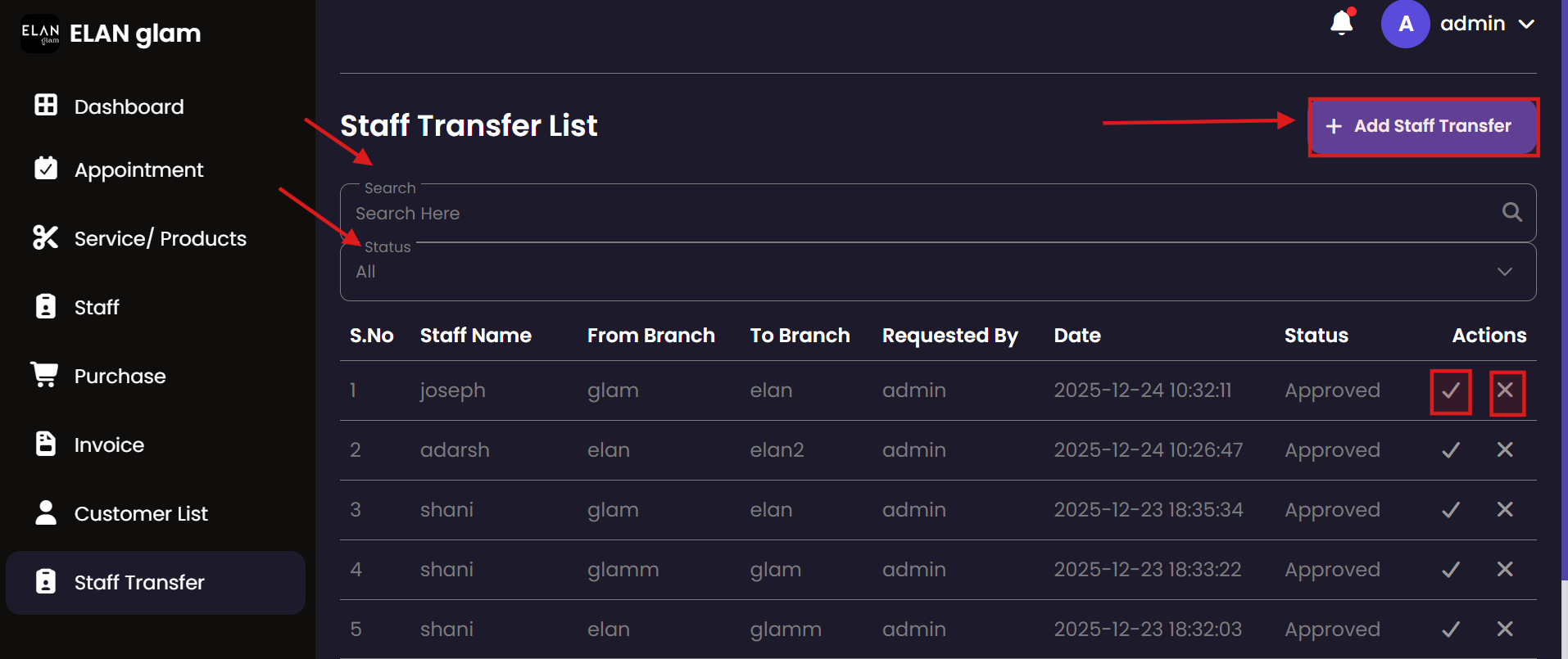
Create Staff Transfer

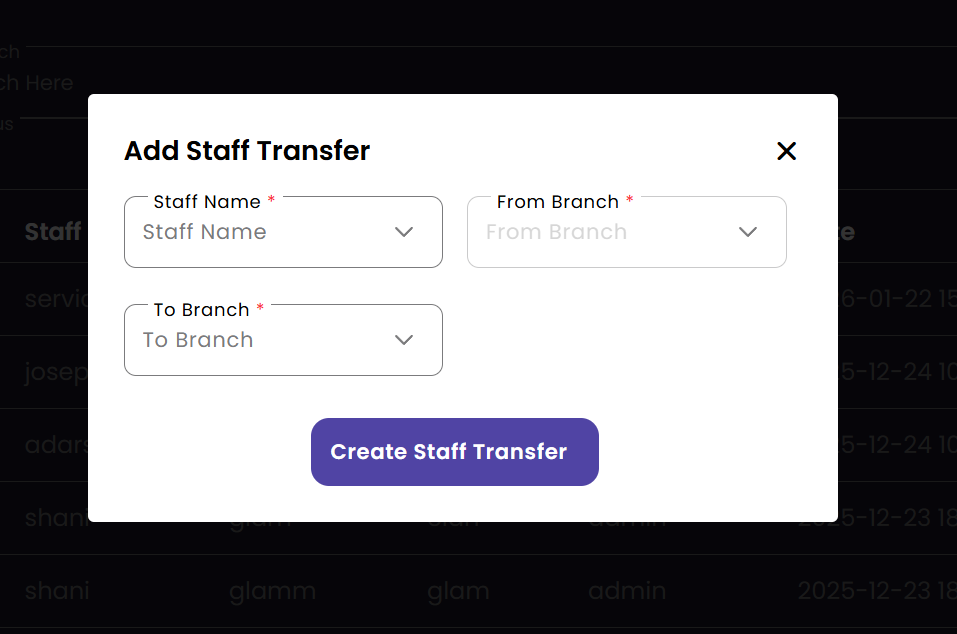
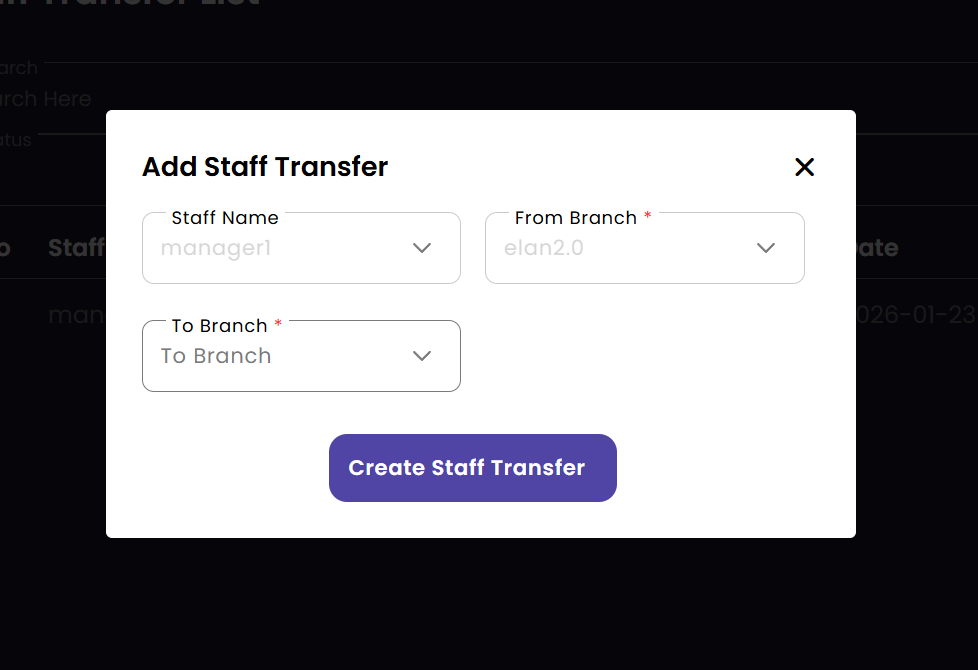
  • To apply a staff transfer, click Staff Transfer from the sidebar and then click the + Add Staff Transfer button (fig:staff_transfer1). A popup called Add Staff Transfer appears. Enter the required details and click the Create Staff Transfer button(fig:staff_transfer2).

Accept/ Reject Staff Transfer

  • If you want to accept a staff transfer click the the tick button of the staff transfer you want to accept.
  • If you want to reject a staff transfer click the cross button of the staff transfer you want to reject. (fig:staff_transfer1)

Search Staff Transfer

  • If you want to view the staff transfer based on the of the staff , type the name of the staff in the Search Here search bar (fig:staff_transfer1).

Units

Define the units of measurement used for products and services. Set up standard units like 'ml', 'pcs', or 'sessions' to ensure consistent stock tracking and service billing across all branches.

Units List New Unit Update Unit
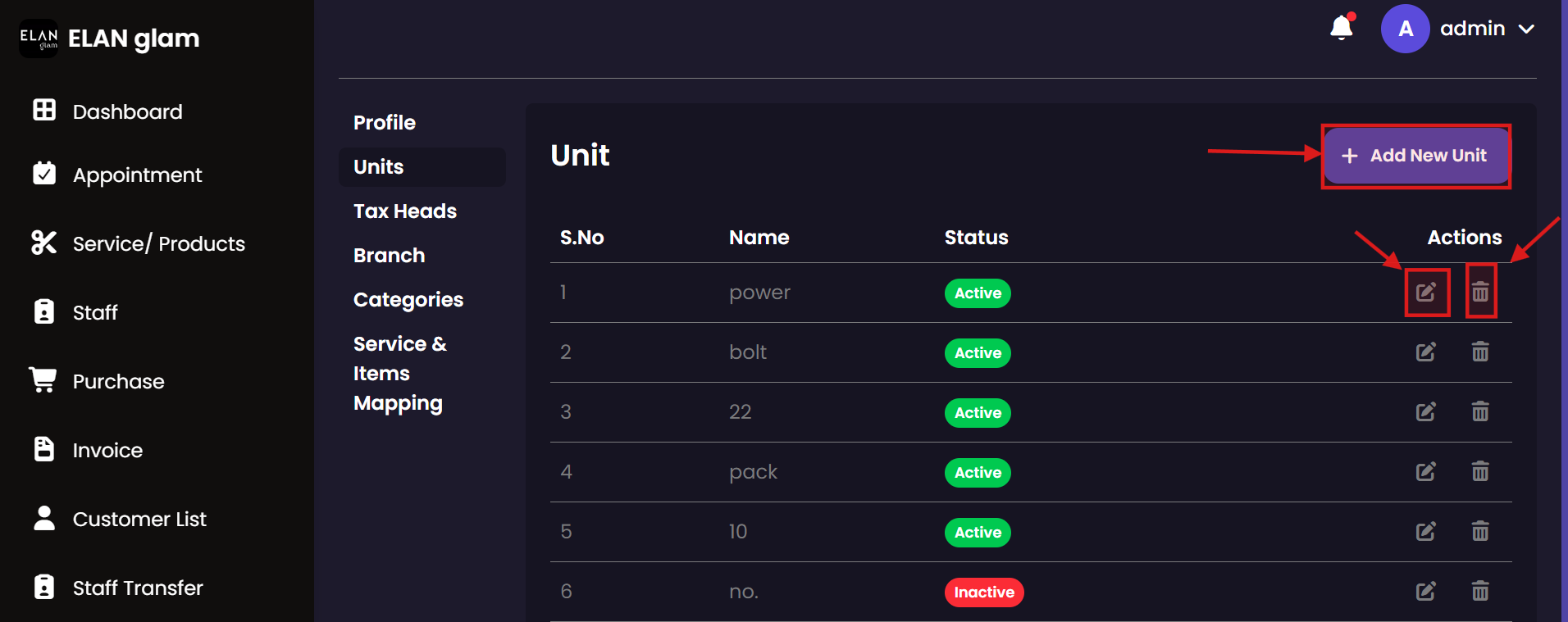
Create Unit

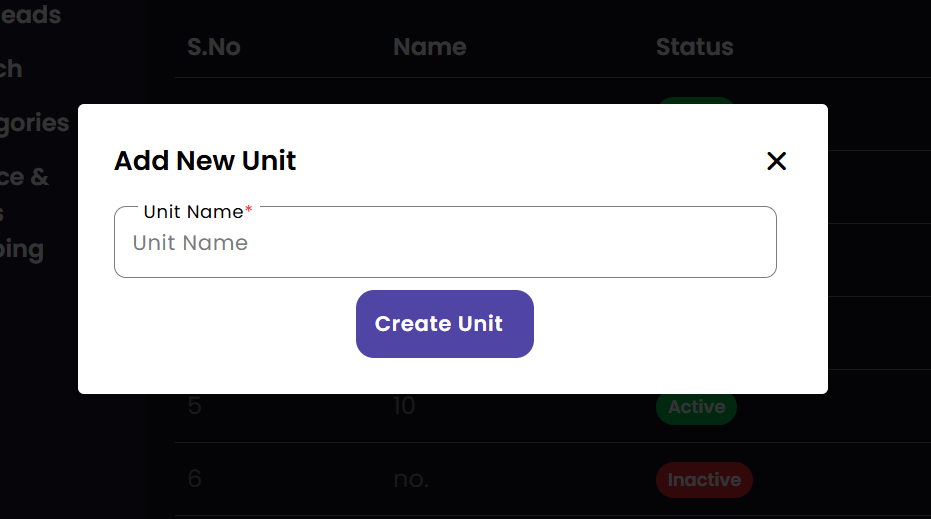
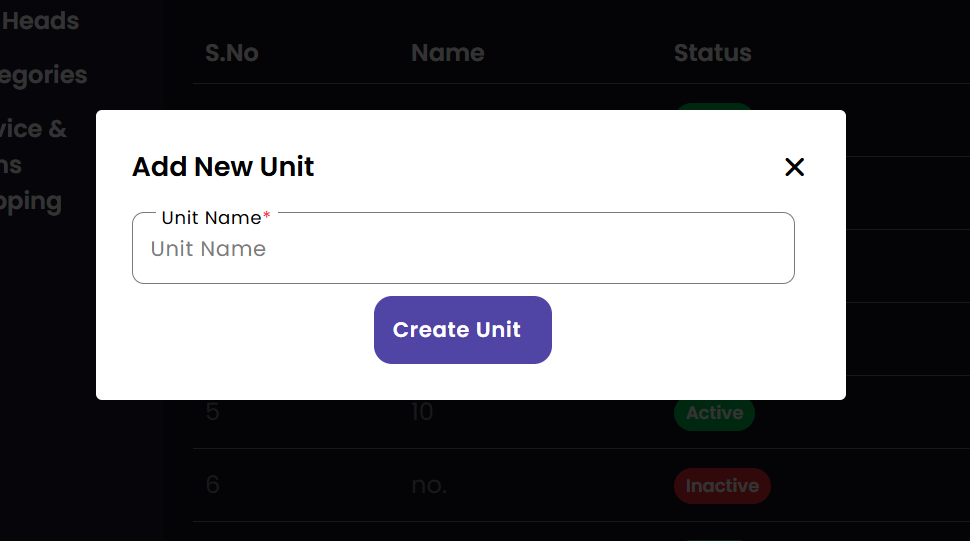
  • To create a unit, click Settings from the sidebar then click Units. Click the + Add New Unit button (fig:unit1). A popup called Add New Unit appears. Enter the required details and click the Create Staff Unit button(fig:unit2).

Update Unit

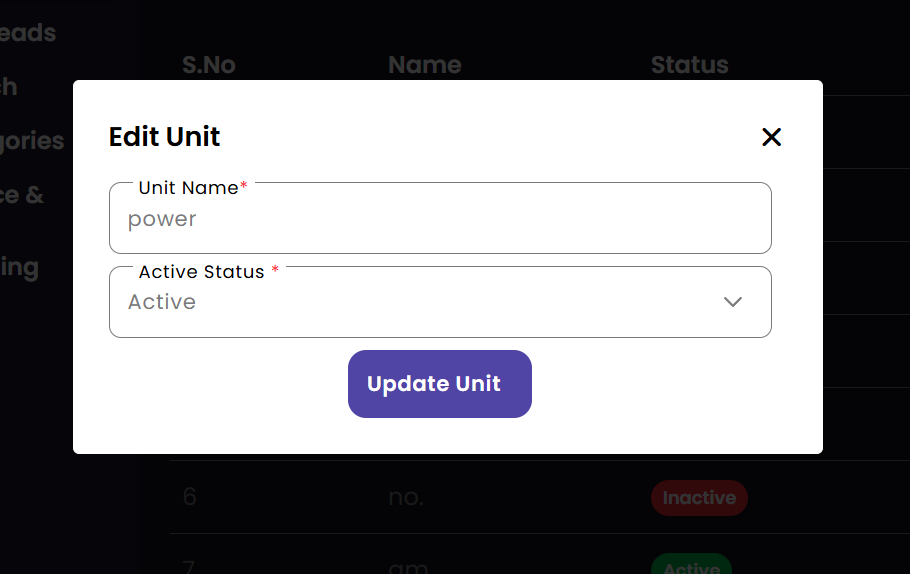
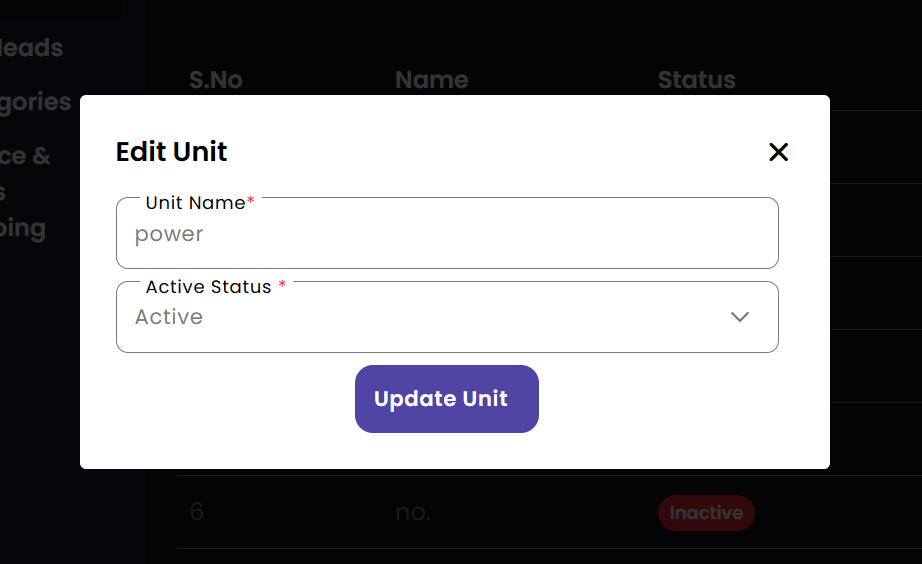
  • If you want to update the details of a particular unit click the edit button (fig:unit1) of the corresponding unit , a new popup Edit Unit appears enter the required details and click the Update Unit button (fig:unit3).

Delete Unit

  • If you want to delete a particular unit click the delete button(fig:unit1) of the corresponding unit.

Tax Head

Configure tax structures for different categories of products and services. Administrators can define various tax heads (e.g., VAT, Service Tax) to comply with local financial regulations and ensure accurate invoicing.

Tax Heads Create Tax Head Update Tax Head
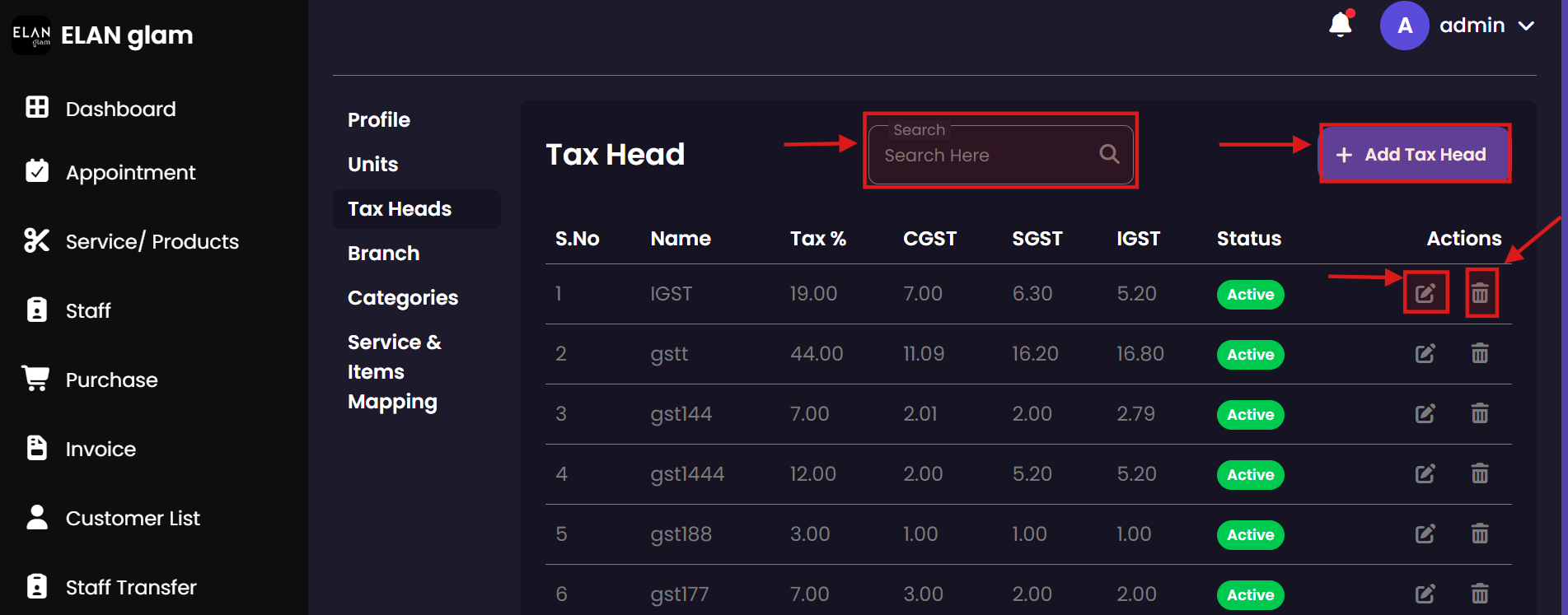
Create Tax Head

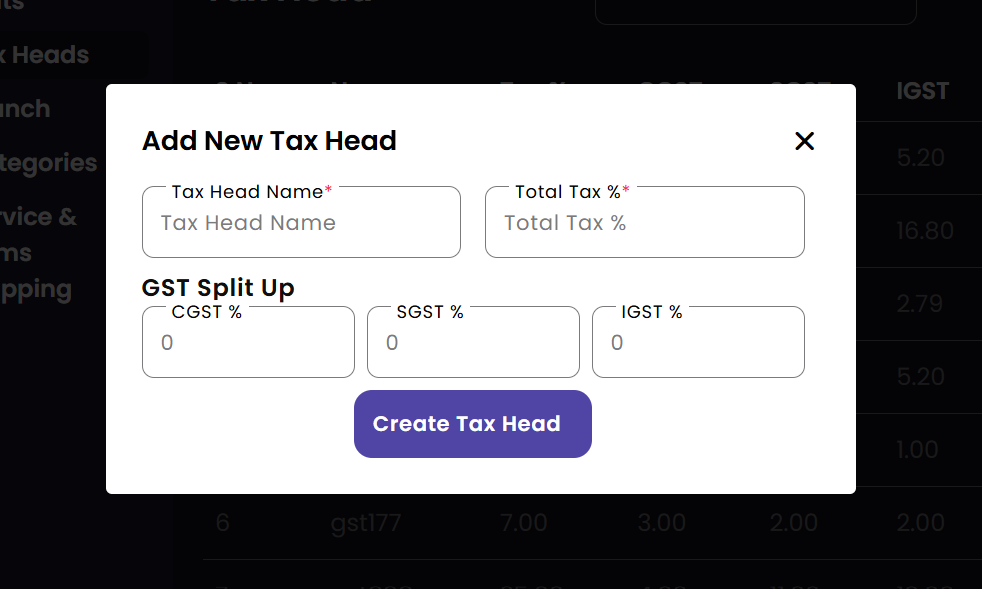
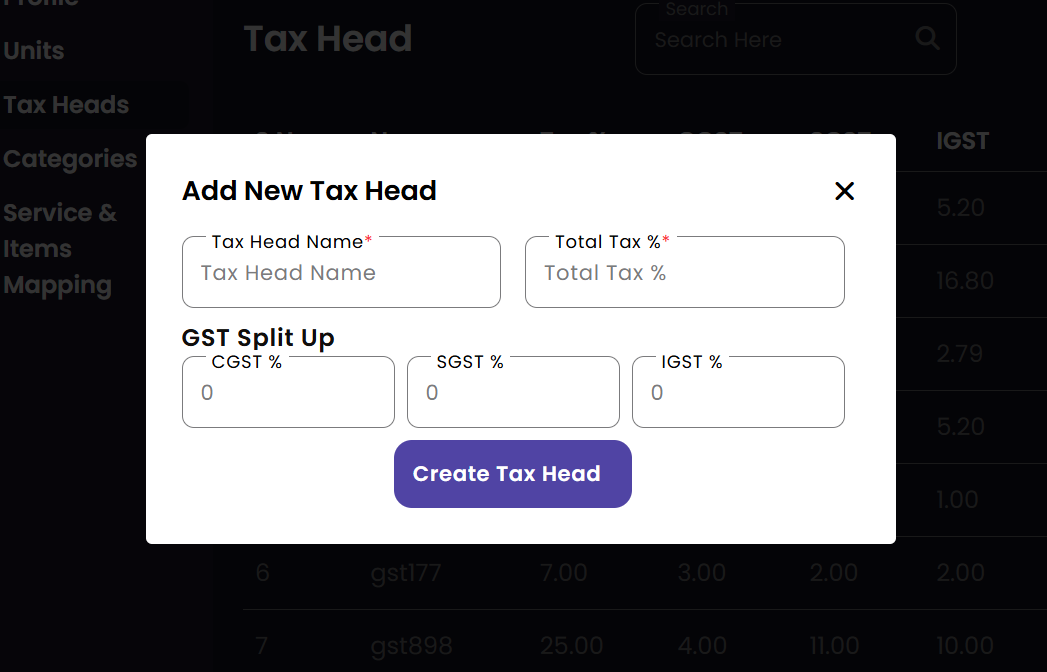
  • To create a tax head, click Settings from the sidebar then click tax heads. Click the + Add Tax Head button (fig:taxhead1). A popup called Add New Tax Head appears. Enter the required details and click the Create Tax Head button(fig:taxhead2).

Update Tax Head

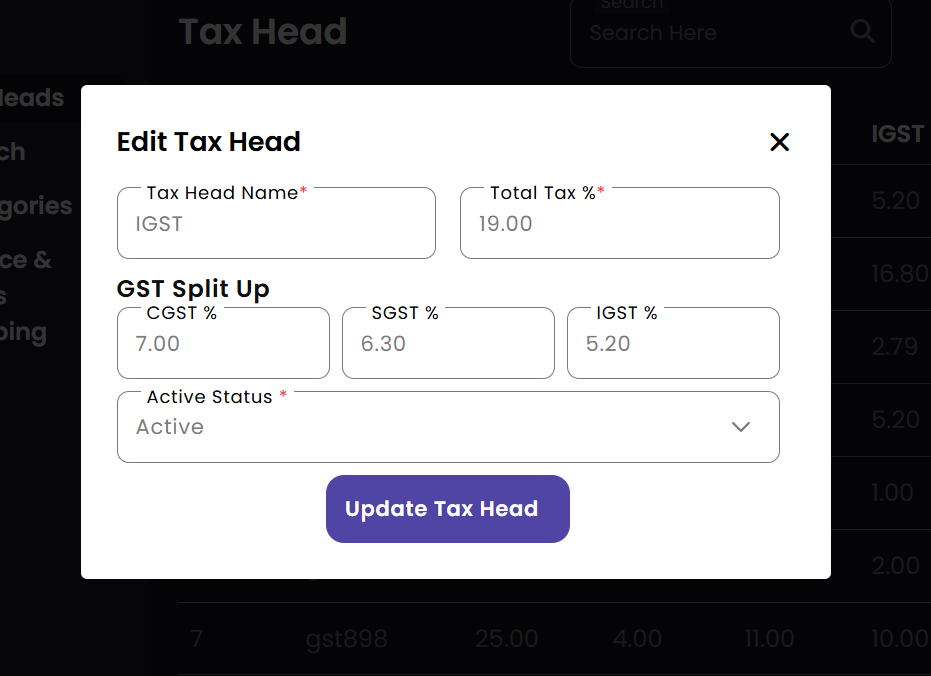
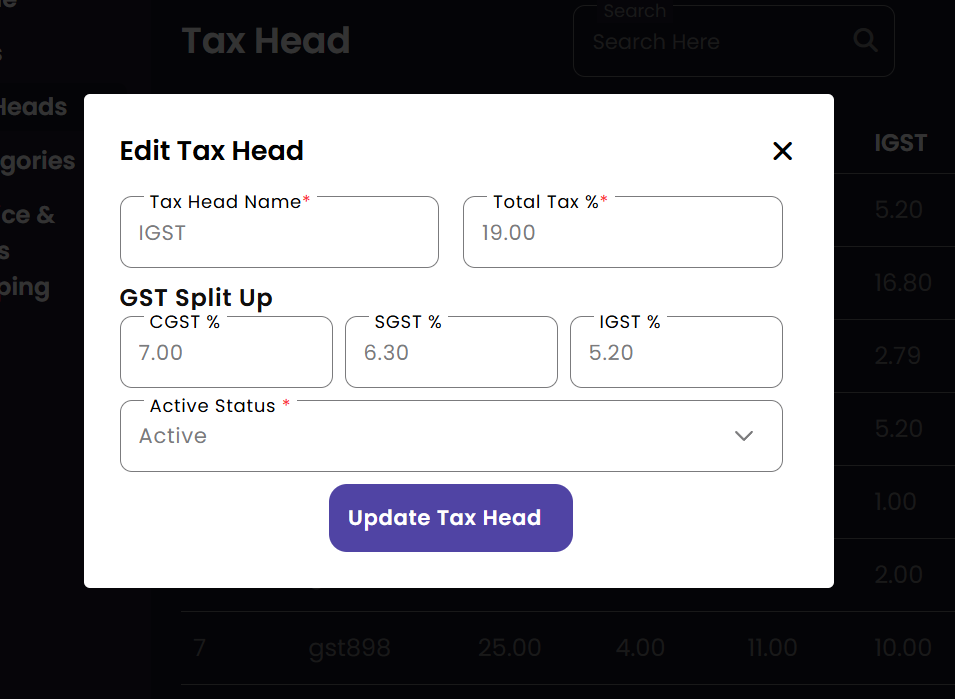
  • If you want to update the details of a particular tax head click the edit button (fig:taxhead1) of the corresponding tax head , a new popup Edit Tax Head appears enter the required details and click the Update Tax Head button (fig:taxhead3).

Delete Tax Head

  • If you want to delete a particular tax head click the delete button(fig:taxhead1) of the corresponding tax head.

Search Tax Head

  • If you want to get tax heads based on the name of the tax head type the name in the search bar. (fig:taxhead1)

Branch

Manage and configure different salon locations. Add new branches, update contact details, and view the entire organizational structure from this centralized management interface.

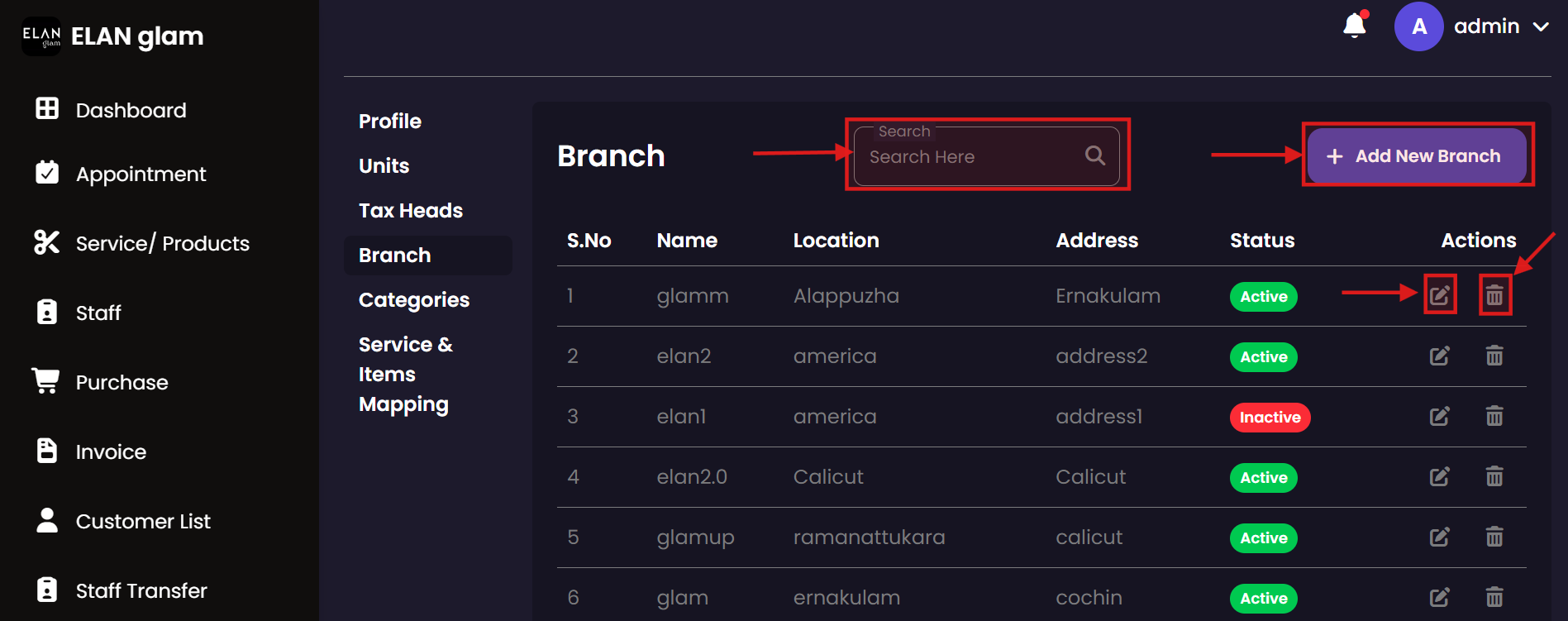
Branch List Create Branch Update Branch
Create Branch

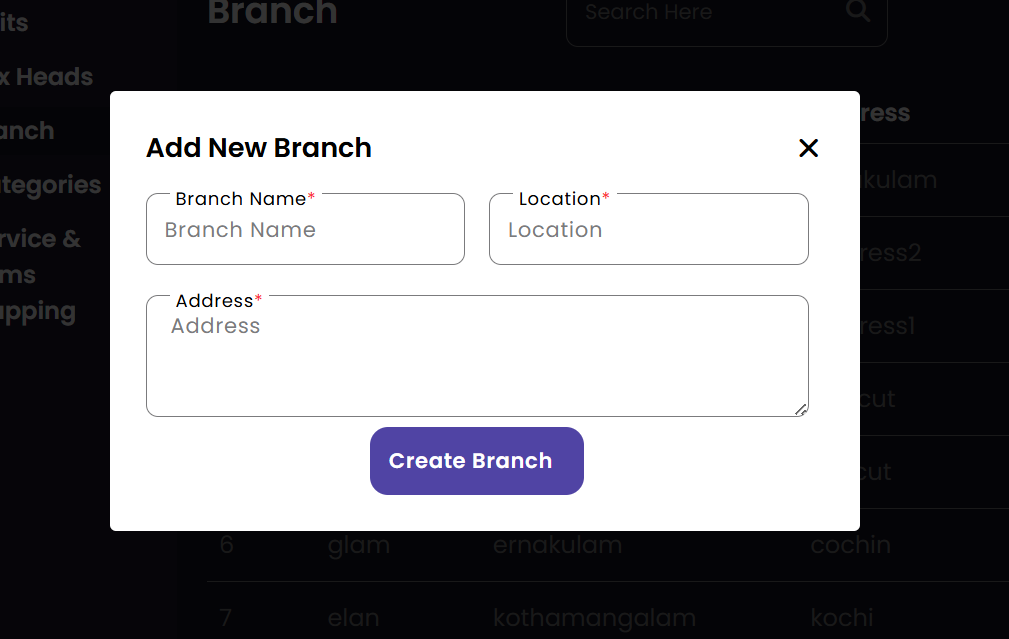
  • To create a branch, click Settings from the sidebar then click Branch. Click the + Add New Branch button (fig:branch1). A popup called Add New Branch appears. Enter the required details and click the Create Branch button(fig:branch2).

Update Branch

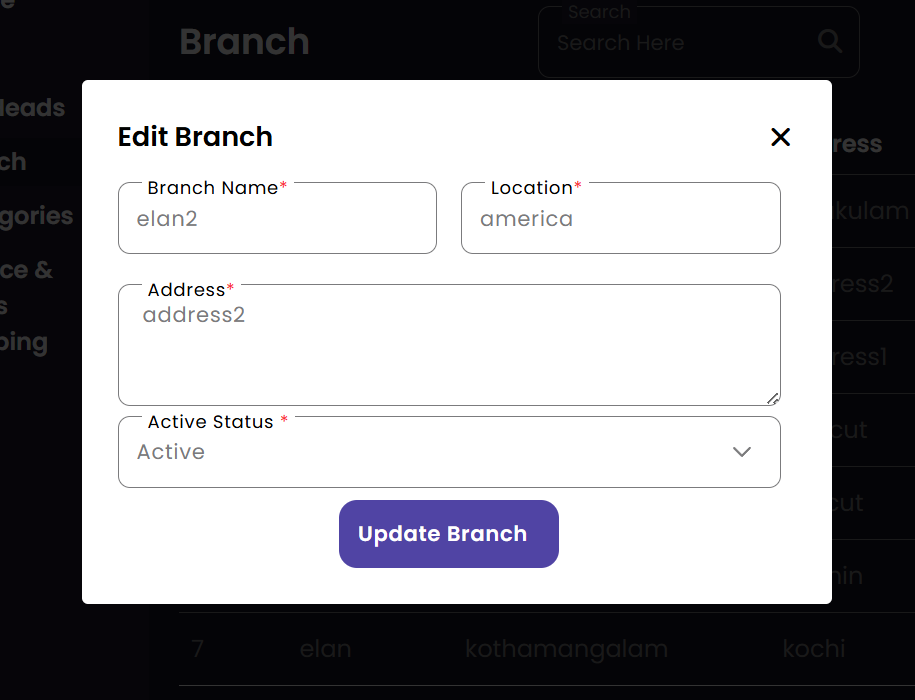
  • If you want to update the details of a particular branch click the edit button (fig:branch1) of the corresponding branch , a new popup Edit Branch appears enter the required details and click the Update Branch button (fig:branch3).

Delete Branch

  • If you want to delete a particular branch click the delete button(fig:branch1) of the corresponding branch.

Search Branch

  • If you want to get branches based on the name of the branch type the name in the search bar. (fig:branch1)

Category

Organize products and services into meaningful groups. Proper categorization helps in better reporting, easier searchability, and structured management of the salon's extensive service menu.

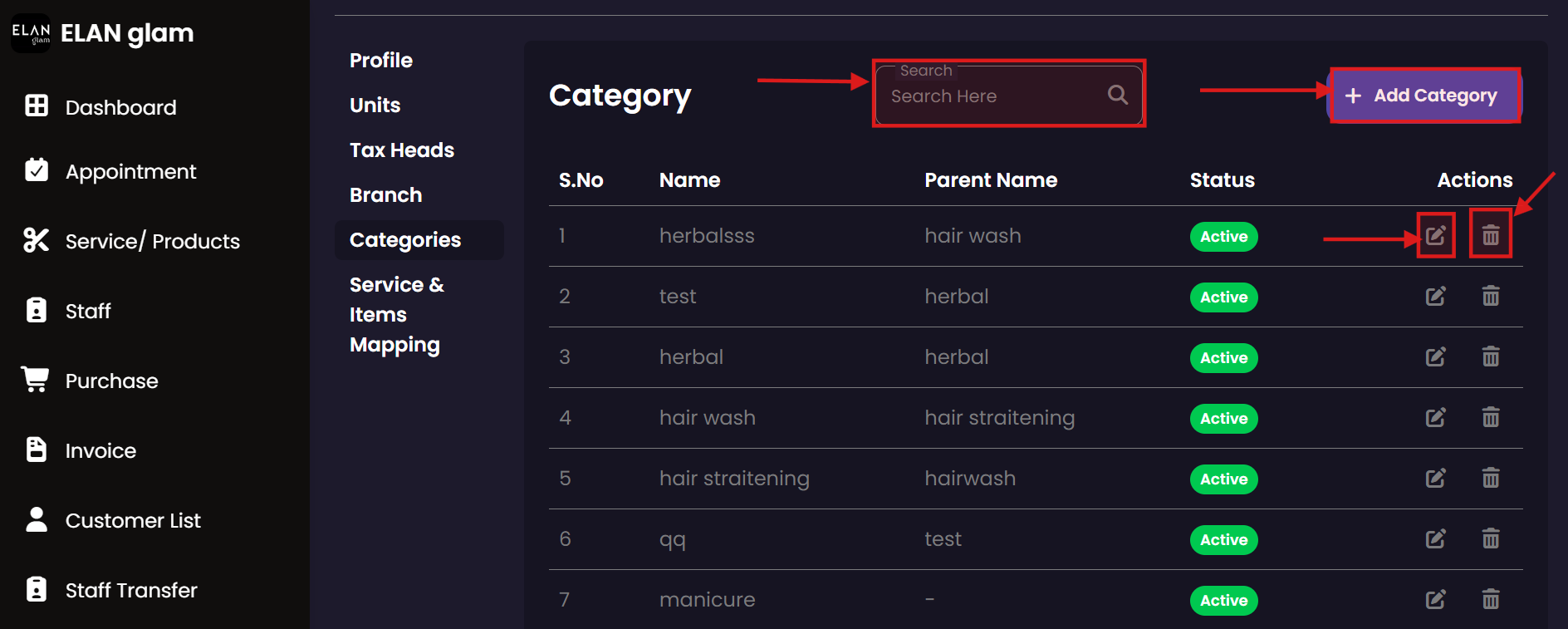
Categories Create Category Update Category
Create Category

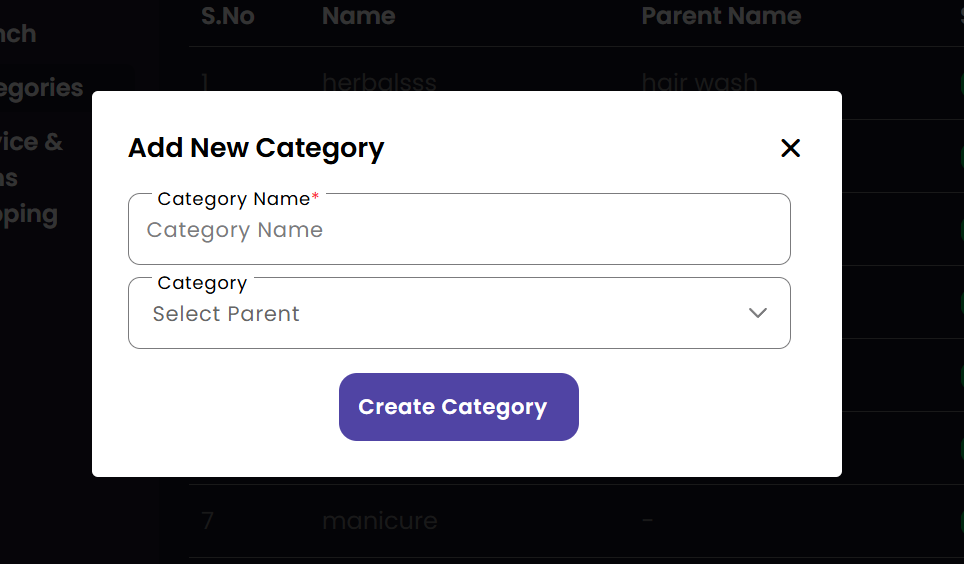
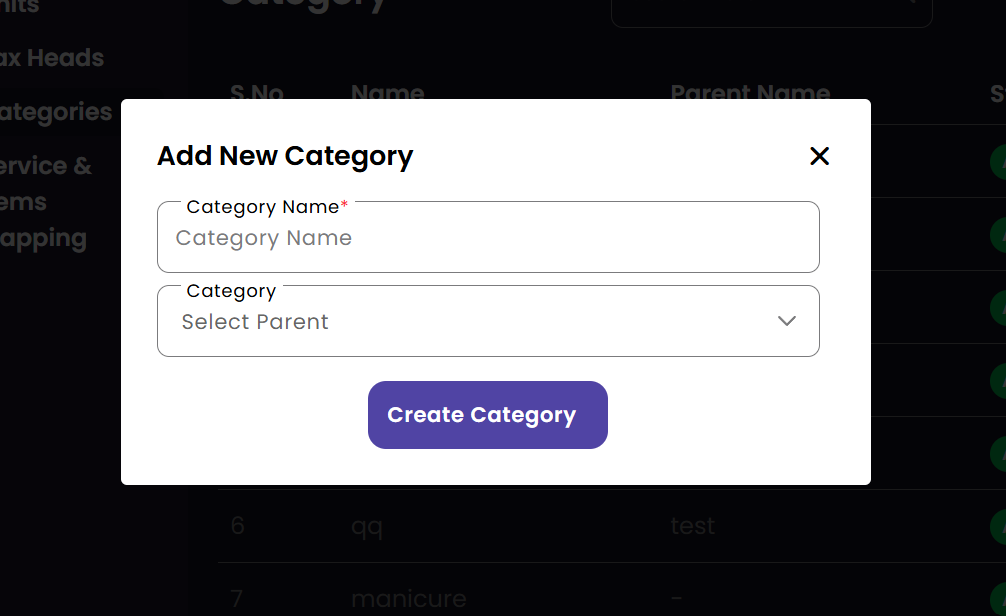
  • To create a category, click Settings from the sidebar then click Categories. Click the + Add Category button (fig:category1). A popup called Add New Category appears. Enter the required details and click the Create Category button(fig:category2).

Update Category

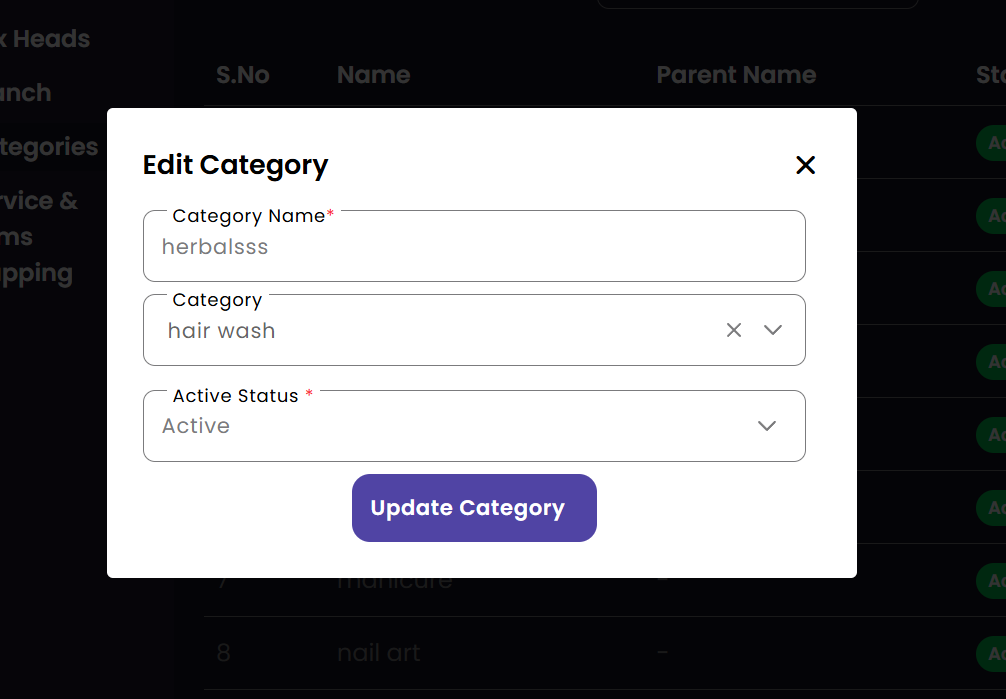
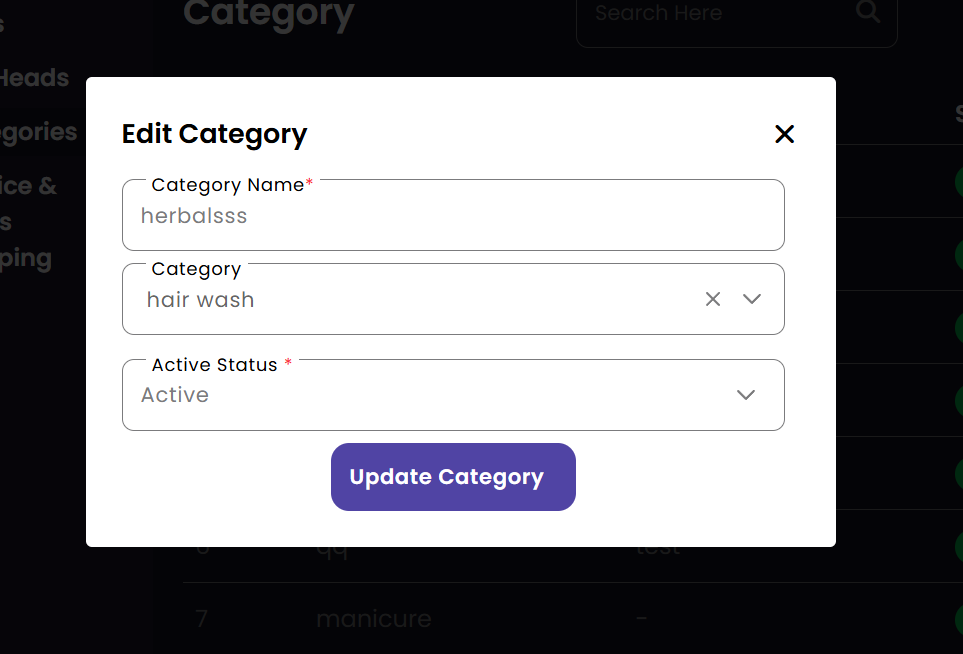
  • If you want to update the details of a particular category click the edit button (fig:category1) of the corresponding category , a new popup Edit Category appears enter the required details and click the Update Category button (fig:category3).

Delete Category

  • If you want to delete a particular category click the delete button(fig:category1) of the corresponding category.

Search Category

  • If you want to get Categories based on the name of the category type the name in the search bar. (fig:category1)

Service Item Mapping

fig:service_item_mapping1 fig:service_item_mapping2 fig:service_item_mapping3
Create Service Item Mapping

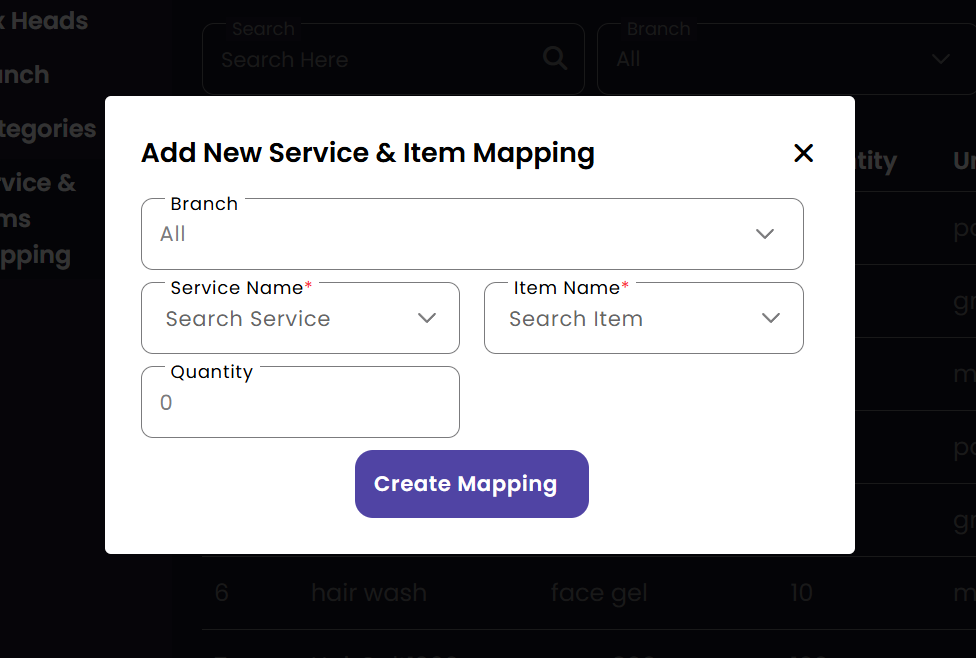
  • If you have to use an item in a service you have to create the service item mapping .
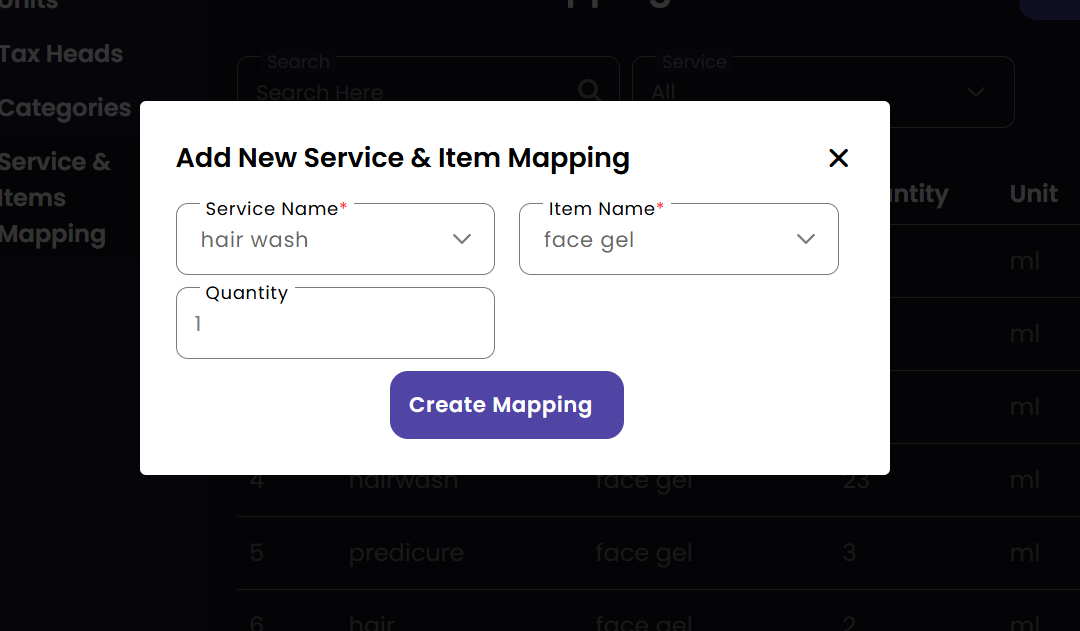
  • To create a service item mapping, click Settings from the sidebar then click Service & Items Mapping. Click the + Add Service & Item Mapping button (fig:service_item_mapping1). A popup called Add New Service & Item Mapping appears. Enter the required details and click the Create Mapping button(fig:service_item_mapping2).

Update Service Item Mapping

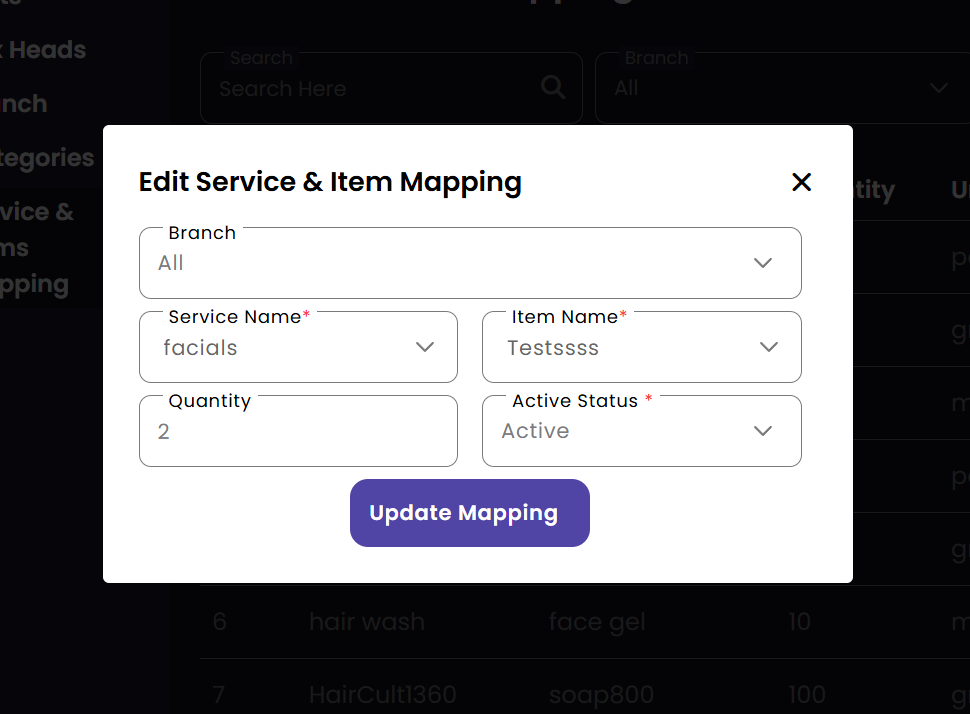
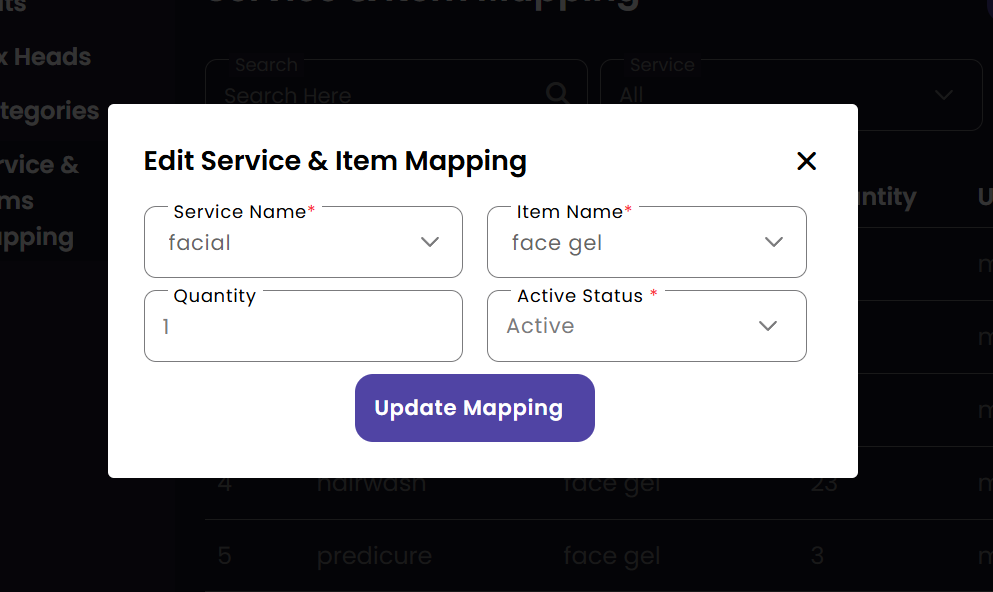
  • If you want to update the details of a particular service item mapping click the edit button (fig:service_item_mapping1) of the corresponding service item mapping , a new popup Edit Service & Item Mapping appears enter the required details and click the Update Mapping button (fig:service_item_mapping3).

Delete Service Item Mapping

  • If you want to delete a particular service item mapping click the delete button(fig:service_item_mapping1) of the corresponding service item mapping.

Search Service Item Mapping

  • If you want to get service item mapping based on the name of the service or item type the name in the search bar. (fig:service_item_mapping1).
  • If you want to get service item mapping based on the service click the required service from the Service drop down.
  • If you want to get the service item mappings in a particular branch click the required branch from the Branch drop down.

Profile

Manage your administrative user profile and security settings. Keeping your contact information up-to-date and maintaining account security is essential for administrative duties.

Personal Profile
View Profile

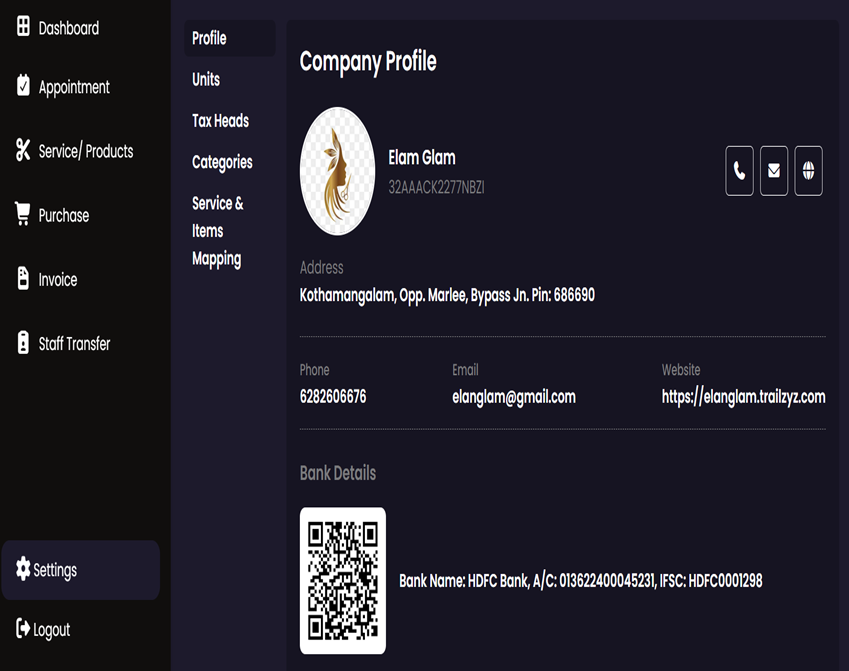
  • To view the profile , click the settings in the side bar.

Dashboard

Get a high-level overview of the salon's performance through real-time metrics. The dashboard provides insights into earnings, appointment volume, staff productivity, and inventory status at a glance.

Analytics Overview
Dashboard

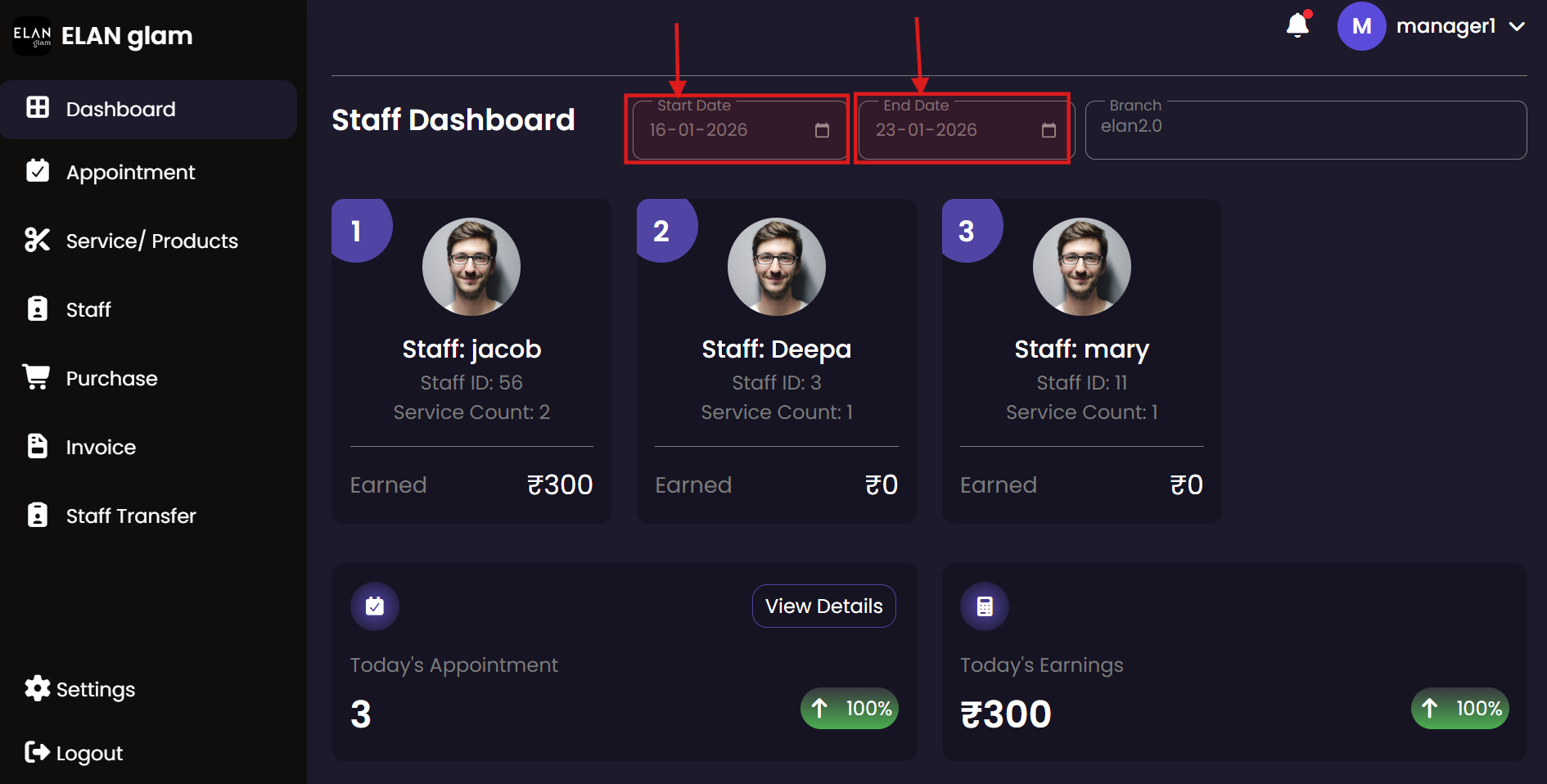
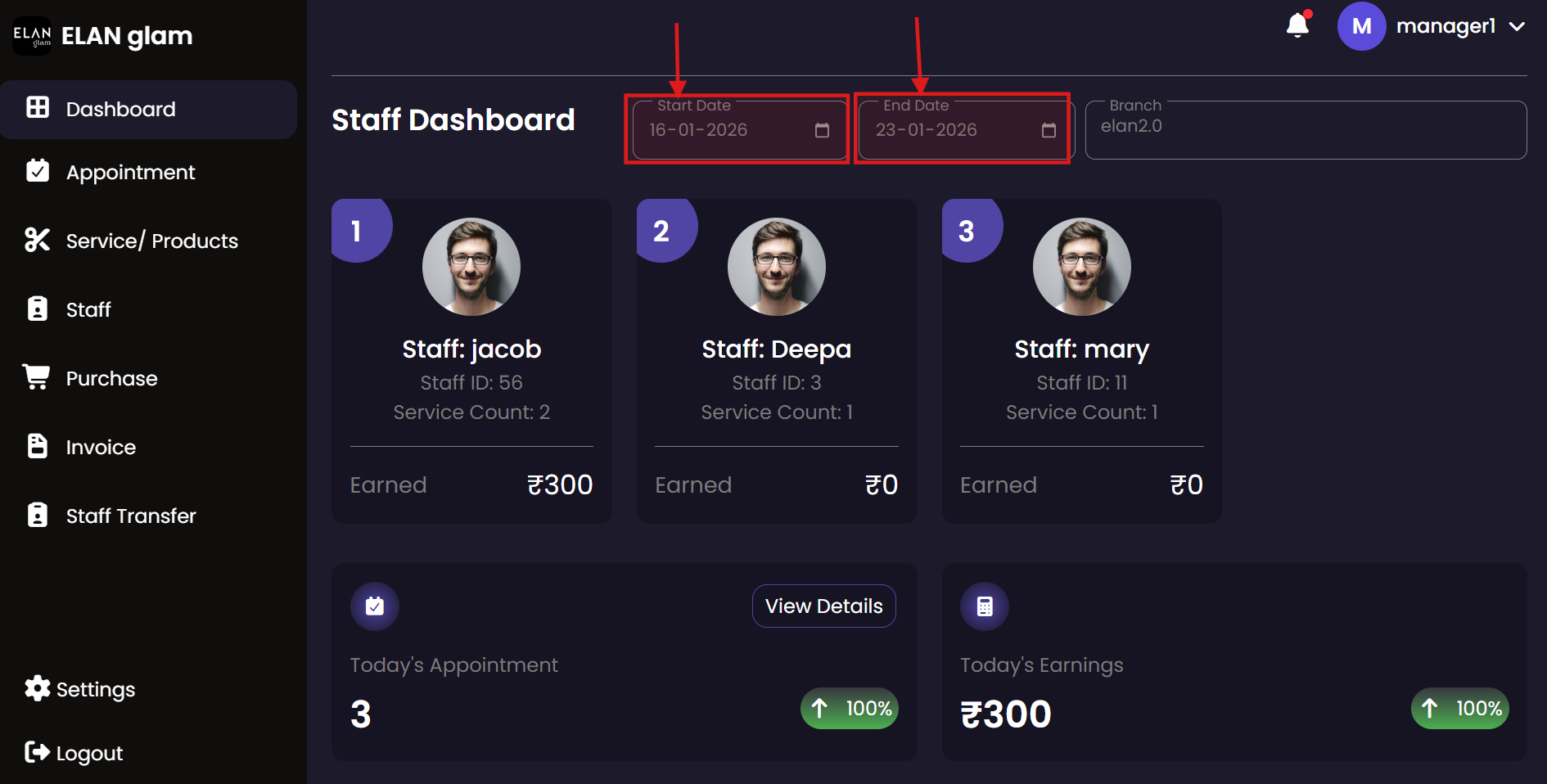
  • The dashboard displays staff performance (amount earned and services completed by each staff member), the total number of appointments for the current day, total earnings for the current day, out-of-stock products with their quantities, and the previous month’s employee performance.
  • You can modify the Start Date and End Date to view information for a specific period.

Manager Module

The Manager module is tailored for branch-level oversight. Managers can monitor daily appointments, manage branch inventory, oversee local staff, and track branch performance metrics while ensuring smooth day-to-day operations.

Appointment

Oversee all appointments within your assigned branch. Managers can create new bookings, update existing customer information, and monitor the status of services in real-time to ensure patient satisfaction and staff efficiency.

Appointments List Schedule Appointment View/Update Details Customer Info Booking Info Service Management
Create Appointments

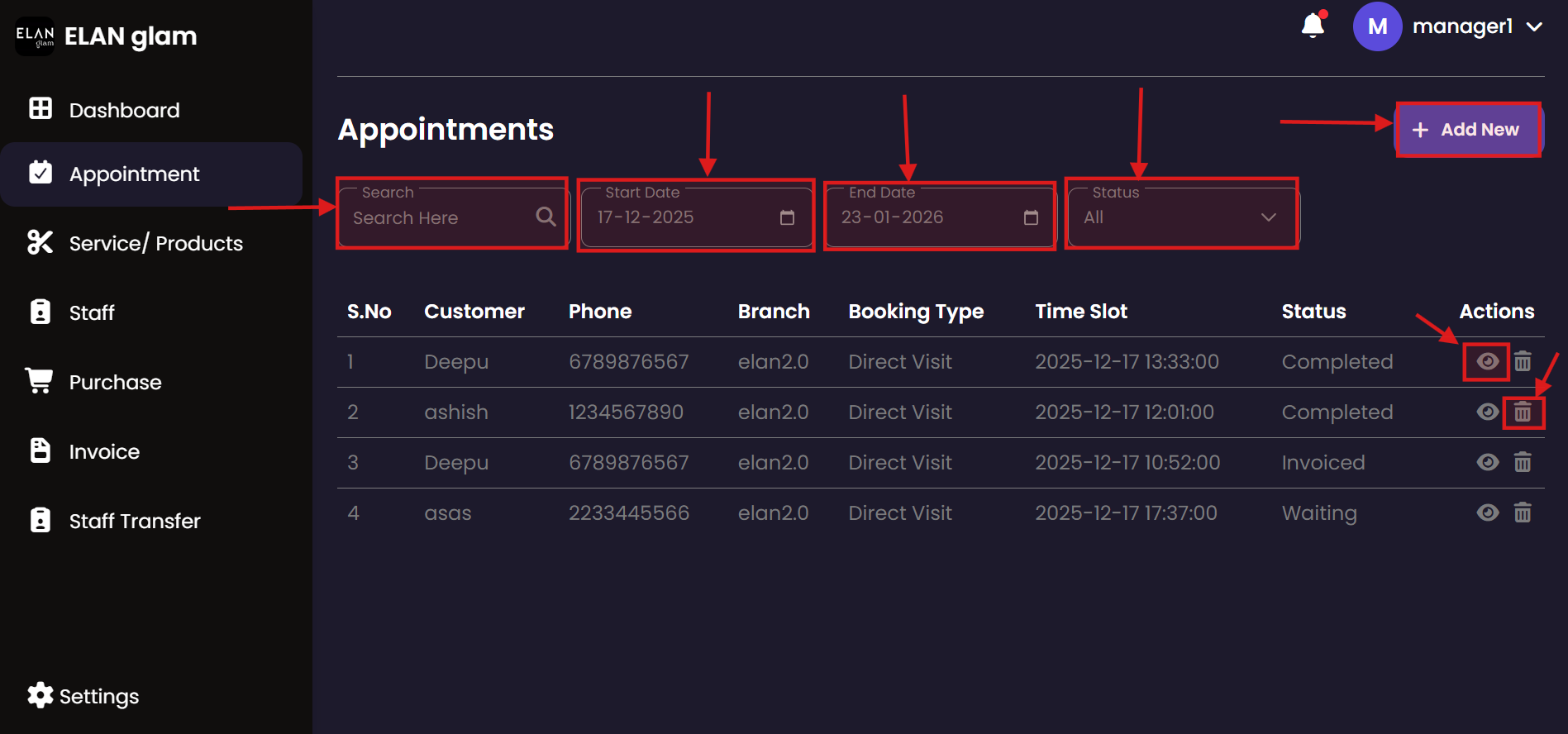
  • To create an appointment, click Appointment from the sidebar and then click the + Add New button. You will be redirected to the Create Appointment page. Enter the required details and submit the form.
  • If the customer is availing more than one service in the same appointment, click the + button under the services section, enter the service details, and then click the Submit button.
  • Note :
    • You must create a branch first to assign a branch in an appointment .
    • Select a branch and create services under that specific branch; only those services will be listed in the Service Name drop-down
    • Create staff members under the required branch; only then will they appear in the Staff Name drop-down.

View/Update Appointments

  • To view and update a specific appointment, click the view button (eye icon) of the corresponding appointment (fig:appointment1). You will be redirected to another page where the appointment details are displayed.
  • To update the customer’s personal information, click the Edit button under Personal Info (fig:appointment3). The Edit Customer pop-up will appear. Enter the details you want to update and click the Update button. (fig:appointment4)
  • To update the booking information, click the Edit button under Booking Info (fig:appointment3). The Edit Booking Information pop-up will appear. Enter the details you want to update and click the Update button (fig:appointment5).
  • To update the service details in an appointment, click the blue edit button in the lower right corner. New drop-downs will appear under the service details. Update the required information and then click the Save Changes button(Save Changes button will only appear when you click blue edit button) (fig:appointment3).
  • To add a new service to the existing appointment click the + Add-on Service button (fig:appointment3) a new section Add Service appears enter the details and click the Save Services button (fig:appointment6).If you want to delete that service you can click the red delete button.

Delete Appointment

  • If you want to delete a particular appointment click the delete button (fig:appointment1) of the corresponding appointment .

Search Appointment

  • If you want to get appointments taken in a particular date select the suitable start date and end date.
  • If you want appointments based on the status of the appointment click the required status in the Status drop down.
  • If you want to get the appointment of a specific customer type the name or phone number of the customer in the Search Here search bar. (fig:appointment1)

Products/Services

Monitor the products and services available at your branch. Managers can review item details, map items to specific services, and ensure that the branch offering is aligned with current demand and inventory.

Branch Menu Create Entry Update Entry
Create Product/Services

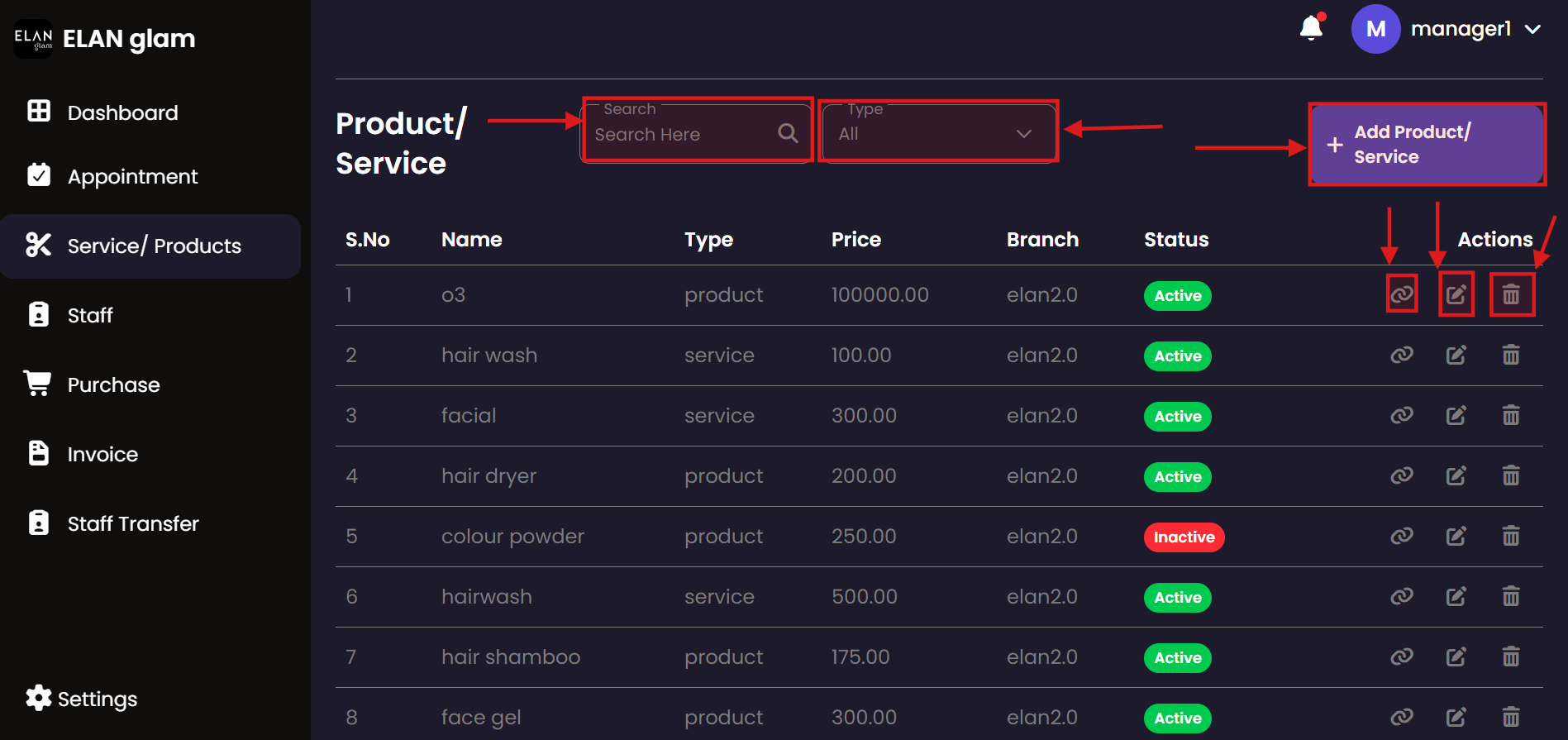
  • To create a product/service, click Service/Product from the sidebar and then click the + Add Product/ Service button (fig:pro/ser1). A popup called Add New Product/Service appears. Enter the required details and click the Create Product button.
  • To create a product, select Product from the Type drop-down. To create a service, select Service from the Type drop-down(fig:pro/ser2).
  • Note :
    • You must create category, tax head and unit first to create a product/service .
    • You cannot change the type of product/service once it is created

Update Product/Services

  • If you want to update a particular product click the edit button (fig:pro/ser1)of the corresponding product/service then a new popup Edit Product/Service appears enter the required details and click the Update Product button (fig:pro/ser3).

Delete Product/Service

  • If you want to delete a particular product or service click the delete button of the corresponding product or service.

Search Product/Service

  • If you want see either product or service select it from the Type dropdown .
  • If you want to select the product/ service based on the name type the name of the product or service in the Search Here search bar.

Service Item Mapping Product/Service

  • If a product or service is mapped to another item, click the Mapping button for that product or service to navigate to the service item mapping page and view its mappings. (Service Item Mapping Explanation : If a specific product is required to perform a particular service, that product must be mapped to the service)

Staff

Manage the team at your branch. This section allows you to review staff profiles, monitor their schedules, and ensure that all service roles are properly filled by qualified personnel.

Staff Overview Create Record Edit Details Security Settings
Create Staff

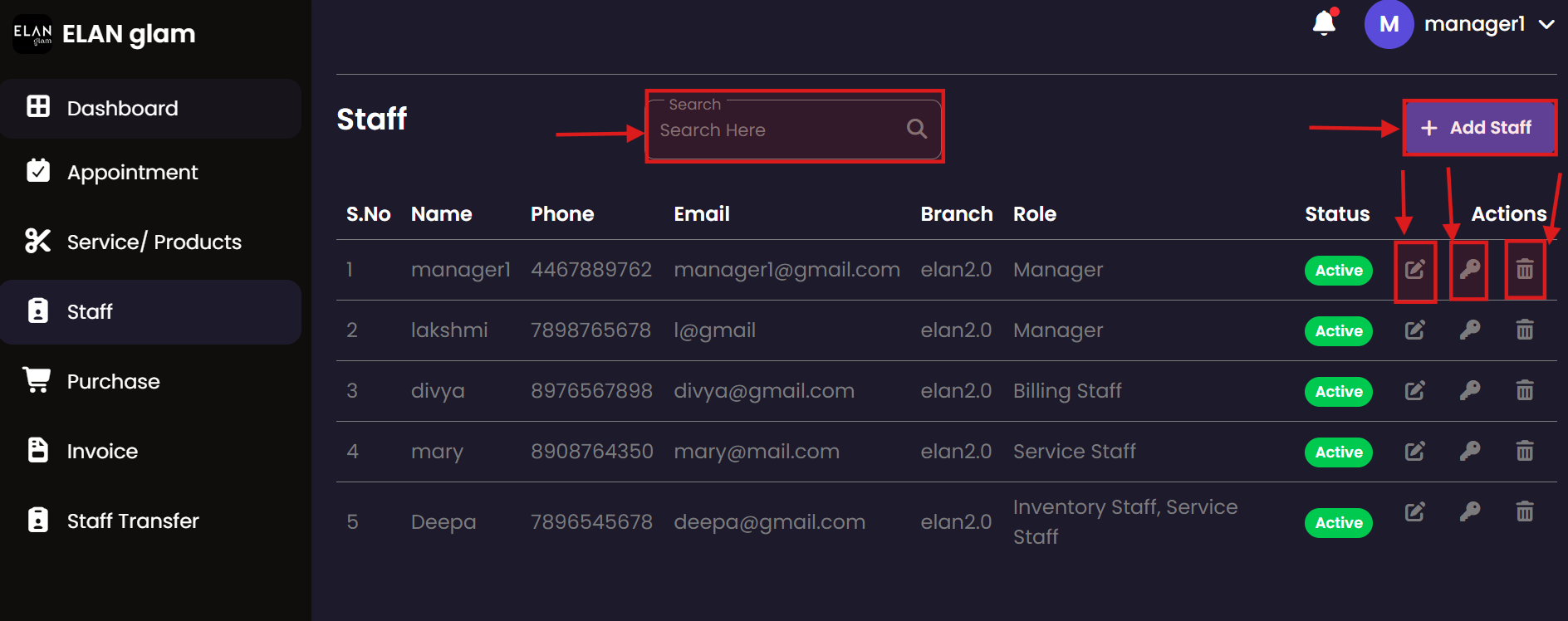
  • To add a staff, click Staff from the sidebar and then click the + Add Staff button (fig:staff1). A popup called Add New Staff appears. Enter the required details and click the Create Staff button(fig:staff2).
  • To assign a specific role to a staff , tick the checkbox corresponding to the role you want to assign (Fig: staff2).
  • Note :
    • You must create a branch first to assign a staff in a branch.

Update Staff

  • If you want to update the details of a particular staff click the edit button (fig:staff1) of the corresponding staff then a new popup Edit Staff appears enter the required details and click the Update Staff button (fig:staff2).

Delete Staff

  • If you want to delete a particular staff click the delete button of the corresponding staff.

Search Staff

  • If you want to select the staff based on the name of the staff type the name of the staff in the Search Here search bar.

Staff Password

  • If you want to change the password of a staff then click the password button(key icon) (fig:staff1) then a popup Reset Password appears change the password and click the Reset Password button (fig:staff4).

Purchase

Record and track branch-level inventory purchases. This tool helps managers document stock arrivals from vendors, ensuring that the branch has the necessary products and supplies for all scheduled services.

Purchase List New Entry Edit Purchase Entry Details
Create Purchase

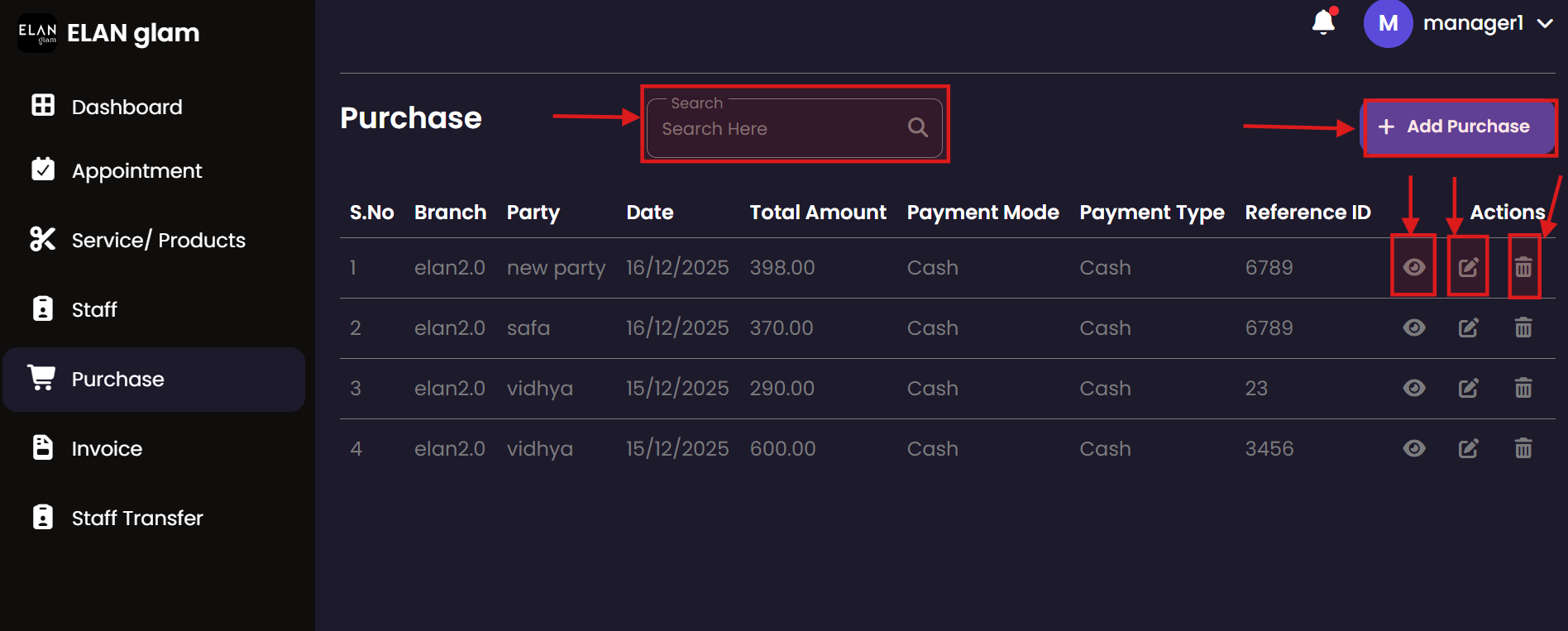
  • To make a purchase, click Purchase from the sidebar and then click the + Add Purchase button (fig:purchase1). You will be redirected to the New Purchase Entry page (fig:purchase2). Enter the required details and click the Submit button.
  • If the customer want to purchase more than one item in a single purchase , click the Add Item button under the Add Item section, enter the item details.
    • If you want to update any details of that item , click the update button of the corresponding item and click the Update Item button.
    • If you want to remove that item from the purchase then click the delete button of the corresponding item.
    • Note:
      • You must create a branch first to make purchase for a branch .
      • You have to create a product , only then the product will be listed in the Item drop down under the Add Item section.
      • Products under your branch will be listed in Item drop down.
    • If you are purchasing the product from a new party (vendor) then you have to click the + New Party button and enter the name of the new party.

    Update Purchase

    • If you want to update a particular purchase click the update button (fig:purchase1). of the the corresponding purchase you want to update then you will be redirected to Update Purchase Entry page , enter the required details and click the Update button. (fig:purchase3).

    Delete Purchase

    • If you want to delete a particular purchase click the delete button (fig:purchase1). of the corresponding purchase.

    View Purchase

    • If you want to view the details of a particular purchase click view button(eye icon) (fig:purchase1). A popup Purchase Details appears (fig:purchase4).

    Search Purchase

    • If you want to get a particular purchase based on the Party, Branch then type the corresponding detail in the search bar.

Invoice

fig:manager_Invoice1 fig:manager_Invoice2 fig:manager_Invoice3 fig:manager_Invoice4 fig:manager_Invoice5
Invoice

  • Note: To create an invoice first you have to create an appointment then the service staff have to start the service , assign items used in the service and complete the services in the appointment , then the status of appointment will be change to Completed.

Generate invoice of the appointment

  • From the side bar select Appointment and select an appointment which is completed.
  • Click the + View Invoice button (fig:invoice1) to navigate to the New Invoice page (fig:invoice2). Enter the required details, specify the service rate under Services, apply any discount if applicable, and view the calculated net amount. Finally, click the Update Invoice button to create the invoice. Status of the appointment will change to Invoiced.

Print Invoice

  • If you want to print the invoice click Preview Bill button (fig:invoice2) then a popup of the bill appears click the Print button .(fig:invoice4)

Update Invoice

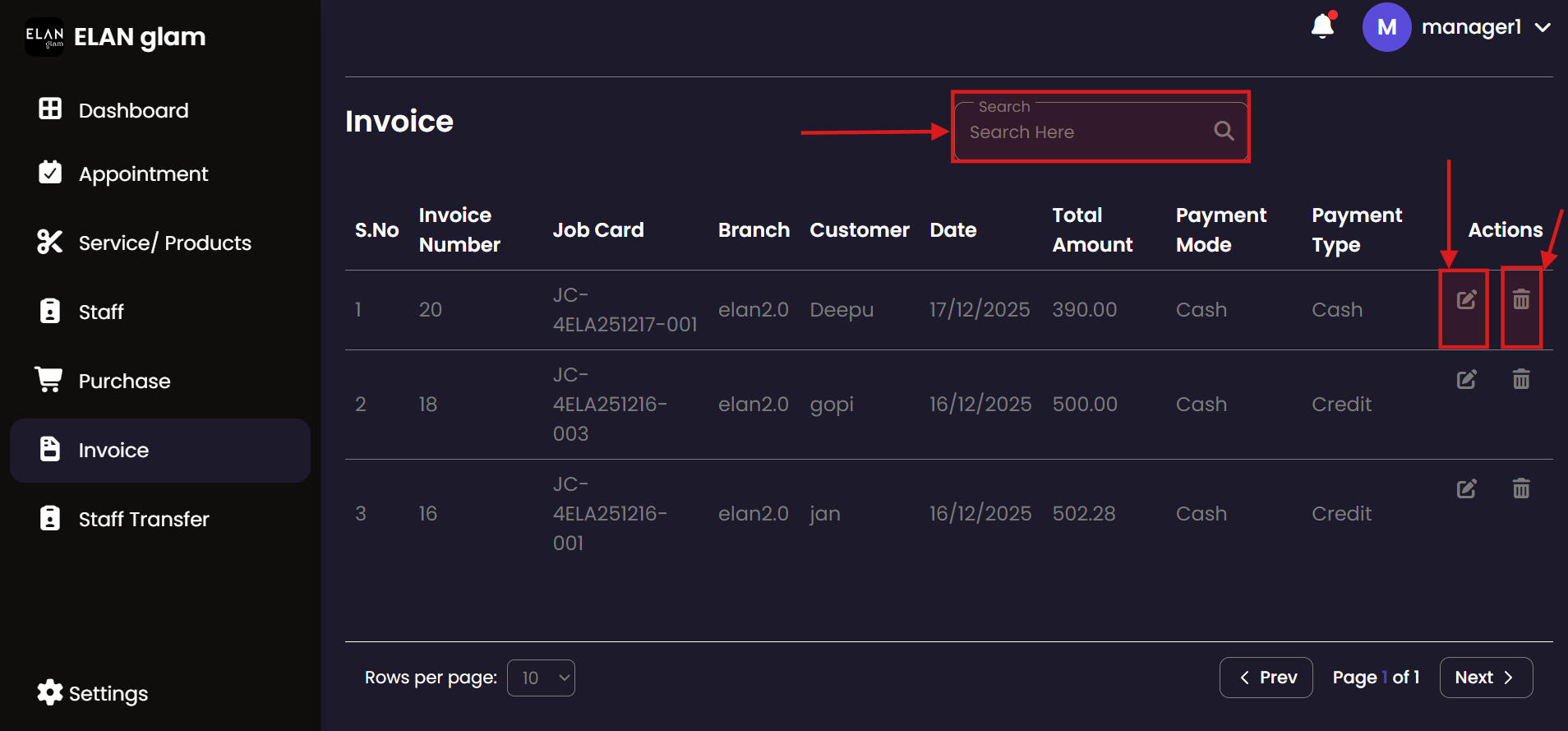
  • If you want to update a particular invoice click the update button (fig:invoice5) of the invoice you want to update you will be redirected into the New Invoice page (fig:invoice2), enter the details that you want to update and click the Update Invoice button.

Delete Invoice

  • If you want to delete a particular invoice click the delete button (fig:invoice5) of the corresponding invoice you want to delete.

Search Invoice

  • If you want to get a particular invoice you can type the name of the customer, invoice number and Job Card in the search bar (fig:invoice5).

Staff Transfer

fig:manager_Staff-Transfer1 fig:manager_Staff-Transfer2
Create Staff Transfer

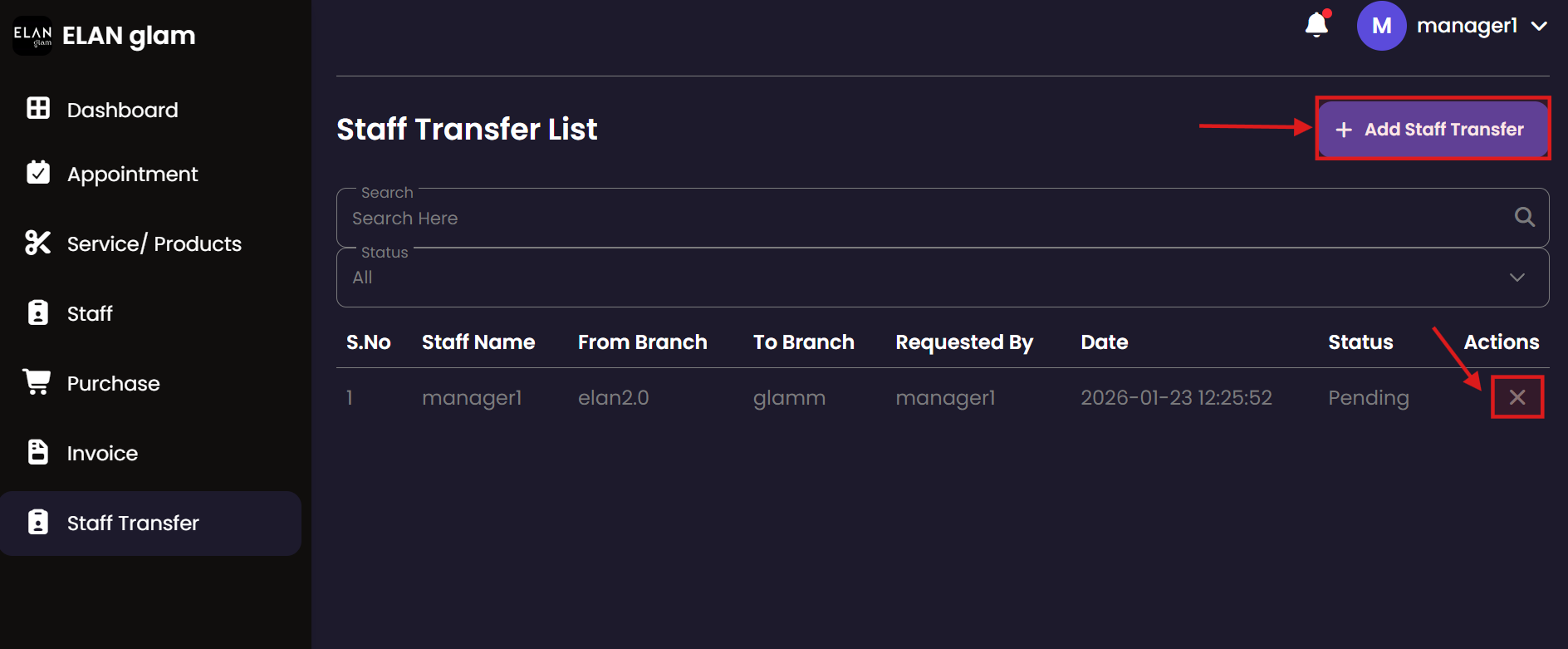
  • To apply a staff transfer, click Staff Transfer from the sidebar and then click the + Add Staff Transfer button (fig:staff_transfer1). A popup called Add Staff Transfer appears. Enter the required details and click the Create Staff Transfer button(fig:staff_transfer2).

Cancel Staff Transfer

  • If you want to cancel a staff transfer click the cross button of the staff transfer you want to reject. (fig:staff_transfer1)

Units

Track the units of measurement available for your branch operations. Managers can review standard units to ensure that all stock entries and service records are consistent with organizational standards.

Branch Units Create Unit Update Unit
Create Unit

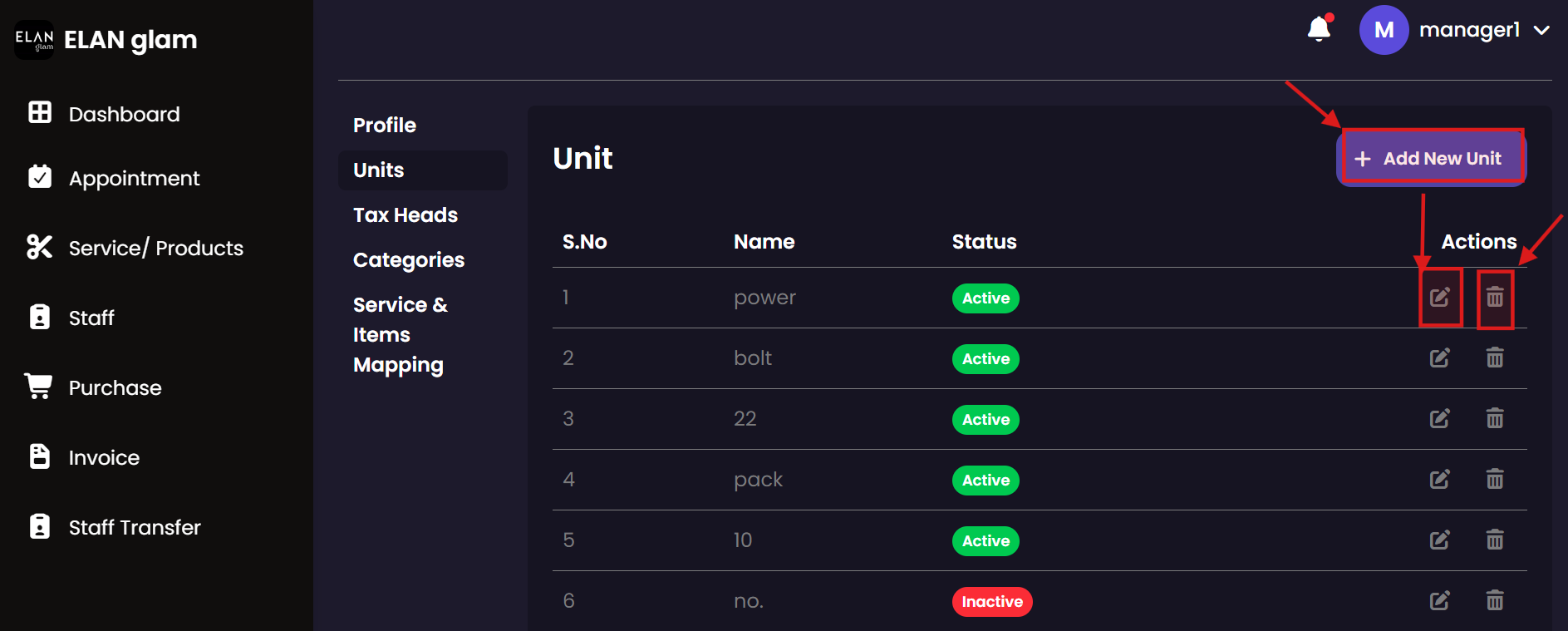
  • To create a unit, click Settings from the sidebar then click Units. Click the + Add New Unit button (fig:unit1). A popup called Add New Unit appears. Enter the required details and click the Create Unit button(fig:unit2).

Update Unit

  • If you want to update the details of a particular unit click the edit button (fig:unit1) of the corresponding unit , a new popup Edit Unit appears enter the required details and click the Update Unit button (fig:unit3).

Delete Unit

  • If you want to delete a particular unit click the delete button(fig:unit1) of the corresponding unit.

Tax Head

Monitor the tax configurations applicable to your branch. This section allows managers to review tax rates and structures for localized services and products, ensuring compliance with general policies.

Tax Settings New Tax Head Edit Tax Rate
Create Tax Head

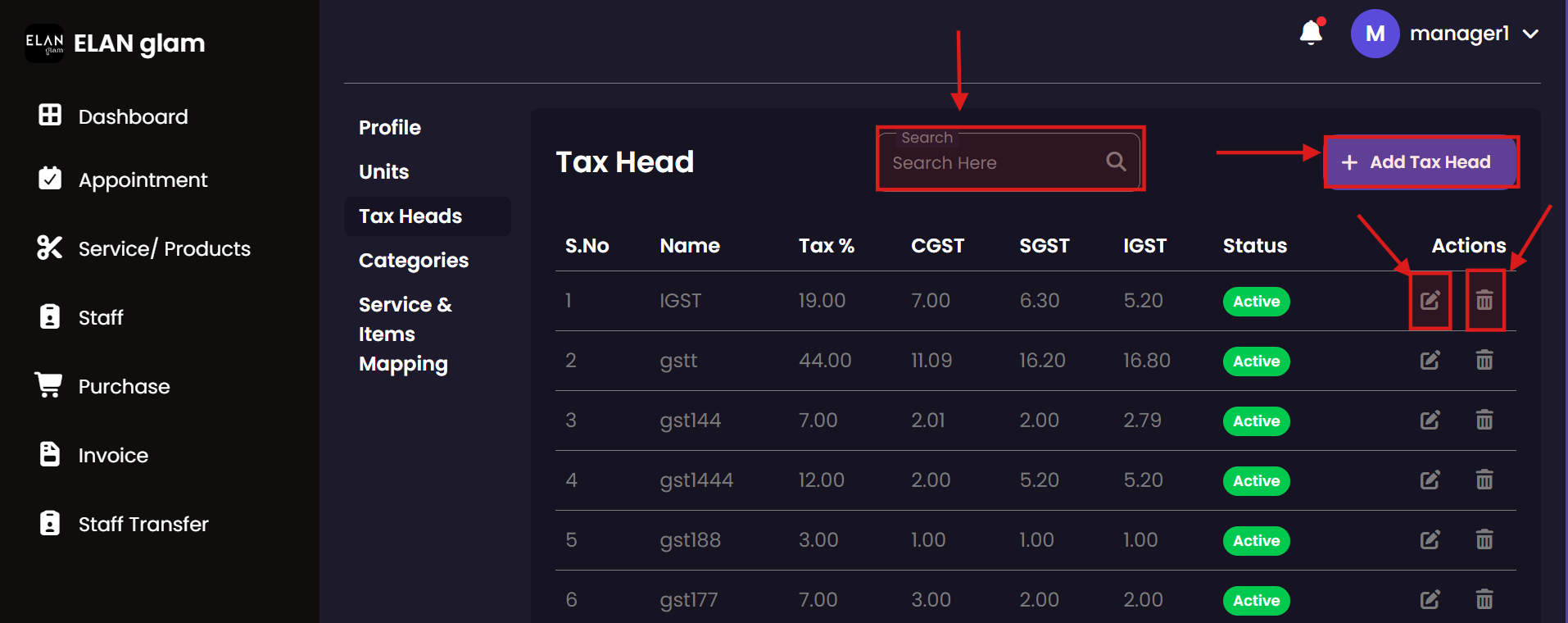
  • To create a tax head, click Settings from the sidebar then click tax heads. Click the + Add Tax Head button (fig:taxhead1). A popup called Add New Tax Head appears. Enter the required details and click the Create Tax Head button(fig:taxhead2).

Update Tax Head

  • If you want to update the details of a particular tax head click the edit button (fig:taxhead1) of the corresponding tax head , a new popup Edit Tax Head appears enter the required details and click the Update Tax Head button (fig:taxhead3).

Delete Tax Head

  • If you want to delete a particular tax head click the delete button(fig:taxhead1) of the corresponding tax head.

Search Tax Head

  • If you want to get tax heads based on the name of the tax head type the name in the search bar. (fig:taxhead1)

Category

Review and manage organizational categories for your branch's offerings. Ensuring that all local services and products are correctly categorized helps in maintaining an organized menu and facilitates accurate local reporting.

Branch Categories Create Category Edit Category
Create Category

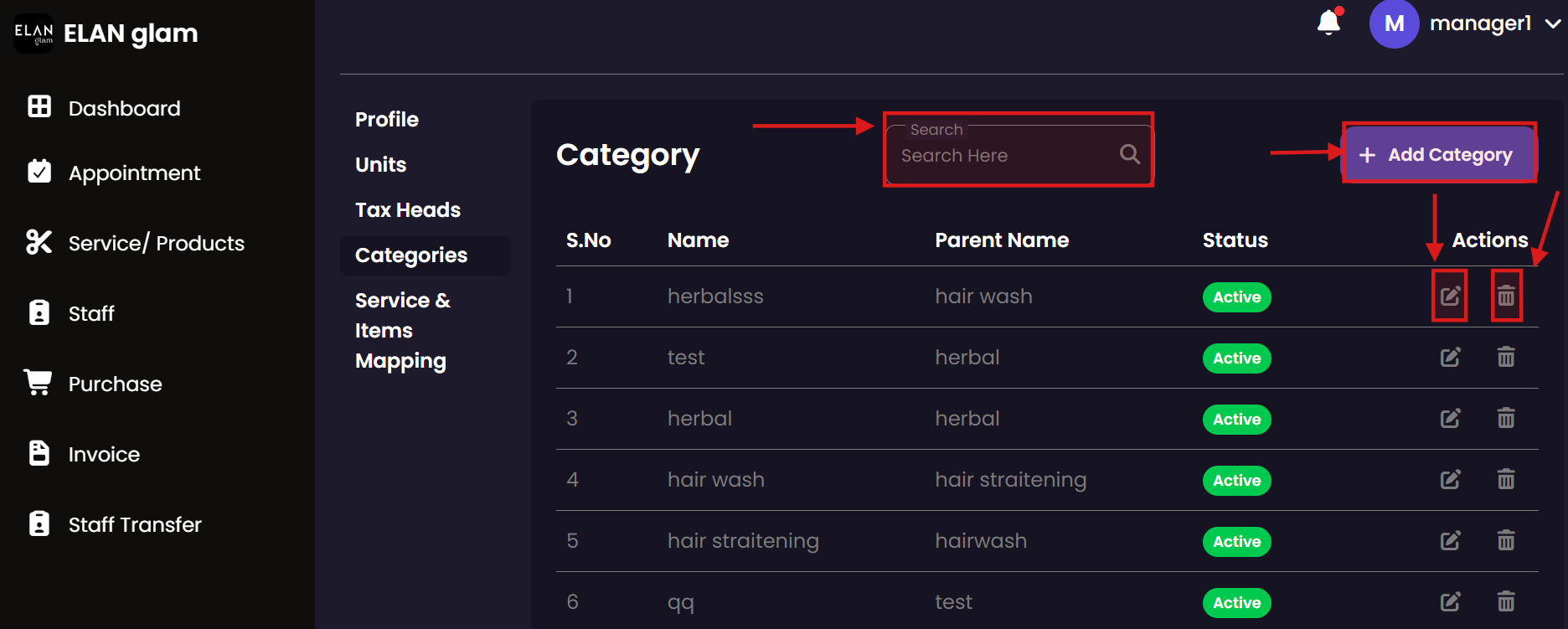
  • To create a category, click Settings from the sidebar then click Categories. Click the + Add Category button (fig:category1). A popup called Add New Category appears. Enter the required details and click the Create Category button(fig:category2).

Update Category

  • If you want to update the details of a particular category click the edit button (fig:category1) of the corresponding category , a new popup Edit Category appears enter the required details and click the Update Category button (fig:category3).

Delete Category

  • If you want to delete a particular category click the delete button(fig:category1) of the corresponding category.

Search Category

  • If you want to get Categories based on the name of the category type the name in the search bar. (fig:category1)

Service Item Mapping

Ensure that all branch services have the necessary inventory items associated with them. The mapping system automates the assignment of products to services, streamlining the job card process for service staff.

Mapping Overview Create Mapping Update Mapping
Create Service Item Mapping

  • If an item is used in a service, you must create a service item mapping. The item will then be automatically assigned to the service without any manual assignment.
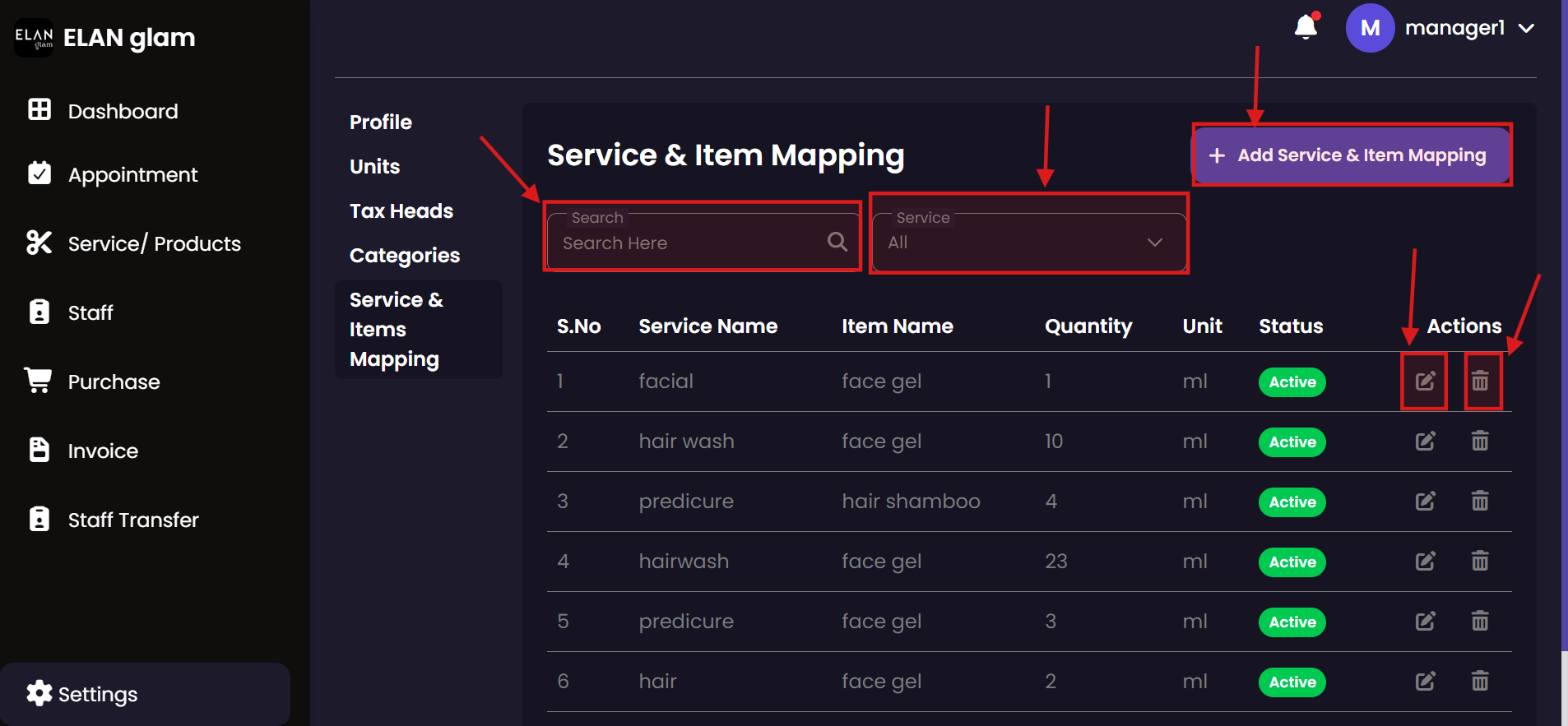
  • To create a service item mapping, click Settings from the sidebar then click Service & Items Mapping. Click the + Add Service & Item Mapping button (fig:service_item_mapping1). A popup called Add New Service & Item Mapping appears. Enter the required details and click the Create Mapping button(fig:service_item_mapping2).

Update Service Item Mapping

  • If you want to update the details of a particular service item mapping click the edit button (fig:service_item_mapping1) of the corresponding service item mapping , a new popup Edit Service & Item Mapping appears enter the required details and click the Update Mapping button (fig:service_item_mapping3).

Delete Service Item Mapping

  • If you want to delete a particular service item mapping click the delete button(fig:service_item_mapping1) of the corresponding service item mapping.

Search Service Item Mapping

  • If you want to get service item mapping based on the name of the service or item type the name in the search bar. (fig:service_item_mapping1).
  • If you want to get service item mapping based on the service click the required service from the Service drop down.

Profile

Access and update your branch manager profile. Manage your regional contact information and security credentials to ensure uninterrupted access to the management dashboard.

Profile Management
View Profile

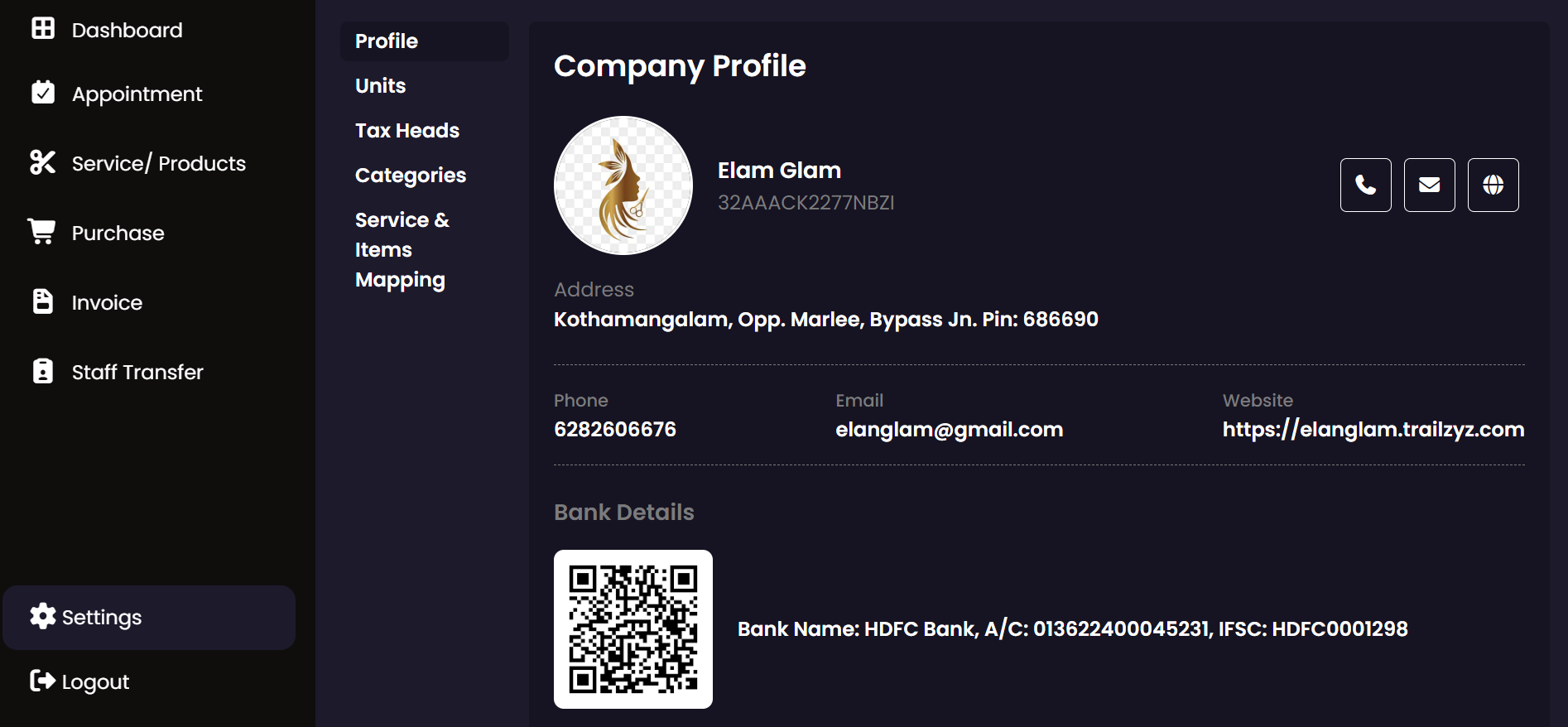
  • To view the profile , click the settings in the side bar.

Dashboard

Track your branch's performance metrics in real-time. The Manager dashboard highlights key indicators of success, including customer volume, service efficiency, and financial targets for the current period.

Performance Overview
Dashboard

  • The dashboard displays staff performance (amount earned and services completed by each staff member), the total number of appointments for the current day, total earnings for the current day, out-of-stock products with their quantities, and the previous month’s employee performance.
  • You can modify the Start Date and End Date to view information for a specific period.

Billing Staff Module

The Billing Staff module focuses on the customer's front-desk experience. Billing staff are responsible for booking appointments, processing sales, and generating accurate invoices, ensuring a professional and efficient checkout process.

Appointment

Manage the daily appointment flow at the front desk. Billing staff can quickly book new appointments for walk-in customers and update existing bookings to reflect changes in service requests or customer preferences.

Appointments View New Booking Update Appointment Customer Info Booking Info Service List
Create Appointments

  • To create an appointment, click Appointment from the sidebar and then click the + Add New button. You will be redirected to the Create Appointment page. Enter the required details and submit the form.
  • If the customer is availing more than one service in the same appointment, click the + button under the services section, enter the service details, and then click the Submit button.
  • Note :
    • You must create a branch first to assign a branch in an appointment .
    • Select a branch and create services under that specific branch; only those services will be listed in the Service Name drop-down.
    • Create staff members under the required branch; only then will they appear in the Staff Name drop-down.

View/Update Appointments

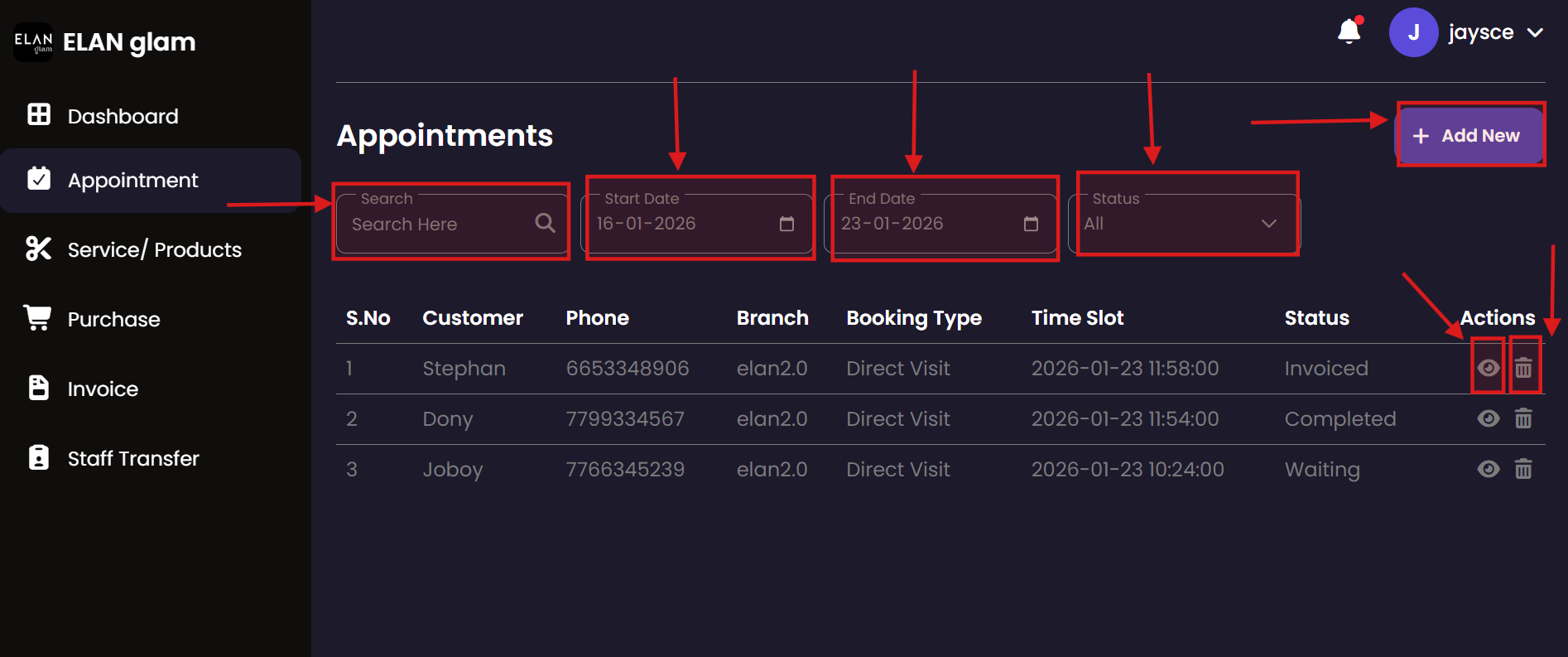
  • To view and update a specific appointment, click the view button (eye icon) of the corresponding appointment (fig:appointment1). You will be redirected to another page where the appointment details are displayed.
  • To update the customer’s personal information, click the Edit button under Personal Info (fig:appointment3). The Edit Customer pop-up will appear. Enter the details you want to update and click the Update button. (fig:appointment4)
  • To update the booking information, click the Edit button under Booking Info (fig:appointment3). The Edit Booking Information pop-up will appear. Enter the details you want to update and click the Update button (fig:appointment5).
  • To update the service details in an appointment, click the blue edit button in the lower right corner. New drop-downs will appear under the service details. Update the required information and then click the Save Changes button(Save Changes button will only appear when you click blue edit button) (fig:appointment3).
  • To add a new service to the existing appointment click the + Add-on Service button (fig:appointment3) a new section Add Service appears enter the details and click the Save Services button (fig:appointment6).If you want to delete that service you can click the red delete button.

Delete Appointment

  • If you want to delete a particular appointment click the delete button (fig:appointment1) of the corresponding appointment .

Search Appointment

  • If you want to get appointments taken in a particular date select the suitable start date and end date.
  • If you want appointments based on the status of the appointment click the required status in the Status drop down.
  • If you want to get the appointment of a specific customer type the name or phone number of the customer in the Search Here search bar. (fig:appointment1)

Products/Services

Browse the salon's menu of offerings. Billing staff can use this view to check prices, availability, and service durations when assisting customers with their bookings and inquiries.

Catalog View New Service Entry Update Service Details
Create Product/Services

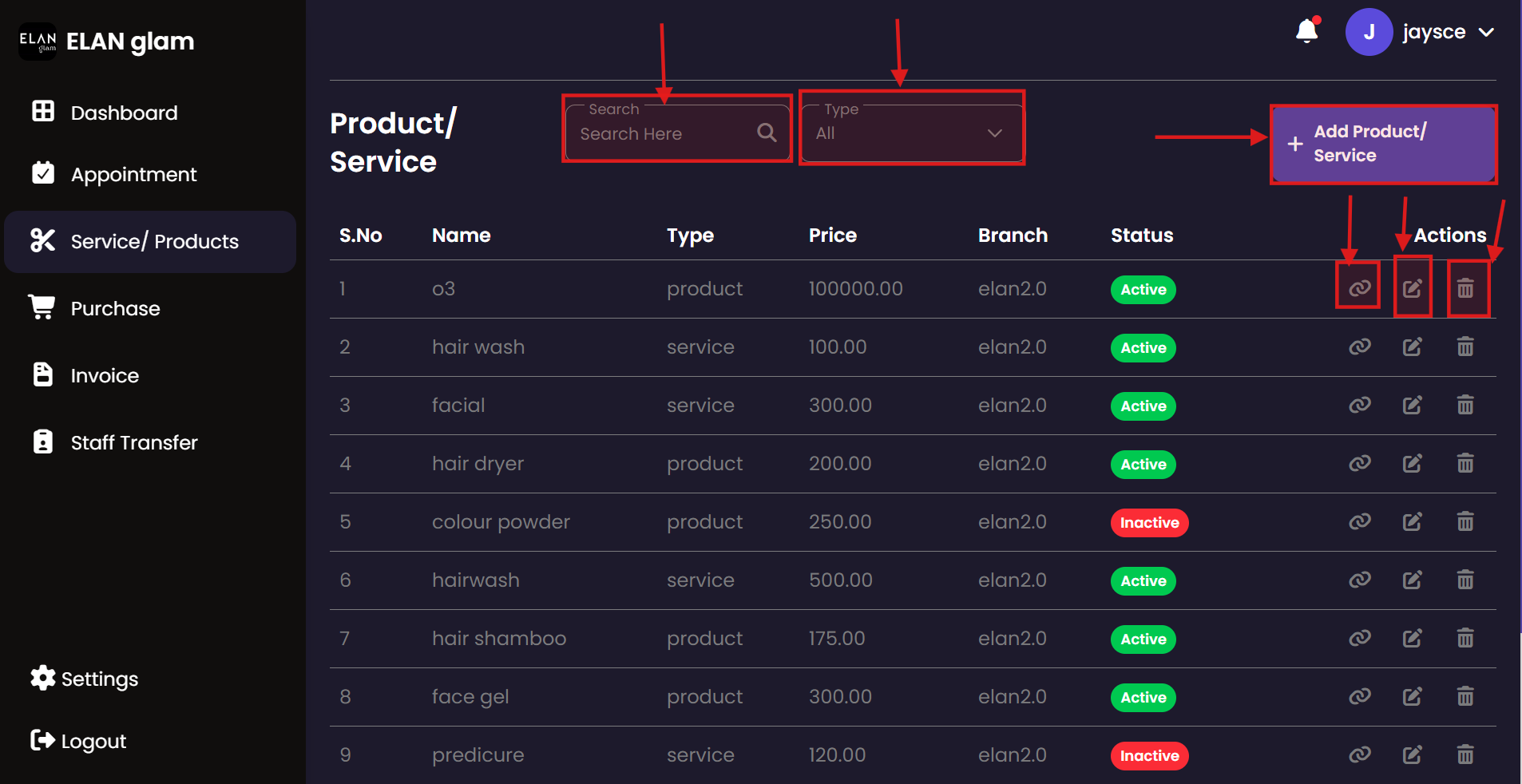
  • To create a product/service, click Service/Product from the sidebar and then click the + Add Product/ Service button (fig:pro/ser1). A popup called Add New Product/Service appears. Enter the required details and click the Create Product button.
  • To create a product, select Product from the Type drop-down. To create a service, select Service from the Type drop-down (fig:pro/ser2).
  • Note :
    • You must create category, tax head and unit first to create a product/service .
    • You cannot change the type of product/service once it is created

Update Product/Services

  • If you want to update a particular product click the edit button (fig:pro/ser1)of the corresponding product/service then a new popup Edit Product/Service appears enter the required details and click the Update Product button (fig:pro/ser3).

Delete Product/Service

  • If you want to delete a particular product or service click the delete button of the corresponding product or service.

Search Product/Service

  • If you want see either product or service select it from the Type dropdown .
  • If you want to select the product/ service based on the name type the name of the product or service in the Search Here search bar.

Service Item Mapping Product/Service

  • If a product or service is mapped to another item, click the Mapping button for that product or service to navigate to the service item mapping page and view its mappings. (Service Item Mapping Explanation : If a specific product is required to perform a particular service, that product must be mapped to the service)

Purchase

Record stock acquisitions at the front desk. Billing staff can help maintain inventory levels by logging new product deliveries and ensuring that the branch records accurately reflect current stock on hand.

Purchase Logs Create Record Update Record Record Details
Create Purchase

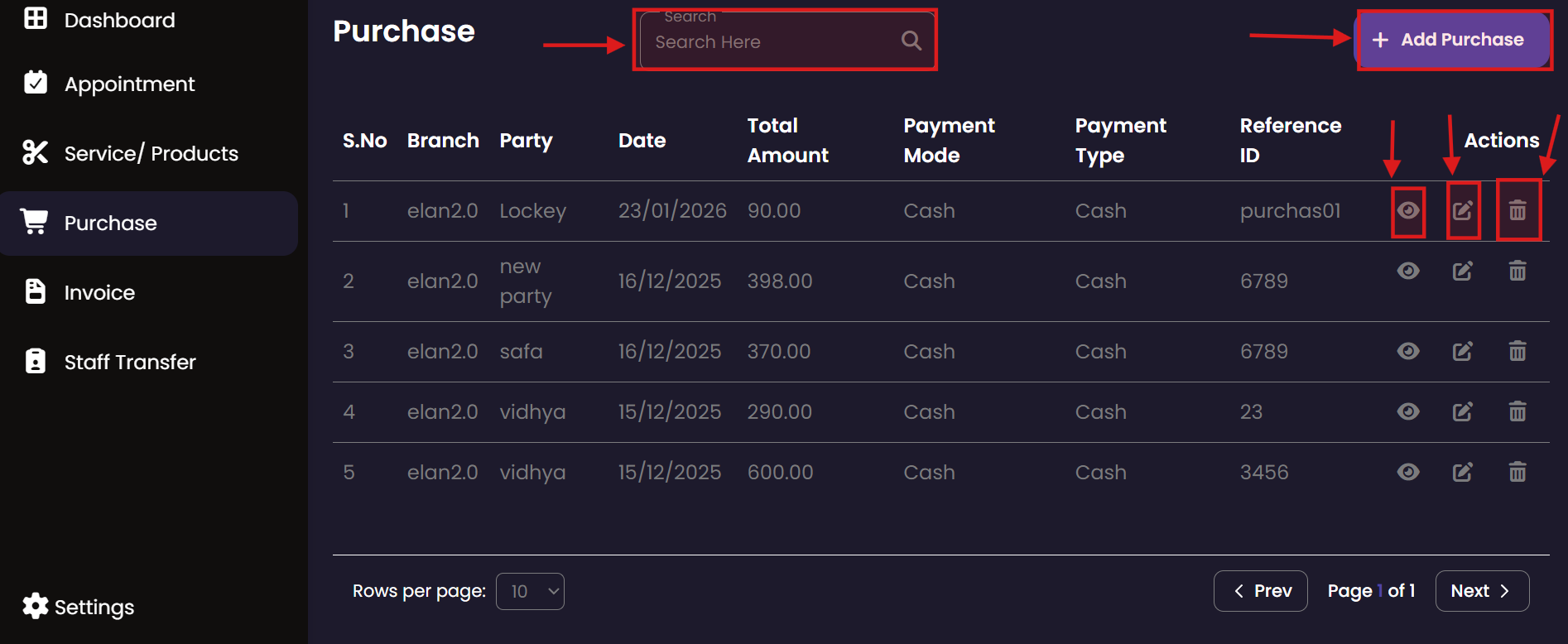
  • To make a purchase, click Purchase from the sidebar and then click the + Add Purchase button (fig:purchase1). You will be redirected to the New Purchase Entry page (fig:purchase2). Enter the required details and click the Submit button.
  • If the customer want to purchase more than one item in a single purchase , click the Add Item button under the Add Item section, enter the item details .
    • If you want to update any details of that item , click the update button of the corresponding item and click the Update Item button.
    • If you want to remove that item from the purchase then click the delete button of the corresponding item.
  • Note:
    • You must create a branch first to make purchase for a branch .
    • You have to create a product , only then the product will be listed in the Item drop down under the Add Item section.
    • Products under your branch will be listed in Item drop down.
    • If you are purchasing the product from a new party (vendor) then you have to click the + New Party button and enter the name of the new party.

Update Purchase

  • If you want to update a particular purchase click the update button (fig:purchase1). of the the corresponding purchase you want to update then you will be redirected to Update Purchase Entry page , enter the required details and click the Update button. (fig:purchase3).

Delete Purchase

  • If you want to delete a particular purchase click the delete button (fig:purchase1). of the corresponding purchase.

View Purchase

  • If you want to view the details of a particular purchase click view button(eye icon) (fig:purchase1). A popup Purchase Details appears (fig:purchase4).

Search Purchase

  • If you want to get a particular purchase based on the Party, Branch then type the corresponding detail in the search bar.

Invoice

Generate and process customer payments with ease. The Invoice module for billing staff ensures that all services and products consumed are correctly billed, discounts are applied, and professional receipts are provided to every customer.

Billing Dashboard Create Invoice Final Review Print Receipt Invoice History
Invoice

  • Note: To create an invoice first you have to create an appointment then the service staff have to start the service , assign items used in the service and complete the services in the appointment , then the status of appointment will be change to Completed.

Generate invoice of the appointment

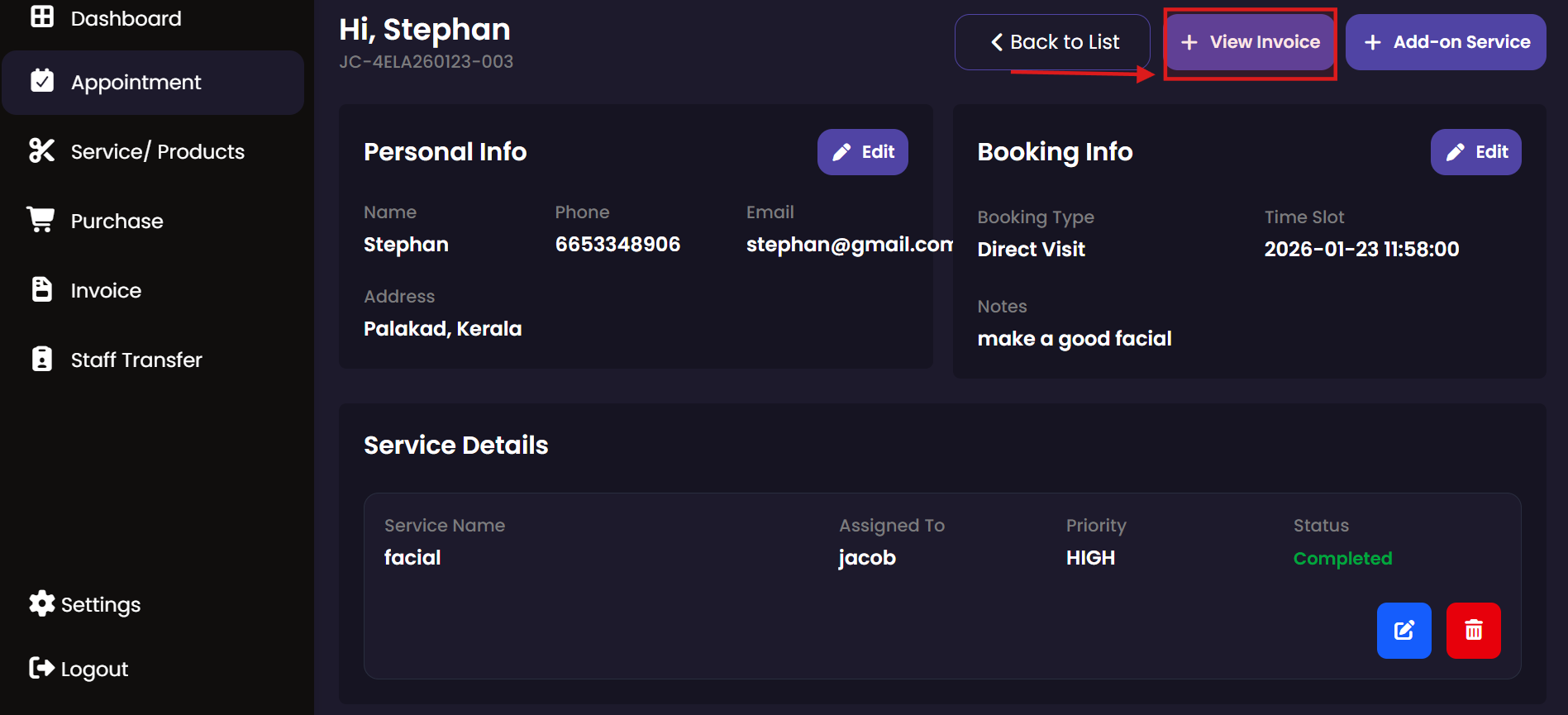
  • From the side bar select Appointment and select an appointment which is completed.
  • Click the + View Invoice button (fig:invoice1) to navigate to the New Invoice page (fig:invoice2). Enter the required details, specify the service rate under Services, apply any discount if applicable, and view the calculated net amount. Finally, click the Update Invoice button to create the invoice. Status of the appointment will change to Invoiced.

Print Invoice

  • If you want to print the invoice click Preview Bill button (fig:invoice2) then a popup of the bill appears click the Print button .(fig:invoice4)

Update Invoice

  • If you want to update a particular invoice click the update button (fig:invoice5) of the invoice you want to update you will be redirected into the New Invoice page (fig:invoice2), enter the details that you want to update and click the Update Invoice button.

Delete Invoice

  • If you want to delete a particular invoice click the delete button (fig:invoice5) of the corresponding invoice you want to delete.

Search Invoice

  • If you want to get a particular invoice you can type the name of the customer, invoice number and Job Card in the search bar (fig:invoice5).

Staff Transfer

Coordinate branch transfers and temporary assignments. Billing staff can use this module to track employee movements, ensuring that staffing levels are optimized for the front desk and service areas.

Transfers List Add Transfer Record
Create Staff Transfer

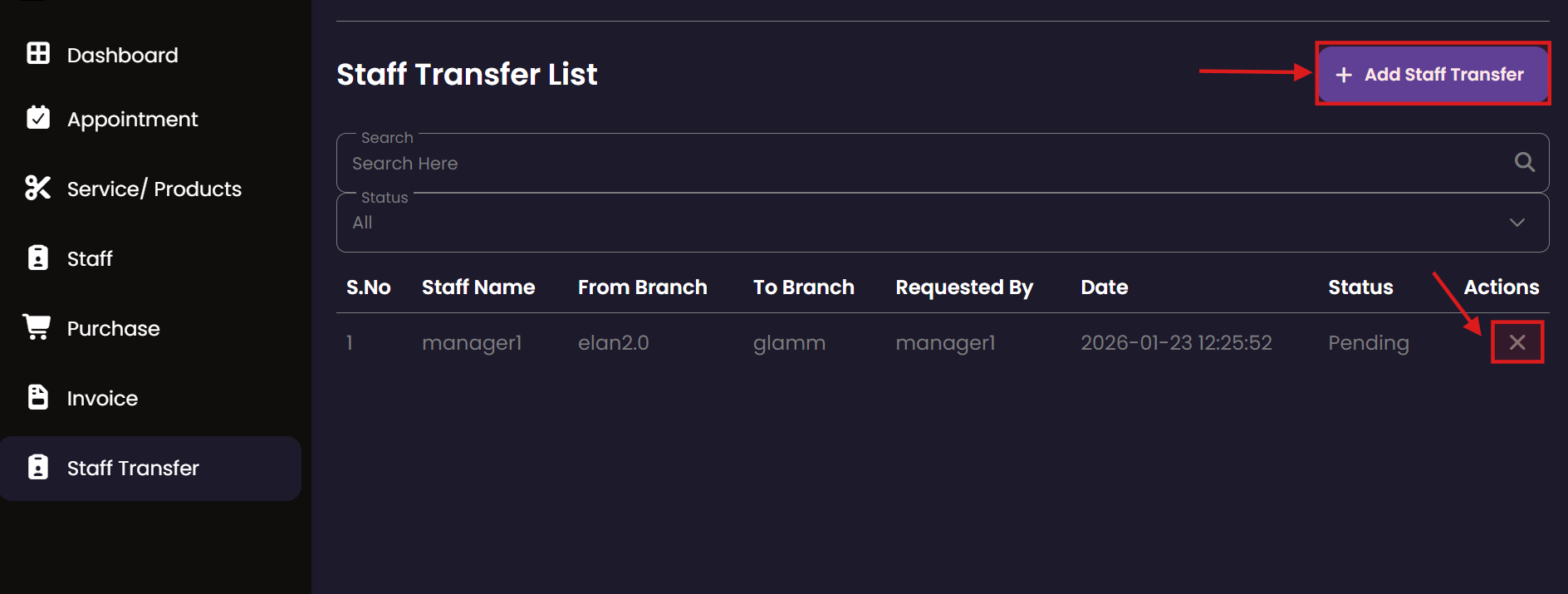
  • To apply a staff transfer, click Staff Transfer from the sidebar and then click the + Add Staff Transfer button (fig:staff_transfer1). A popup called Add Staff Transfer appears. Enter the required details and click the Create Staff Transfer button(fig:staff_transfer2).

Cancel Staff Transfer

  • If you want to cancel a staff transfer click the cross button of the staff transfer you want to reject. (fig:staff_transfer1)

Units

Review the measurement units used for billing and inventory. Billing staff can verify 'Units' to ensure that customers are billed correctly for variable services like hair care or massage durations.

Units Registry Create Unit Modify Unit
Create Unit

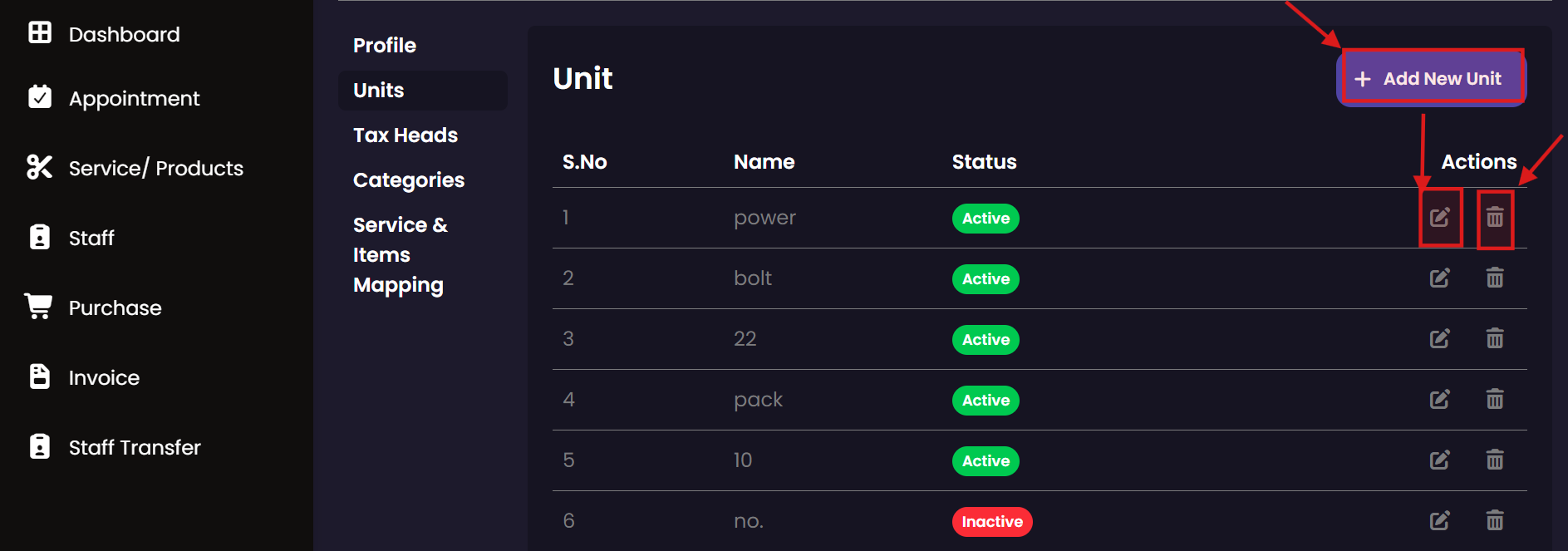
  • To create a unit, click Settings from the sidebar then click Units. Click the + Add New Unit button (fig:unit1). A popup called Add New Unit appears. Enter the required details and click the Create Unit button(fig:unit2).

Update Unit

  • If you want to update the details of a particular unit click the edit button (fig:unit1) of the corresponding unit , a new popup Edit Unit appears enter the required details and click the Update Unit button (fig:unit3).

Delete Unit

  • If you want to delete a particular unit click the delete button(fig:unit1) of the corresponding unit.

Tax Head

Monitor the tax regulations applicable to your billing transactions. Billing staff can review active tax heads to explain price breakdowns and inclusive/exclusive tax components to customers.

Tax Overview New Tax Head Update Tax Head
Create Tax Head

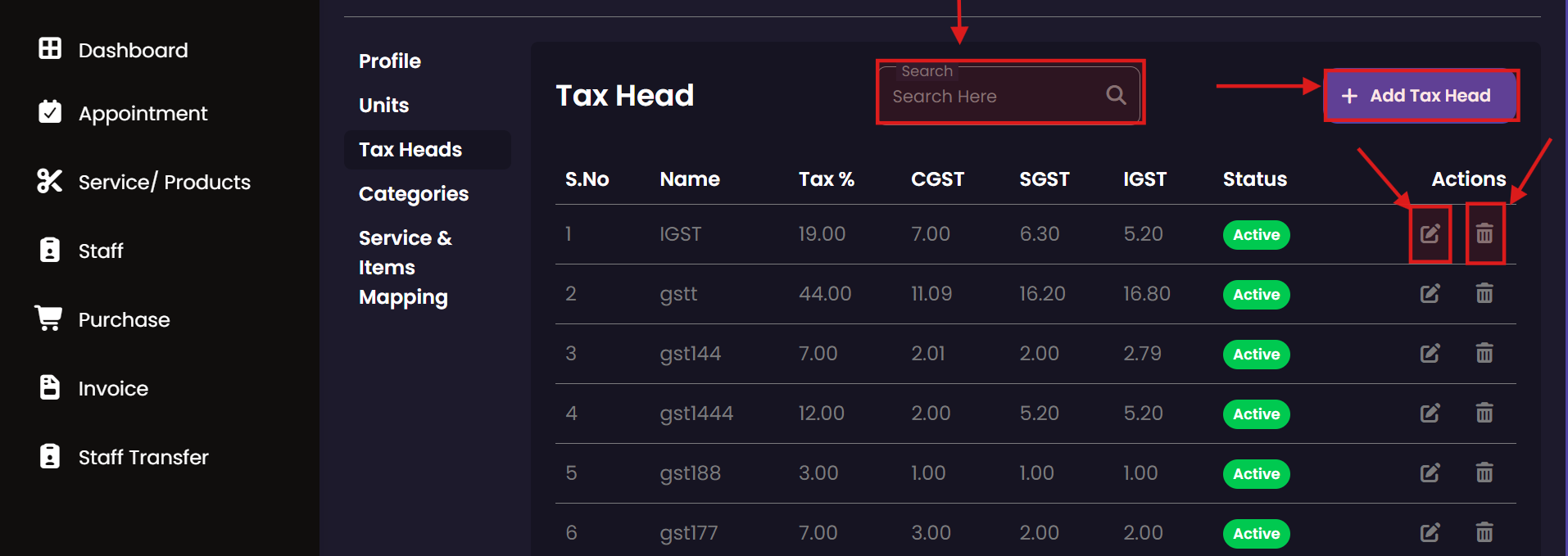
  • To create a tax head, click Settings from the sidebar then click tax heads. Click the + Add Tax Head button (fig:taxhead1). A popup called Add New Tax Head appears. Enter the required details and click the Create Tax Head button(fig:taxhead2).

Update Tax Head

  • If you want to update the details of a particular tax head click the edit button (fig:taxhead1) of the corresponding tax head , a new popup Edit Tax Head appears enter the required details and click the Update Tax Head button (fig:taxhead3).

Delete Tax Head

  • If you want to delete a particular tax head click the delete button(fig:taxhead1) of the corresponding tax head.

Search Tax Head

  • If you want to get tax heads based on the name of the tax head type the name in the search bar. (fig:taxhead1)

Category

Ensure that all billed items are correctly categorized according to the salon's menu. Proper categorization by billing staff ensures that revenue reports are accurate and reflect the correct business segments.

Billing Categories New Category Update Category
Create Category

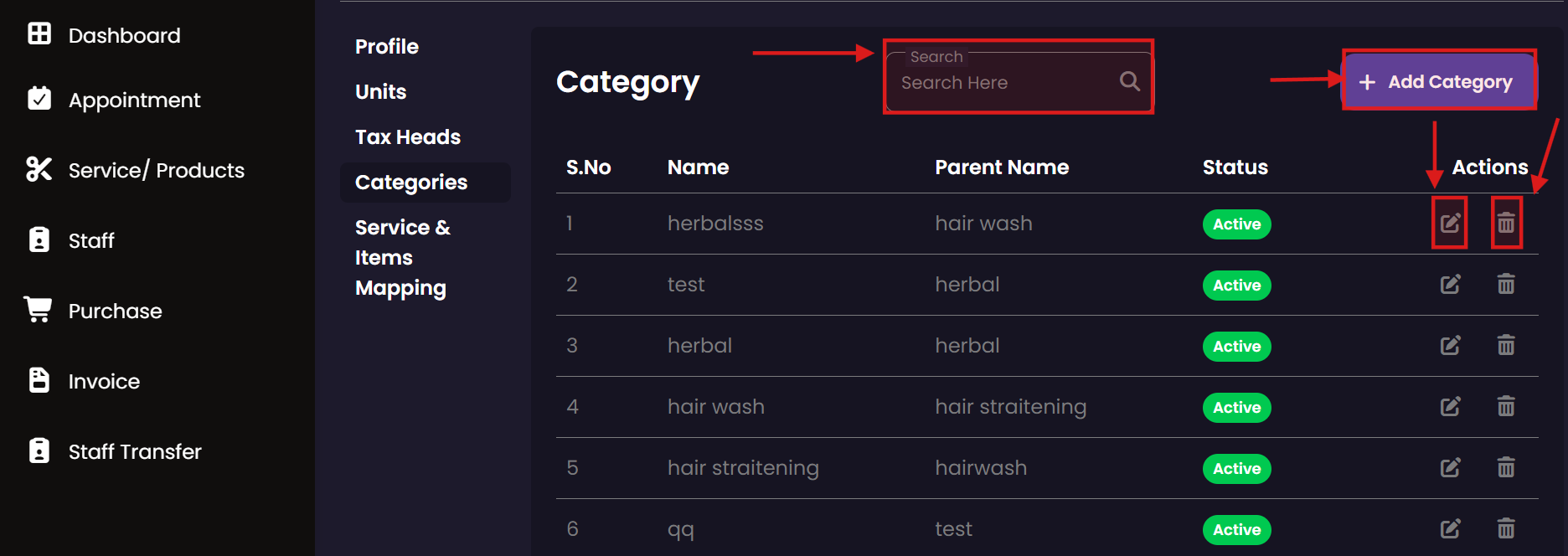
  • To create a category, click Settings from the sidebar then click Categories. Click the + Add Category button (fig:category1). A popup called Add New Category appears. Enter the required details and click the Create Category button(fig:category2).

Update Category

  • If you want to update the details of a particular category click the edit button (fig:category1) of the corresponding category , a new popup Edit Category appears enter the required details and click the Update Category button (fig:category3).

Delete Category

  • If you want to delete a particular category click the delete button(fig:category1) of the corresponding category.

Search Category

  • If you want to get Categories based on the name of the category type the name in the search bar. (fig:category1)

Service Item Mapping

Review the automatic item assignments for each service. Billing staff can verify these mappings to ensure that all necessary consumable items are correctly accounted for in the customer's final invoice.

Mapping Dashboard Create Mapping Update Mapping
Create Service Item Mapping

  • If an item is used in a service, you must create a service item mapping. The item will then be automatically assigned to the service without any manual assignment.
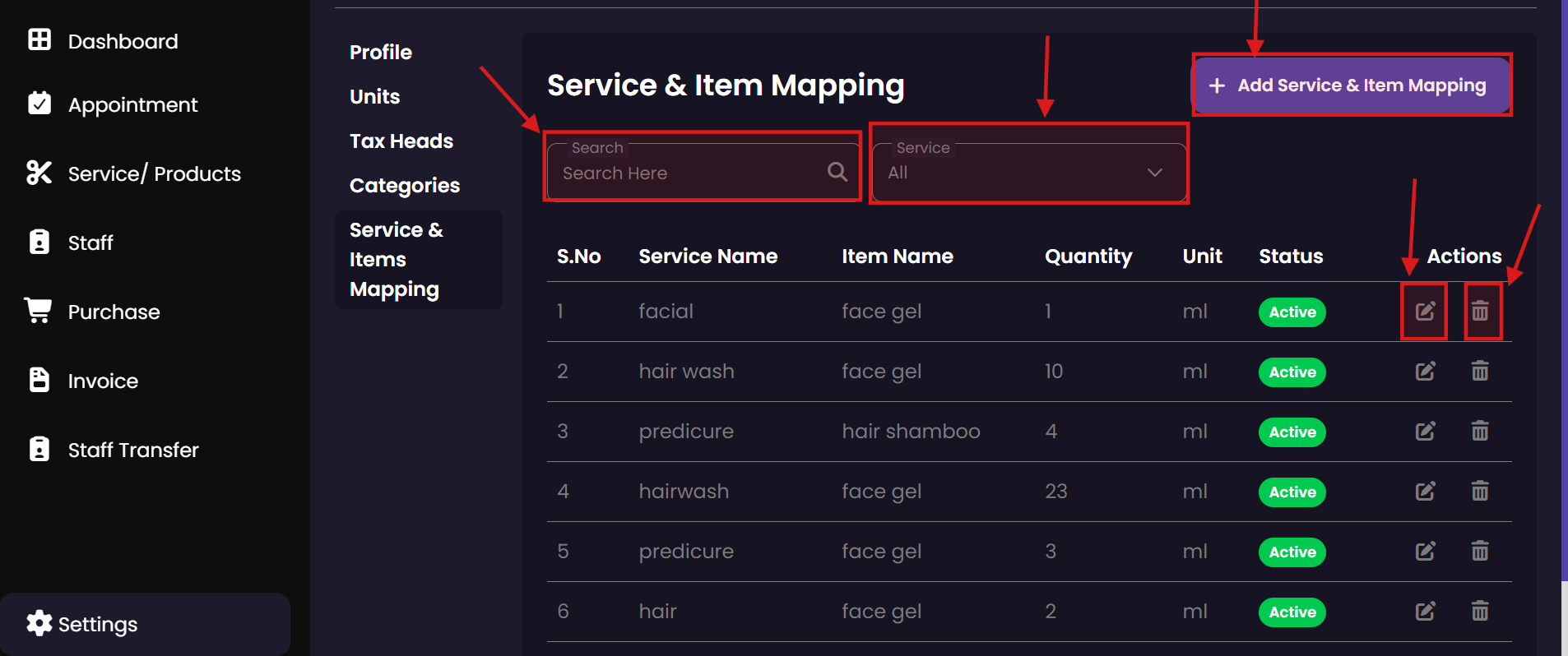
  • To create a service item mapping, click Settings from the sidebar then click Service & Items Mapping. Click the + Add Service & Item Mapping button (fig:service_item_mapping1). A popup called Add New Service & Item Mapping appears. Enter the required details and click the Create Mapping button(fig:service_item_mapping2).

Update Service Item Mapping

  • If you want to update the details of a particular service item mapping click the edit button (fig:service_item_mapping1) of the corresponding service item mapping , a new popup Edit Service & Item Mapping appears enter the required details and click the Update Mapping button (fig:service_item_mapping3).

Delete Service Item Mapping

  • If you want to delete a particular service item mapping click the delete button(fig:service_item_mapping1) of the corresponding service item mapping.

Search Service Item Mapping

  • If you want to get service item mapping based on the name of the service or item type the name in the search bar. (fig:service_item_mapping1).
  • If you want to get service item mapping based on the service click the required service from the Service drop down.

Profile

Manage your billing workstation user profile. Keep your contact details current and ensure your session security is maintained to provide interrupted service at the front desk.

Personal Profile

View Profile

  • To view the profile , click the settings in the side bar.

Dashboard

Monitor real-time billing activity and front-desk metrics. The Billing Staff dashboard provides a quick view of today's appointments, total sales, and pending invoices to help you stay organized.

Daily Billing Metrics
Dashboard

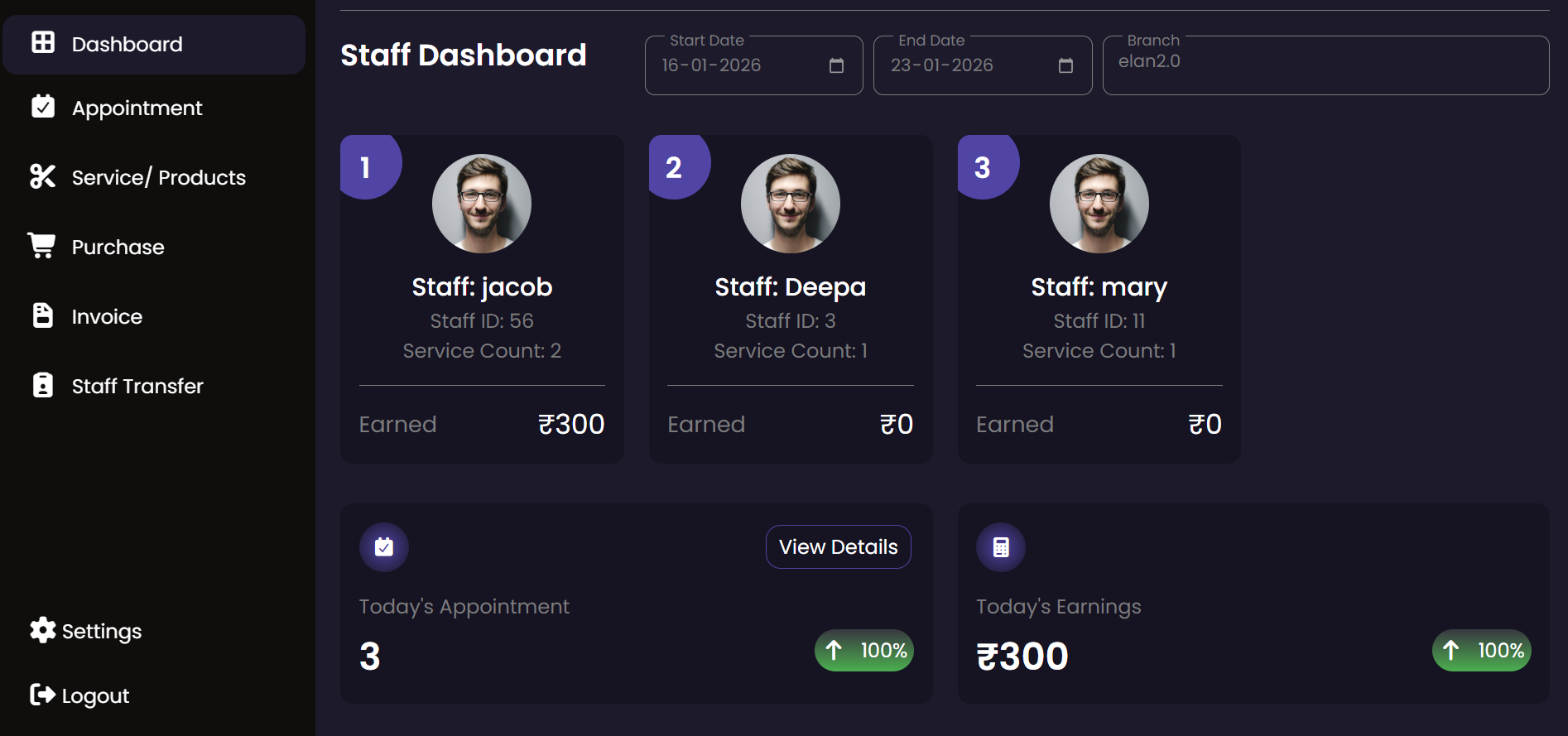
  • The dashboard displays staff performance (amount earned and services completed by each staff member), the total number of appointments for the current day, total earnings for the current day, out-of-stock products with their quantities, and the previous month’s employee performance.
  • You can modify the Start Date and End Date to view information for a specific period.

Inventory Staff Module

The Inventory Staff module is dedicated to stock and supply management. Inventory staff can track product levels, manage purchase entries from vendors, and handle stock transfers between branches to maintain optimal inventory levels.

Products/Services

Track the products and services available in the salon's central inventory. Inventory staff can review stock levels, examine product details, and ensure that all items are correctly categorized for easy retrieval.

Inventory View New Product/Service Update Stock Details
Create Product/Services

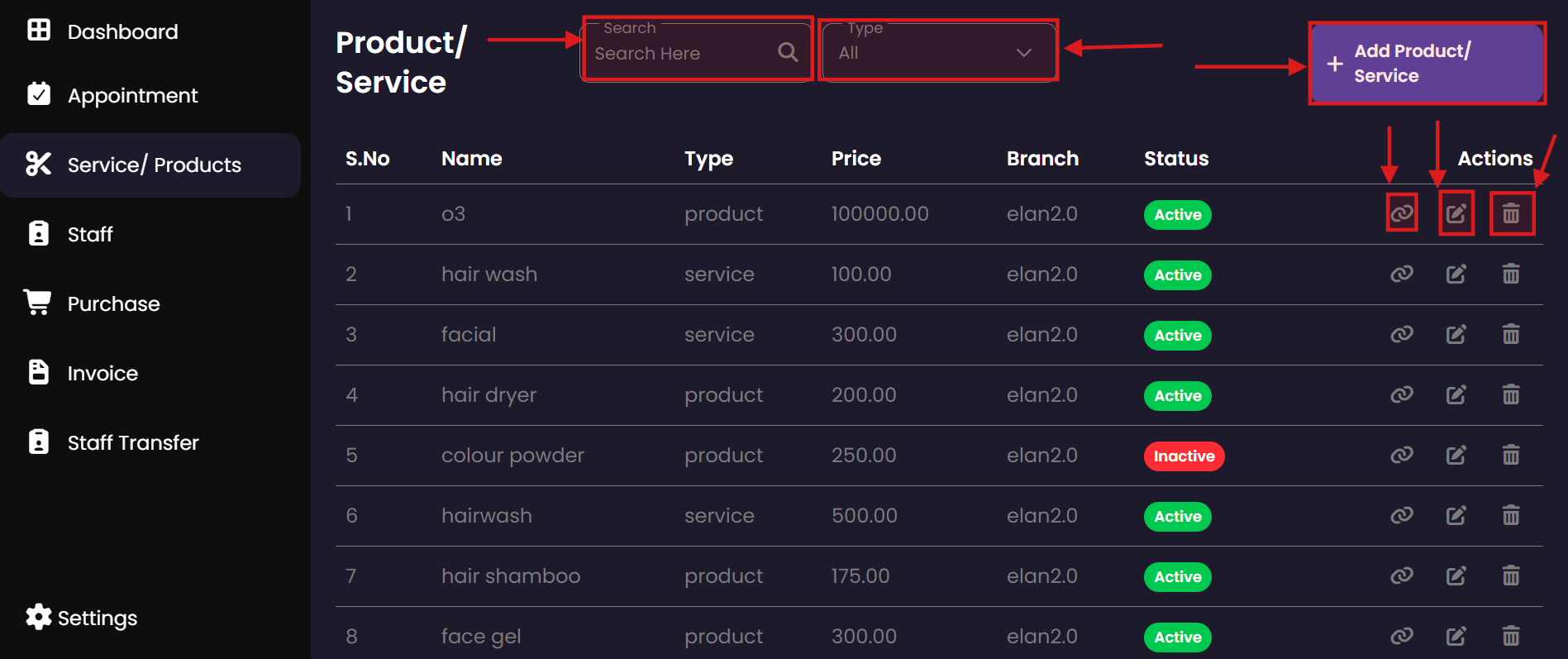
  • To create a product/service, click Service/Product from the sidebar and then click the + Add Product/ Service button (fig:pro/ser1). A popup called Add New Product/Service appears. Enter the required details and click the Create Product button.
  • To create a product, select Product from the Type drop-down. To create a service, select Service from the Type drop-down(fig:pro/ser2).
  • Note :
    • You must create category, tax head and unit first to create a product/service .
    • You cannot change the type of product/service once it is created

Update Product/Services

  • If you want to update a particular product click the edit button (fig:pro/ser1)of the corresponding product/service then a new popup Edit Product/Service appears enter the required details and click the Update Product button (fig:pro/ser3).

Delete Product/Service

  • If you want to delete a particular product or service click the delete button of the corresponding product or service.

Search Product/Service

  • If you want see either product or service select it from the Type dropdown .
  • If you want to select the product/ service based on the name type the name of the product or service in the Search Here search bar.

Service Item Mapping Product/Service

  • If a product or service is mapped to another item, click the Mapping button for that product or service to navigate to the service item mapping page and view its mappings. (Service Item Mapping Explanation : If a specific product is required to perform a particular service, that product must be mapped to the service)

Purchase

The primary tool for inventory replenishment. Inventory staff use this module to log all incoming product shipments, verify quantities from vendors, and ensure the stock database is updated upon arrival.

Purchase Records Enter New Stock Modify Purchase Purchase Details
Create Purchase

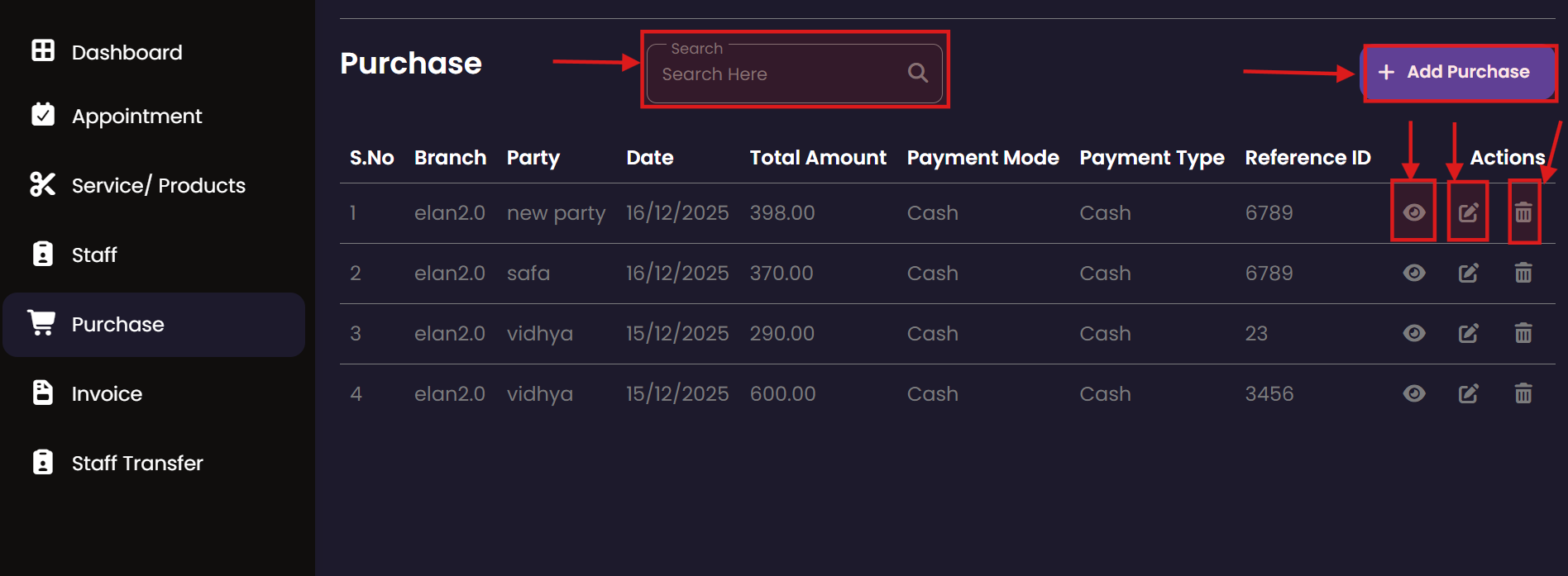
  • To make a purchase, click Purchase from the sidebar and then click the + Add Purchase button (fig:purchase1). You will be redirected to the New Purchase Entry page (fig:purchase2). Enter the required details and click the Submit button.
  • If the customer want to purchase more than one item in a single purchase , click the Add Item button under the Add Item section, enter the item details .
    • If you want to update any details of that item , click the update button of the corresponding item and click the Update Item button.
    • If you want to remove that item from the purchase then click the delete button of the corresponding item.
  • Note:
    • You must create a branch first to make purchase for a branch .
    • You have to create a product , only then the product will be listed in the Item drop down under the Add Item section.
    • Products under your branch will be listed in Item drop down.
    • If you are purchasing the product from a new party (vendor) then you have to click the + New Party button and enter the name of the new party.

Update Purchase

  • If you want to update a particular purchase click the update button (fig:purchase1). of the the corresponding purchase you want to update then you will be redirected to Update Purchase Entry page , enter the required details and click the Update button. (fig:purchase3).

Delete Purchase

  • If you want to delete a particular purchase click the delete button (fig:purchase1). of the corresponding purchase.

View Purchase

  • If you want to view the details of a particular purchase click view button(eye icon) (fig:purchase1). A popup Purchase Details appears (fig:purchase4).

Search Purchase

  • If you want to get a particular purchase based on the Party, Branch then type the corresponding detail in the search bar.

Staff Transfer

Manage the movement of stock and staff between branches. This module is essential for inventory staff to ensure that branch resources are balanced and that all transfer requests are properly documented.

Transfer Records Submit New Transfer

Create Staff Transfer

  • To apply a staff transfer, click Staff Transfer from the sidebar and then click the + Add Staff Transfer button (fig:staff_transfer1). A popup called Add Staff Transfer appears. Enter the required details and click the Create Staff Transfer button(fig:staff_transfer2).

Cancel Staff Transfer

  • If you want to cancel a staff transfer click the cross button of the staff transfer you want to reject. (fig:staff_transfer1)

Units

Standardize how product volumes and quantities are recorded. Inventory staff ensure that all stock items use the correct units of measurement to maintain precision in inventory counts and usage tracking.

Measurement Units Create Unit Update Unit

Create Unit

  • To create a unit, click Settings from the sidebar then click Units. Click the + Add New Unit button (fig:unit1). A popup called Add New Unit appears. Enter the required details and click the Create Unit button(fig:unit2).

Update Unit

  • If you want to update the details of a particular unit click the edit button (fig:unit1) of the corresponding unit , a new popup Edit Unit appears enter the required details and click the Update Unit button (fig:unit3).

Delete Unit

  • If you want to delete a particular unit click the delete button(fig:unit1) of the corresponding unit.

Tax Head

Track the tax classification for inventory and supply items. This helps inventory staff ensure that product costs are recorded with appropriate tax considerations for the salon's procurement reports.

Tax Classifications New Tax Head Modify Tax Head

Create Tax Head

  • To create a tax head, click Settings from the sidebar then click tax heads. Click the + Add Tax Head button (fig:taxhead1). A popup called Add New Tax Head appears. Enter the required details and click the Create Tax Head button(fig:taxhead2).

Update Tax Head

  • If you want to update the details of a particular tax head click the edit button (fig:taxhead1) of the corresponding tax head , a new popup Edit Tax Head appears enter the required details and click the Update Tax Head button (fig:taxhead3).

Delete Tax Head

  • If you want to delete a particular tax head click the delete button(fig:taxhead1) of the corresponding tax head.

Search Tax Head

  • If you want to get tax heads based on the name of the tax head type the name in the search bar. (fig:taxhead1)

Category

Organize the salon's stock room by classifying all items into logical categories. Effective categorization allows inventory staff to perform faster audits and maintain better control over specialized product lines.

Inventory Categories New Category Update Details

Create Category

  • To create a category, click Settings from the sidebar then click Categories. Click the + Add Category button (fig:category1). A popup called Add New Category appears. Enter the required details and click the Create Category button(fig:category2).

Update Category

  • If you want to update the details of a particular category click the edit button (fig:category1) of the corresponding category , a new popup Edit Category appears enter the required details and click the Update Category button (fig:category3).

Delete Category

  • If you want to delete a particular category click the delete button(fig:category1) of the corresponding category.

Search Category

  • If you want to get Categories based on the name of the category type the name in the search bar. (fig:category1)

Service Item Mapping

Maintain the link between services and the products required for them. This mapping helps inventory staff anticipate stock usage patterns based on the salon's appointment schedule.

Stock Mapping Create Mapping Update Mapping

Create Service Item Mapping

  • If an item is used in a service, you must create a service item mapping. The item will then be automatically assigned to the service without any manual assignment.
  • To create a service item mapping, click Settings from the sidebar then click Service & Items Mapping. Click the + Add Service & Item Mapping button (fig:service_item_mapping1). A popup called Add New Service & Item Mapping appears. Enter the required details and click the Create Mapping button(fig:service_item_mapping2).

Update Service Item Mapping

  • If you want to update the details of a particular service item mapping click the edit button (fig:service_item_mapping1) of the corresponding service item mapping , a new popup Edit Service & Item Mapping appears enter the required details and click the Update Mapping button (fig:service_item_mapping3).

Delete Service Item Mapping

  • If you want to delete a particular service item mapping click the delete button(fig:service_item_mapping1) of the corresponding service item mapping.

Search Service Item Mapping

  • If you want to get service item mapping based on the name of the service or item type the name in the search bar. (fig:service_item_mapping1).
  • If you want to get service item mapping based on the service click the required service from the Service drop down.

Profile

Access your inventory specialist profile. Keep your professional information up-to-date to ensure clear communication with branch managers and vendors regarding procurement and stock needs.

User Profile

View Profile

  • To view the profile , click the settings in the side bar.

Dashboard

Track warehouse performance and critical stock alerts. The Inventory dashboard highlights low-stock items, pending transfers, and overall supply trends to ensure the salon never runs out of essentials.

Inventory Analytics

Dashboard

  • The dashboard displays staff performance (amount earned and services completed by each staff member), the total number of appointments for the current day, total earnings for the current day, out-of-stock products with their quantities, and the previous month’s employee performance.
  • You can modify the Start Date and End Date to view information for a specific period.

Service Staff Module

The Service Staff module is designed for the practitioners performing the salon services. Service staff can view their assigned tasks, track service duration, record product usage during treatments, and manage their daily performance.

Job Service

Manage your daily service tasks from start to finish. This module allows service staff to see assigned bookings, record the commencement of a service, and log the completion once the customer has been served.

Tasks Overview Commence Service Record Completion Success Notification
Start Service

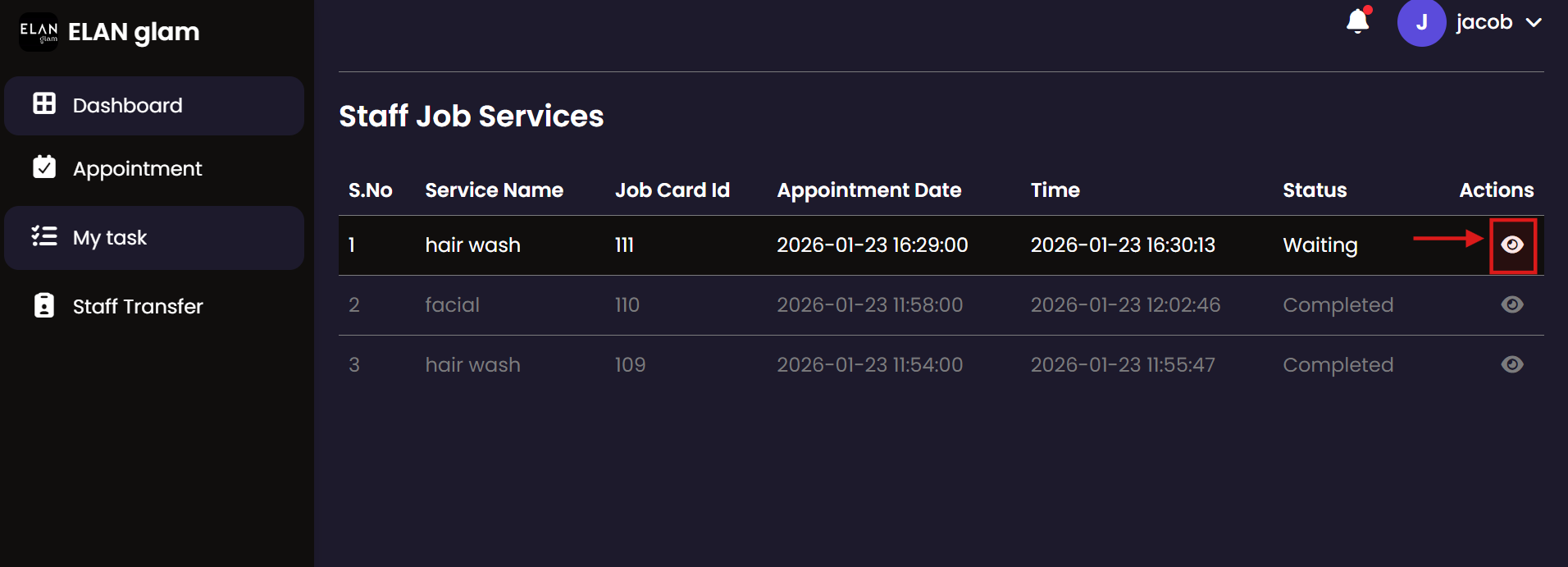
  • To start the service assigned to you click My Task from side bar then you will be redirected to Staff Job Services page. (fig:job_service1)
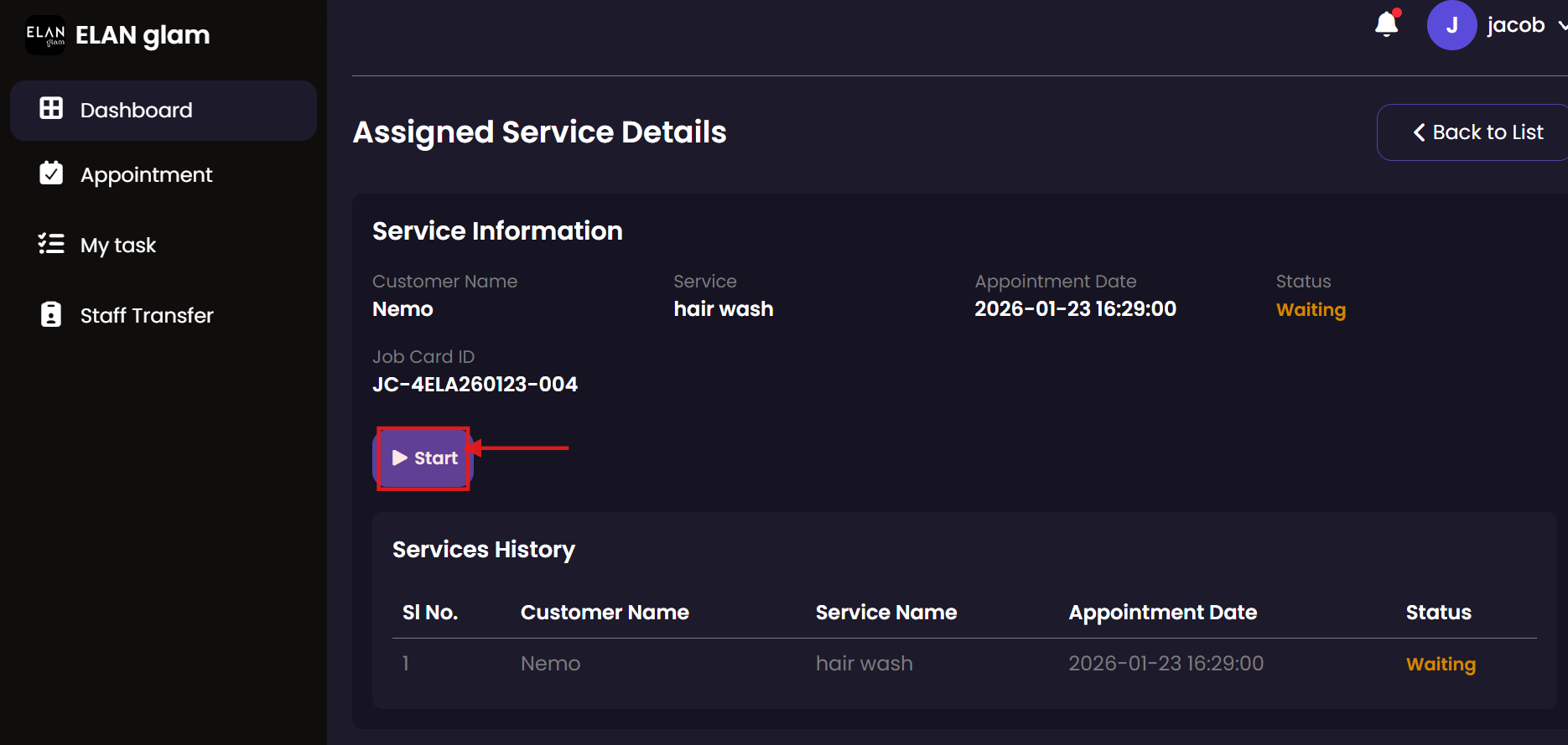
  • In the Staff Job Service page click view button then you can view the assigned service details , to start the assigned service click the Start button under Service Information section. (fig:job_service1)
  • Note: Admin , manager or the billing staff should create an appointment first so that the service staff get the task.

Assign Item and Stop Service

  • If any items are already mapped to the service through service item mapping, the item usage will automatically include those items and their quantities.
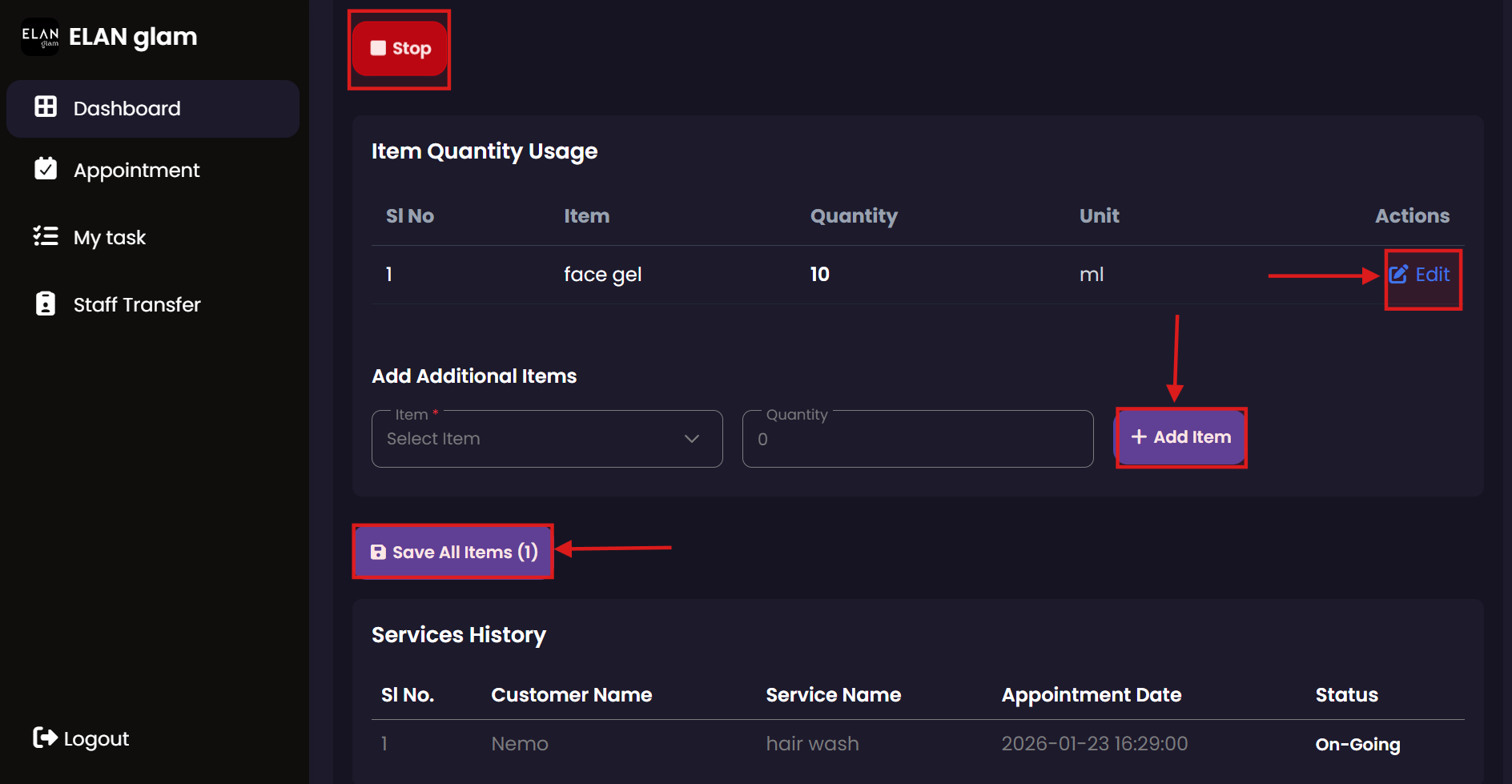
  • To add additional items for the service, enter the item and quantity, then click the + Add Item button . After adding all required items, click the Save All Items button. (fig:job_service1)
  • To update the quantity of an item, click the edit button corresponding to the item you want to modify, update the quantity, and then click the Update All Items button(Save All Items button will change to Update All Items button when you click the blue Edit button).
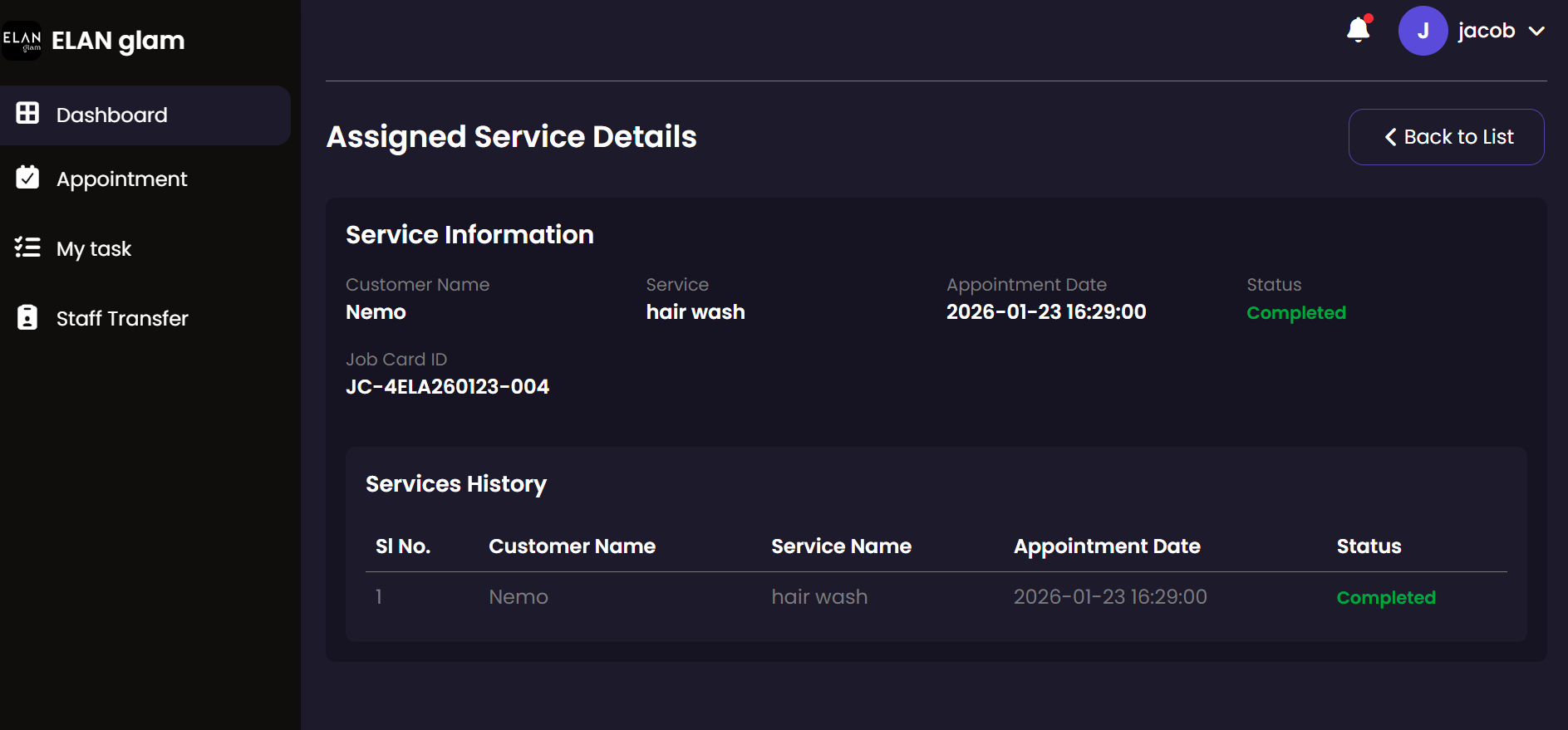
  • Click the Stop button(fig:job_service3) to end the service. The service status will then change to Completed (fig:job_service2).

Staff Transfer

Track your individual branch assignments and transfer history. As service staff, this module keeps you informed about your current location assignments and any upcoming transfers scheduled by management.

My Transfers Request New Transfer

Create Staff Transfer

  • To apply a staff transfer, click Staff Transfer from the sidebar and then click the + Add Staff Transfer button (fig:staff_transfer1). A popup called Add Staff Transfer appears. Enter the required details and click the Create Staff Transfer button(fig:staff_transfer2).

Cancel Staff Transfer

  • If you want to cancel a staff transfer click the cross button of the staff transfer you want to reject. (fig:staff_transfer1)

Dashboard

Monitor your professional activity and performance targets. The Service Staff dashboard provides personal insights into your completed tasks, hours logged, and contributions to the salon's overall service delivery.

Performance Dashboard

Dashboard

  • The dashboard displays staff performance (amount earned and services completed by each staff member), the total number of appointments for the current day, total earnings for the current day, out-of-stock products with their quantities, and the previous month’s employee performance.
  • You can modify the Start Date and End Date to view information for a specific period.